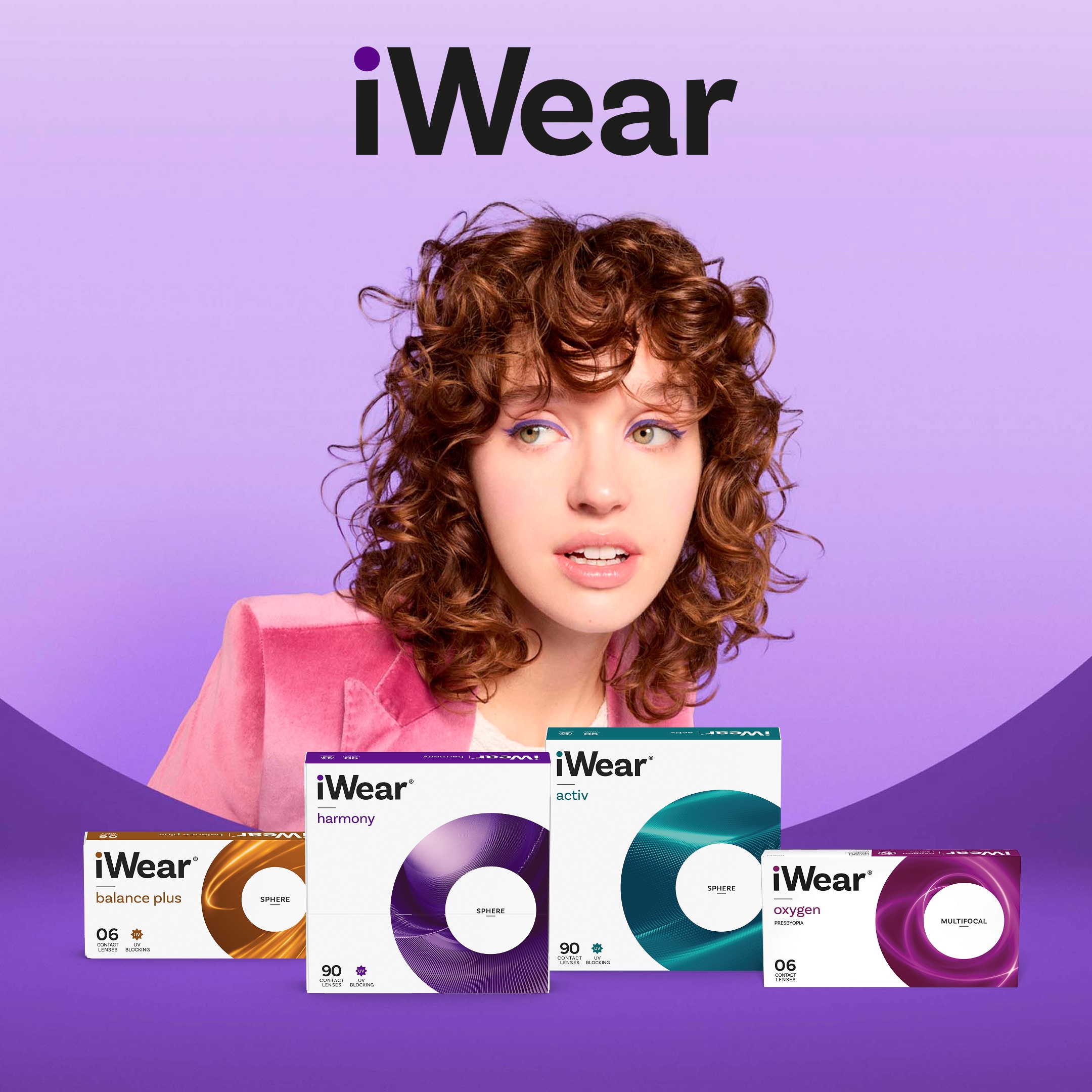






Reorder contact lenses in just one click
Place an order with your account today, and reorder your contact lenses in just one click next time.
emsName: DESK_Customer-service-faq_ESpot
Have a question and need an answer quickly? Search FAQs by keyword, or browse popular queries below.

+
Please contact our customer care center at 877.753.6727. The customer care center will contact your doctor to make this request.
+
For any questions you can reach our customer care center directly at 1-877-753-6727. Our LensCrafters.com website is open 24/7 for you to visit and shop online.
+
Please follow up directly with the store where you purchased your glasses and/or contact lenses to arrange pick-up or delivery
+
You can order a new pair on our website and we will ship them directly to your home with free shipping. Alternatively, you may visit your local LensCrafters store.
+
You can order more contact lenses from your local LensCrafters location or order on-line at LensCrafters.com and we will ship them directly to your home as well as you can call the customer care center and order by phone at 1-877-753-6727
+
Yes, we accept most vision insurance plans including FSA and HSA.
+
Please contact the store where you made your purchase to arrange pickup. In the event your store is temporarily closed, please call the customer care center at 1-877-753-6727 to determine viable options.
+
Our products are made in one of our Luxottica-owned plants in either the U.S., Italy or China depending on the product. When our products leave our factory, they are packed and shipped by a carefully trained staff member after undergoing extensive checks.
+
There are many studies that associate prolonged computer use with eye strain and discomfort. Ocular surface dryness (due to infrequent blinking) can result in symptoms. To minimize this, you should follow the 20-20-20 rule: take a break every 20 minutes and look at an object 20 feet away for at least 20 seconds. You can also change your computer display brightness, increase font size and minimize glare with proper lighting.
+
LensCrafters accepts many insurance plans at our stores and online. Some of the providers plans we accept are EyeMed Vision Care; and most major vision care insurance plans, including Anthem Blue Cross Blue Shield, Aetna, Humana and many more. To view a listing of LensCrafters - accepted vision insurance plans, please visit our Insurance page. As always, it 's best to confirm your benefits with your insurance plan provider. Independent Doctors of Optometry* may accept different insurance plans and should be contacted directly. To find a store near you, you can use the Find a Store locator or call our customer care representatives (1-877-7-LENSCRAFTERS or 1-877-753-6727). *Eye exams available at the independent doctor of optometry at or next to LensCrafters. Doctors in some states are employed by LensCrafters. In California, eye exams are available at LensCrafters locations from independent doctors of optometry at or next to LensCrafters. The optometrists are not employed by LensCrafters, which does not provide eye exams. *In California, eye exams are available at LensCrafters locations from Providers of EYEXAM of California, a licensed vision health care service plan.
+
Emails are sent immediately upon request, but it's normal for it to take about 15 minutes to get to
your inbox.
1. Proofread the email address to look for an incorrectly typed address: Do we have your correct
email address? Just a single miss - typed
letter will cause an email to go to the wrong address. Double check that it's been entered
correctly.
2. Check your Spam / Junk folder: Sometimes mail from an unknown sender gets filtered out and lands
in your Spam folder. If you find emails
from LensCrafters in your Spam, just add us to your email contacts or safe senders list (LC @ e -
lenscrafters.com). This will make sure
that mail from LensCrafters is recognized by your mail server and delivered to your inbox.
3. Look into your Firewall, Content Filter, or Email Security Policy: see if your firewall, content
filter or virus scan is blocking our
email notifications .Ask your Internet Service Provider (ISP) or corporate IT department if emails
from [Lenscrafters.com] be added to the
email white list to make sure that LensCrafters messages aren't blocked.
+
It may be possible to re - use your frames, but it depends on their condition, your particular prescription, and the lenses and options you choose.Even when frames are in perfect condition, removing old lenses and replacing them with new lenses is stressful on a frame.Most frames that have been worn for a period of time are not in perfect condition simply due to normal wear and tear.Small cracks and weak points occasionally develop that cannot be seen with the naked eye.Our store associates have received extensive training on how to evaluate eyeglass frames and determine the potential risk of breakage as a result of the manufacturing process.Please visit your nearest LensCrafters and they will be able to provide you a definitive answer.Use the Find a Store locator to help find the store nearest you.
+
Glasses can take from 3 - 7 days, depending on the prescription, special finishes, etc. We are committed to providing your eye wear in the least amount of time possible without sacrificing our high - quality standards.To accommodate the many product enhancements that are now available, special processing is sometimes required.These orders are typically processed within 7 - 14 business days.Depending on the location where you make your purchase and the complexity of your order, it may be possible to craft your glasses in less time using manufacturing techniques available in an in - store lab.Our in - store associates will let you know at the time of purchase how long it will take to get your glasses.
+
The information you supply in the six(6)fields during the Add Now function must match exactly with that used to record your purchase at the LensCrafters store.If your address or last name has changed, you must go to a LensCrafters store to update the information on file.Also, if you did not provide a birthdate to the LensCrafters store associate when your information was recorded in store, then the Add Now function will not successfully synchronize with your search.
+
Each Independent Doctor of Optometry * located at or next to LensCrafters sets their own pricing for
exams and other services.For detailed
pricing information, please call or visit the Doctor 's office at your local LensCrafters store. You
can also use the Find a Store
locator.
*Eye exams available at the independent doctor of optometry at or next to
LensCrafters. Doctors in some states are
employed by LensCrafters. In California, eye exams are available at LensCrafters locations from
independent doctors of optometry act or next
to LensCrafters or from licensed optometrists employed by EYEXAM of California, a licensed vision
health care service plan. In California,
the optometrists are not employed by LensCrafters, which does not provide eye exams.
+
In select locations, we may be able to make your glasses same-day or in about an hour. The ability to do so depends upon your particular prescription, the frame you choose, the lenses and options you select, and whether the store you visit has an onsite lab. If you are looking for same-day service, please let our store associates know so they can direct you toward options that they may be able to complete in-house. To accommodate the many product enhancements that are now available, special processing is sometimes required. These orders are typically processed within 7-14 business days.
+
If you don't love your new glasses or prescription sunglasses for any reason, and they are in original condition, you can replace or return them for a full refund within 30 days of the date of dispense. Applies only to the original purchase. This guarantee does not cover accidental damage, scratches, breakage or theft. To find frames that suit your style, use the Find a Store locator to find the store nearest you or call our customer care representatives (1-877-7LENSCRAFTERS or 1-877-753-6727).
+
LensCrafters is happy to offer minor repairs and replacement of screws or nosepads at no cost. We encourage you to contact or visit your local LensCrafters store. Our skilled eyewear consultants will be able to assess if your glasses can be repaired. Use the Find a Store locator to find the nearest LensCrafters location or call our customer care representatives (1-877-7-LENSCRAFTERS or 1-877-753-6727).
+
While we are not a participating provider on VSP®'s network, we will take care of submitting
your out-of-networks claims documentation
directly to VSP® when you visit our stores. Whether your insurance is in or out of network, we
can check your plan to see what savings
you are eligible for and process your benefits.
*Eye exams available at the independent
doctor of optometry at or next to
LensCrafters. Doctors in some states are employed by LensCrafters. In California, eye exams are
available at LensCrafters locations from
independent doctors of optometry act or next to LensCrafters or from licensed optometrists employed
by EYEXAM of California, a licensed
vision health care service plan. In California, the optometrists are not employed by LensCrafters,
which does not provide eye exams.
+
The Eyewear Protection Plan (EPP) displays next to your eyewear purchase for your reference only, simply indicating that you bought the EPP. Its presence should not be used to assume that the EPP is still valid.
+
Our One-Year Eyewear Protection Plan offers coverage if your eyewear is damaged from handling and/or normal wear-and-tear. The protection plan can be purchased for $34.99 (single vision) or $44.99 (progressive) when you order your glasses and coverage begins on the day you buy. If your glasses become broken or damaged, simply bring them into your nearest LensCrafters location, make a $25 copay for either frame or lens service ($50 for both services), and we will repair or replace them for one full year from the original date of purchase. Limitations and exclusions apply. The One-Year Eyewear Protection Plan does not cover lost or stolen eyewear. Learn more about our One-Year Eyewear Protection Plan
+
No, the ability to add and view Prescription and Purchase History is only available to customers who have created an account on LensCrafters' website.
+
LensCrafters accepts CareCredit as a method of payment in all retail locations within the United States and Puerto Rico (Excluding LensCrafters Optiques inside of Macy' s).To apply, please visit www.CareCredit.com.Doctor offices affiliated with LensCrafters * may participate with the CareCredit program to assist their patients with payment options and plans to cover vision needs.Each optometric location should be contacted directly to see if they accept CareCredit. * Eye exams available at the independent doctor of optometry at or next to LensCrafters.Doctors in some states are employed by LensCrafters.In California, eye exams are available at LensCrafters locations from independent doctors of optometry act or next to LensCrafters or from licensed optometrists employed by EYEXAM of California, a licensed vision health care service plan.In California, the optometrists are not employed by LensCrafters, which does not provide eye exams.
+
We are happy to accept any current, valid prescription from a licensed optometrist or ophthalmologist.You do not need to have an exam * with an Independent Doctor at a LensCrafters location in order to purchase glasses.However, it is important to schedule an annual eye exam in order to ensure the health of your eyes.You can schedule your annual eye exam with an Independent Doctor of Optometry * & amp; # 160;at LensCrafters online by clicking on Schedule an Eye Exam and entering your preferred location. * Eye exams available at the independent doctor of optometry at or next to LensCrafters.Doctors in some states are employed by LensCrafters.In California, eye exams are available at LensCrafters locations from independent doctors of optometry act or next to LensCrafters or from licensed optometrists employed by EYEXAM of California, a licensed vision health care service plan.In California, the optometrists are not employed by LensCrafters, which does not provide eye exams.
+
If you need to reschedule or cancel an eye exam with an Independent Doctor of Optometry * at a LensCrafters location, you can call your Independent Doctor of Optometry * directly or contact our customer care representatives(1 - 877 - 7 - LENSCRAFTERS or 1 - 877 - 753 - 6727).Use the Find a Store locator to find your optometrist 's contact information.*Eye exams available at the independent doctor of optometry at or next to LensCrafters. Doctors in some states are employed by LensCrafters. In California, eye exams are available at LensCrafters locations from independent doctors of optometry act or next to LensCrafters or from licensed optometrists employed by EYEXAM of California, a licensed vision health care service plan. In California, the optometrists are not employed by LensCrafters, which does not provide eye exams.
+
Lens cost will vary depending upon lens material, features, and your particular prescription. We will be happy to accurately estimate the cost of your lenses at your local LensCrafters store once we know what your prescription is, and what kind of lenses you are looking for. To find the store nearest you, use the Find a Store locator or call our customer care representatives (1-877-7-LENSCRAFTERS or 1-877-753-6727).
+
During a contact lens fitting, the curve and diameter of your eyes are measured in order to ensure you receive lenses that fit accurately and work well for your vision correction needs and lifestyle. If you have not previously worn contact lenses, training will be provided to show you have to put your lenses in, take them out, and properly store and care for them. At the end of the exam*, you will receive trial contact lenses to wear for a set period of time, and then you must return to see the Independent Doctor of Optometry* for a follow-up visit to ensure the contact lenses are not causing any issues. Once the Independent Doctor* determines that the brand and prescription you are wearing are a good match for your vision needs, they will finalize your prescription and you are free to order a supply of contact lenses. To schedule a contact lens exam* and fitting with an Independent Doctor of Optometry at LensCrafters* online, click on Schedule Eye Exam and enter your location. If you prefer to schedule your exam over the phone, please contact our customer care representatives (1-877-7-LENSCRAFTERS or 1-877-753-6727) or the Independent Doctor's office at the location you wish to visit. If you' d like a same - day appointment, please contact the Independent Doctor of Optometry directly for immediate assistance.To schedule a contact lens exam and fitting with an Independent Doctor of Optometry at LensCrafters * online, click on Schedule Eye Exam and enter your location.If you prefer to schedule your exam over the phone, please contact our customer care representatives(1 - 877 - 7 - LENSCRAFTERS or 1 - 877 - 753 - 6727)or the Doctor's office at the location you wish to visit.If you 'd like a same-day appointment, please contact the Independent Doctor of Optometry directly for immediate assistance.*Eye exams available at the independent doctor of optometry at or next to LensCrafters. Doctors in some states are employed by LensCrafters. In California, eye exams are available at LensCrafters locations from independent doctors of optometry act or next to LensCrafters or from licensed optometrists employed by EYEXAM of California, a licensed vision health care service plan. In California, the optometrists are not employed by LensCrafters, which does not provide eye exams.
+
Most LensCrafters stores support the filing of your Medicare coverage, as well as accept many Medicare Advantage plans. This differs dependent on your insurance company, so be sure to confirm at your local LensCrafters before making a purchase. Independent Doctors of Optometry* may accept Medicare or Medicaid. Please contact the Doctor's office at the LensCrafters location you to wish to visit to find out if they accept your coverage. Use the ' Find a Store ' locator to help find the contact information of your optometrist or call our customer care representatives (1-877-7-LENSCRAFTERS or 1-877-753-6727).*Eye exams available at the independent doctor of optometry at or next to LensCrafters. Doctors in some states are employed by LensCrafters. In California, eye exams are available at LensCrafters locations from independent doctors of optometry act or next to LensCrafters or from licensed optometrists employed by EYEXAM of California, a licensed vision health care service plan. In California, the optometrists are not employed by LensCrafters, which does not provide eye exams.
+
LensCrafters has partnered with Synchrony Bank to provide the CareCredit credit card. To protect your privacy, Synchrony Bank does not provide us access to any information pertaining to your account. To make a payment or ask a question about your account, please contact Synchrony Bank at 1-866-396-8254 or visit their online website at mysynchrony.com (U.S. customers only).
+
If your vision should change within 30 days after purchasing your glasses, simply bring in your updated prescription and we'll be happy to make lenses with your new prescription at no additional cost.
+
We love seeing all of our customers in-store, whether it’s for purchase or for a tune-up. Anytime
you need an adjustment* or cleaning,
contact us at your nearest LensCrafters store and say hello. We’ll be happy to help.
*Certain LensCrafters locations may not be able to adjust your particular frame. Please
contact your local LensCrafters to inquire.
+
Only prescriptions used for a corresponding purchase at LensCrafters will be displayed in Your
Account.
*Eye exams available at
the independent doctor of optometry at or next to LensCrafters. Doctors in some states are employed
by LensCrafters. In California, eye
exams are available at LensCrafters locations from independent doctors of optometry act or next to
LensCrafters or from licensed
optometrists employed by EYEXAM of California, a licensed vision health care service plan. In
California, the optometrists are not employed
by LensCrafters, which does not provide eye exams.
+
During an exam*, your optometrist* will test your sight, check your eye health and look for any
signs of general health problems. If your
eyes are not 20/20, your doctor* will check for near-and-far-sightedness. Then, the optometrist will
put you through a series of tests
designed to catch eye conditions and diseases early, such as glaucoma and cataracts. At the end of
the examination*, your doctor will review
your prescription and allow you to ask questions. Your doctor* may make specific product
recommendations and recommend when your next
appointment should be. If you need medical treatment for an eye condition, you may be referred to a
doctor or hospital. For more information
about what to expect at your doctor's office, visit our vision guide.
*Eye exams available at the independent doctor of optometry at or next to LensCrafters. Doctors in
some states are employed by LensCrafters.
In California, eye exams are available at LensCrafters locations from independent doctors of
optometry act or next to LensCrafters or from
licensed optometrists employed by EYEXAM of California, a licensed vision health care service plan.
In California, the optometrists are not
employed by LensCrafters, which does not provide eye exams.
+
Common causes of scratches to the eye's surface (corneal abrasions) are getting poked in the eye or getting a speck of dust or sand in the eye. Corneal abrasions are very uncomfortable and cause redness and severe sensitivity to light. If your eye has been cut or scratched, don't hesitate to visit an eye doctor or an emergency room/urgent care center immediately to seek treatment.** For more information on eye care, visit our vision guide.
+
Our consumer warranty repair center services most of the brands we sell. The repair center can be reached at 1-800-343-5594.
+
The term Plano refers to a lens with no vision correction. Plano eyeglass lenses are available with
the same great options as prescription
lenses, including tints and anti-reflective coating. When you order plano lenses online, you will
receive what we call the demo lens in the
frame. Plano contact lenses are available for those who want to enhance or change their eye color (a
contact lens exam* or a valid
prescription are required in order to purchase contact lenses, even those with no vision
correction).
*Eye exams available at the
independent doctor of optometry at or next to LensCrafters. Doctors in some states are employed by
LensCrafters. In California, eye exams
are available at LensCrafters locations from independent doctors of optometry act or next to
LensCrafters or from licensed optometrists
employed by EYEXAM of California, a licensed vision health care service plan. In California, the
optometrists are not employed by
LensCrafters, which does not provide eye exams.
+
Annual eye exams* are usually recommended for adults, but it depends on your eye health. Consult
with your eye doctor about your particular
situation. Children's needs vary by age. Read here for more information.**
*Eye exams available at the independent doctor of optometry at or next to LensCrafters. Doctors in
some states are employed by LensCrafters.
In California, eye exams are available at LensCrafters locations from independent doctors of
optometry act or next to LensCrafters or from
licensed optometrists employed by EYEXAM of California, a licensed vision health care service plan.
In California, the optometrists are not
employed by LensCrafters, which does not provide eye exams.
+
Yes, all LensCrafters stores carry gift cards that can be purchased in any denomination and used at any one of our locations . We encourage you to call or visit your local LensCrafters store for further assistance or to purchase a gift card. You can use our online locator by clicking Find a Store or call our customer care representatives (1-877-7-LENSCRAFTERS or 1-877-753-6727) for assistance. Please note, gift cards can only be redeemed in store.
+
To receive a copy of your purchase receipt, please Contact Us or visit your nearest LensCrafters store. Use the Find a Store locator to help find the contact information of the store nearest you.
+
The one-year limited warranty was only valid in California and displays next to your eyewear purchase for your reference only. Its presence should not be used to assume the limited warranty is still valid.
+
Photochromic lenses are lenses that darken automatically when exposed to ultra-violet sunlight (UV). Because UV is the activator for photochromic lenses, most do not work well while in a car. Transitions is a brand name of a specific type of photochromic lens that we are pleased to offer our customers.
+
Dilation is part of a comprehensive exam, but not a basic eye exam. You'll want to check with your doctor's office about the types of exams available.
+
Only prescription eyeglasses, sunglasses, and contact lenses purchased at a LensCrafters store and
recorded by an associate will display in
your purchase history. Purchases of accessories, readers, and any other items not recorded with an
associate in-store are not displayed in
Your Account. Items purchased from an Independent Doctor of Optometry* will not appear under
Purchase History.
*Eye exams
available at the independent doctor of optometry at or next to LensCrafters. Doctors in some states
are employed by LensCrafters. In
California, eye exams are available at LensCrafters locations from independent doctors of optometry
act or next to LensCrafters or from
licensed optometrists employed by EYEXAM of California, a licensed vision health care service plan.
In California, the optometrists are not
employed by LensCrafters, which does not provide eye exams.
+
Of course! We can fit your glasses with non-corrective, clear lenses for which no prescription is required. When you find that perfect pair, click on 'Add frame only to bag' and proceed to checkout. If you have any difficulty, feel free to give our customer care agents a call at (1-877-7-LENSCRAFTERS or 1-877-753-6727). They can walk you through the process.
+
Of course! If you have a valid prescription you can always use it at LensCrafters, either online or in stores - no matter where you got it. Just be sure to check the expiration date, as entering an expired prescription may result in your online order being canceled.
+
Most LensCrafters-affiliated independent or employed doctors* are medical doctors that specialize in
the eye.**
*Eye exams
available at the independent doctor of optometry at or next to LensCrafters. Doctors in some states
are employed by LensCrafters. In
California, eye exams are available at LensCrafters locations from independent doctors of optometry
act or next to LensCrafters or from
licensed optometrists employed by EYEXAM of California, a licensed vision health care service plan.
In California, the optometrists are not
employed by LensCrafters, which does not provide eye exams.
+
There are two general types of lenses: soft and rigid gas permeable. Based on your vision health and
lifestyle needs, your optometrist will
recommend the contact lenses that are most appropriate for you. Soft contact lenses are comfortable
and made of flexible plastics that allow
oxygen to pass through to the cornea. Users get accustomed to wearing them within several days. Most
soft-contact wearers are prescribed
some type of frequent replacement schedule. An example of this is a schedule that calls for the
lenses to be replaced with new ones after
two weeks of use with lenses removed nightly for cleaning. Rigid Gas Permeable (RGP) lenses are
durable, resistant to deposit buildup, and
generally allow for clear, crisp vision. They last longer than soft contacts, and also are easier to
handle and less likely to tear.
However, they may take a few weeks of getting used to. Other specific common types of lenses:
Extended Wear Contacts are good for overnight
or continuous wear ranging from one to six nights, or up to 30 days. It's important for your eyes to
go without lenses for at least one
night following each scheduled removal. Disposable (Replacement Schedule) Contacts. Some soft
contacts referred to as 'disposable' by
sellers are actually worn on a frequent replacement schedule-for two weeks, for example-that
requires them to be disinfected between uses.
Based on your vision health and lifestyle needs, your optometrist can recommend the contact lenses
that are most appropriate for you.**
*Eye exams available at the independent doctor of optometry at or next to LensCrafters. Doctors in
some states are employed by LensCrafters.
In California, eye exams are available at LensCrafters locations from independent doctors of
optometry act or next to LensCrafters or from
licensed optometrists employed by EYEXAM of California, a licensed vision health care service plan.
In California, the optometrists are not
employed by LensCrafters, which does not provide eye exams.
+
Your eye care provider can tell you when your prescription expires. If your prescription came from
an Independent Doctor of Optometry* at or
next to a LensCrafters store, simply contact them directly. If your prescription came from another
optometrist, you'll need to contact that
doctor for more details about your prescription. You can find your Independent Doctor of
Optometry's* contact information by using the Find
a Store locator or calling our customer care representatives (1-877-7-LENSCRAFTERS or
1-877-753-6727).
*Eye exams available at
the independent doctor of optometry at or next to LensCrafters. Doctors in some states are employed
by LensCrafters. In California, eye
exams are available at LensCrafters locations from independent doctors of optometry act or next to
LensCrafters or from licensed
optometrists employed by EYEXAM of California, a licensed vision health care service plan. In
California, the optometrists are not employed
by LensCrafters, which does not provide eye exams.
+
That really depends on your vision health. Your doctor will provide a recommendation for when you should return.**
+
Typically, you can use FSA dollars for vision care products and services, but every FSA plan is different, so it's important to take a good look at yours before you start your FSA 'shopping.'
+
Anti-reflective, or AR, is a durable coating that is applied to the lenses to help eliminate reflections off the lens surface. AR coating allows more light to pass through the lens and helps makes your lens look invisible.
+
No, the ClarifyeSM eye exam* doesn't cost any more.
*Eye exams available at the
independent doctor of optometry at or next to
LensCrafters. Doctors in some states are employed by LensCrafters. In California, eye exams are
available at LensCrafters locations from
independent doctors of optometry act or next to LensCrafters or from licensed optometrists employed
by EYEXAM of California, a licensed
vision health care service plan. In California, the optometrists are not employed by LensCrafters,
which does not provide eye exams.
+
Eyeglasses and contact lenses will have different prescriptions. This is mainly due to the fact that
contact lenses are positioned directly
on your eye, while your eyeglasses sit further away. To update your prescription, schedule an eye
exam* at LensCrafters today.
*Eye
exams available at the independent doctor of optometry at or next to LensCrafters. Doctors in some
states are employed by LensCrafters.
In California, eye exams are available at
LensCrafters locations from independent doctors of optometry act or next to LensCrafters or
from licensed optometrists employed by EYEXAM of California, a licensed vision health care
service plan. In California, the optometrists
are not employed by LensCrafters, which does not provide eye exams.
+
Our promotions cannot be combined or used in conjunction with any vision care, or insurance benefits or insurance plans, any store or other offer, discount or sale, previous purchases, readers or non-prescription sunglasses. Our knowledgeable associates are more than happy to determine whether your vision benefits or our in-store promotion would offer you more savings. If our in-store promotion saves you the most money, and LensCrafters is an in-network provider for your plan, you may be able to self-submit a claim to your insurance company for reimbursement. It's always best to check your benefits with your plan provider. If you have further questions, we encourage you to call or visit your local store. To find the LensCrafters nearest to you, please use our Find a Store locator or call our customer care representatives (1-877-7-LENSCRAFTERS or 1-877-753-6727).
+
PD stands for pupillary distance- which is the space between the centers of your pupils. This number tells the lens maker where to put the optical center for your glasses. Measuring your PD can be tricky, but we've got instructions to make it easier: How To Measure Pupillary Distance.
+
An optometrist is commonly known as an eye doctor who conducts eye examinations. An optician is the person who helps you choose and adjust properly fitting eyewear such as glasses and contact lenses.
+
The Independent Doctor of Optometry* who wrote your prescription can request trial contact lenses
for you. Use the Find a Store locator to
help find the contact information of your optometrist or call our customer service representatives
(1-877-7-LENSCRAFTERS or
1-877-753-6727).
Please note: A current contact lens fitting must be on file for contact lenses.
*In
California, eye exams are available at LensCrafters locations from licensed optometrists
employed by EYEXAM of California, a
licensed vision health care service plan, or from Independent Doctors of Optometry at select
locations. The optometrists are not
employed by LensCrafters, which does not provide eye exams. Eye Exams are available by
Independent Doctors of Optometry at or next to
LensCrafters in most states. Doctors in some states are employed by LensCrafters.
+
Each LensCrafters location offers a unique selection of eyewear that is regularly updated to offer
you the latest collection of styles and
trends. To find a nearby store that carries a certain frame you are interested in, please use our
Find a Store locator and enter your city,
state, and the frame you want. To find the nearest store that carries a specific model of eyewear
you found on our website, please enter
your zip code in the search box on the page that the glasses are displayed on. You can also call or
visit the LensCrafters store in your
area to see if they carry the specific eyewear you're looking for or call our customer care
representatives (1-877-7-LENSCRAFTERS or
1-877-753-6727).
*Please note: Not all frames can be found in every store. Please check
availability ahead of time.
+
Depending on the situation, seek advice from your eye doctor or an emergency care facility.**
+
A progressive lens, also known as a no line bifocal, provides distance, near and intermediate vision. This is designed to gives you much more natural vision.
+
The same prescription can be used with clear or sun lenses. The prescription associated with individual purchases is displayed under Purchase History.
+
We accept returns within 30 days of receipt if the Items are in their original condition and undamaged. To request an exchange or replacement item, please contact us by phone at 1-877-753-6727 or chat now. To request a refund, please visit https://www.luxotticacustomercare.com/lenscrafters/returns to submit your request or you may visit any LensCrafters store location. For online returns, a prepaid shipping label will be emailed to you, ready to be printed and attached to your packed return.
+
Online orders can be returned to any store location within 30 days of receipt for a refund. If you prefer an exchange or replacement, please contact us by phone at 1-877-753-6727 or chat now.
+
If an order is cancelled, any payment authorizations are reversed, and you won't be charged. If the cancellation is for an exchange order, the payment from your original order will also be refunded. You may submit a new order or contact us for assistance.
+
Your brain needs time to adapt to any new prescription. This can take 2-3 days for Single Vision
lenses and 3-5 days for Progressive lenses.
Use them gradually until you become comfortable. Please contact our customer service team after that
time period if you still have problems
adapting to your new lenses.
You should not experience blurred vision, eyestrain or headaches during the adjustment period. If
you experience any of these, we recommend
calling customer care on (1-877-7-LENSCRAFTERS or 1-877-753-6727).
+
Progressive lenses have different viewing zones so that adjustments can be made for both near and far vision. To move from looking at a distance to reading, move your eyes down the lens rather than lowering your head. Clarity might be slightly different in different areas of the lens, especially in the periphery. You might experience some distortion on the sides of the lenses. To look at something to the side, slightly turn your head to make sure you use the central portion of the lens. Play with these movements to learn how to maximize clarity for different uses.
+
If the prescription on your new glasses doesn’t feel right, click here for
advice on what’s normal and what to
look out for during the adjustment period.
If the prescription needs to be updated, give customer care a call at (1-877-7-LENSCRAFTERS or
1-877-753-6727) and one of our agents can
help with next steps, whether that be a return or stopping in your nearest store for an adjustment.
+
Your prescription might have been optimized. This means that it was adjusted to work best with the frame you selected. It also means it might be slightly different from your original prescription. If your prescription was optimized, you will have received an additional document with your glasses. Be sure to share this with your Doctor in case you want your glasses to be inspected, but keep in mind this may differ from your actual prescription.
+
A bifocal lens provides two focal points, one for near and one for distance. These may have a distinct line for showing the location of the bifocal.
+
Yes. Using the LensCrafters.com eye exam* scheduler, you can schedule an exam with the independent
doctor of optometry* for you and your
family. Select 'add another exam' at the bottom of the form to book an exam for additional family
members.
*Eye exams available
at the independent doctor of optometry at or next to LensCrafters. Doctors in some states are
employed by LensCrafters. In California, eye
exams are available at LensCrafters locations from independent doctors of optometry act or next to
LensCrafters or from licensed
optometrists employed by EYEXAM of California, a licensed vision health care service plan. In
California, the optometrists are not employed
by LensCrafters, which does not provide eye exams.
+
To be removed from our mailing list, please call our customer care representatives (1-877-7-LENSCRAFTERS or 1-877-753-6727). Please allow two to three months for your request to be processed as our marketing partners store their materials for delivery in advance.
+
Polarized lenses help improve clarity while allowing for enhanced depth perception and visual acuity by reducing the glare from reflective surfaces. Additional benefits include glare reduction, contrast enhancement and reduced strain on your eyes.
+
You can send your prescription in three ways; The easiest way, and quickest for processing your order, is to text or upload a photo of your prescription. You will find instructions how to do this in the cart process. We also offer the option of leaving your details and doctor information and we will call to verify. We like to let people know this can add more time to your order being processed, since we will need to get a hold of the doctor for details. If you have any questions about sending your prescription in, please call us at (1-877-7-LENSCRAFTERS or 1-877-753-6727).
+
OneSight's mission is to help people in need see their world more clearly. However, OneSight does not select their recipients. All recipients are pre-screened for visual and financial need by a partnering 501 (c) (3) non-profit organization. To request assistance through OneSight, please visit the OneSight website or call OneSight at 1-888-935-4589.
+
If your new glasses are loose, uneven or uncomfortable to wear, contact us at your nearest
LensCrafters, Target Optical, Sunglass Hut,
Ray-Ban or Oakley store to have your frames adjusted*. You can also give us a call on
(1-877-7-LENSCRAFTERS or 1-877-753-6727) and we’ll
help get your glasses just right.
*Certain LensCrafters locations may not be able to adjust your particular frame. Please
contact your local LensCrafters to inquire.
+
It all depends on the prescription. We offer single vision lenses ranging from +8 to a -14 for our online customers. We recommend the LC-HD lens if you don't want to see a thick lens outside of your frame. If you prescription is outside of this range, or you have multifocal needs, come see us at your nearest store and we will get you in the perfect pair.
+
Yes! You can pick your lenses, color, and add your prescription right in the cart. At this time we are not offering prescription Oakley® lenses for online purchase.
+
Yes. Your eyes, and your vision, can change from year to year, plus, eye exams can catch early signs
of diseases like diabetes or glaucoma
and even high blood pressure. A regular eye examination* should be part of your health routine, even
if you're not experiencing vision
problems.**
*Eye exams available at the independent doctor of optometry at or next to
LensCrafters. Doctors in some states are
employed by LensCrafters. In California, eye exams are available at LensCrafters locations from
independent doctors of optometry act or next
to LensCrafters or from licensed optometrists employed by EYEXAM of California, a licensed vision
health care service plan. In California,
the optometrists are not employed by LensCrafters, which does not provide eye exams.
+
Only contact lenses purchased at a LensCrafters store will display in Your Account on the LensCrafters website. Information about contacts purchased through LensCraftersContacts.com is stored in a different system. Contact lenses purchased from the Independent Doctors of Optometry* located next to LensCrafters also would not appear under Purchase History.*Eye exams available at the independent doctor of optometry at or next to LensCrafters. Doctors in some states are employed by LensCrafters. In California, eye exams are available at LensCrafters locations from independent doctors of optometry act or next to LensCrafters or from licensed optometrists employed by EYEXAM of California, a licensed vision health care service plan. In California, the optometrists are not employed by LensCrafters, which does not provide eye exams.
+
We offer purchases of sunglass frames with their demo lenses. If you want the frame with the lens you see, select, 'Add a Lens' then select 'Plano' for the lens option. Once you are in the cart, select, 'I Don't Need a Prescription' and fill in the rest of the information.
+
Visit: www.LensCrafters.com/Clarifye to find the list of cities where Clarifye is located and
available eye exam times.
*Eye
exams available at the independent doctor of optometry at or next to LensCrafters. Doctors in some
states are employed by LensCrafters. In
California, eye exams are available at LensCrafters locations from independent doctors of optometry
act or next to LensCrafters or from
licensed optometrists employed by EYEXAM of California, a licensed vision health care service plan.
In California, the optometrists are not
employed by LensCrafters, which does not provide eye exams.
+
LensCrafters is committed to advanced technology and providing the best doctors and associates to
deliver a comprehensive eye exam*. The
goal of an annual eye exam* is to address vision needs and overall eye health. All LensCrafters
doctors* have the training and tools to
provide you with a great eye exam* experience and accurate prescription.
*Eye exams
available at the independent doctor of
optometry at or next to LensCrafters. Doctors in some states are employed by LensCrafters. In
California, eye exams are available at
LensCrafters locations from independent doctors of optometry act or next to LensCrafters or from
licensed optometrists employed by EYEXAM of
California, a licensed vision health care service plan. In California, the optometrists are not
employed by LensCrafters, which does not
provide eye exams.
+
We accept all major credit cards for online payments: Visa®, American Express®, MasterCard® and Discover. We also accept PayPal, Affirm, Cash App Afterpay and Klarna.
+
Optomap® is a digital retinal scan that allows your eye doctor to examine your eyes without dilating them. After your eyes are scanned, Optomap® creates a color, internal 'map' of your eyes. Your doctor will use these images to gain a better picture of your overall eye health and prescribe you the best prescription possible.
+
We offer a selection of lenses for optical, sun, blue light defense, and lenses that go from light to dark on our website. You will find lenses from our FeatherWates® family, HD Hi-Index, Totallens, and Transitions. Options to spruce up your lenses include anti-glare (AR), different colors for sun lenses, and polished edges to keep you seeing your best. Visit our lenses page to learn more about all our lenses:
+
It depends on your individual situation. Keep in mind that after the examination, your close-up vision may remain blurred for several hours. It is best to avoid driving after having your eyes dilated.**
+
LensCrafters carries a variety of quality lenses to meet almost every need. Whether you're interested in new prescription lenses, photochromic (clear-to-dark) lenses, or polarized sun lenses, we can help you find the best lenses that fit your lifestyle and budget. Visit our Lenses page under the Product section of our website to browse our full range of lenses.
+
Ultraviolet radiation is very harmful to our eyes. Even though we cannot see it around us it is there, a good pair of sunglasses can protect our eyes from damage. Glasses that have a deep dark tint to them do not necessarily have a lot of UV protection. The UV rating should be marked somewhere on the (plano) glasses in order for you to tell how protective they are. Prescribed sun lenses UV blockage is noted on the customer paperwork in the lab that manufactures them. Sunglasses with a rating of UV400 are the best** and they have been tested to block out 99-100% of UVA and UVB rays. Even with sunglasses on you should never look directly into the sun. UVA does the 'aging' damage, UVB does the 'burning' damage. For more information on ultraviolet light, please visit our vision guide.
+
Nearsightedness (also known as myopia) occurs when objects close up remain clear, and objects in the distance are blurry. Farsightedness (also known as hyperopia) is when objects close up are blurry, but those in the distance are clear. When looking at your prescription, a plus sign next to the numbers means you're farsighted, and a minus sign means you're nearsighted. Visit a LensCrafters store for more help understanding your prescription
+
A valid contact lens prescription is required in order to purchase any type of contact lenses, even
if you do not need them for vision
correction. A contact lens fitting will measure the curve and diameter of your eye, and help ensure
the health of your eyes, so you can feel
confident about an accurate fit. If a lens is not properly fitted, it can shift, causing irritation,
scratching, or other problems. You can
schedule an eye exam with an Independent Doctor of Optometry* at LensCrafters online by clicking on
Schedule Eye Exam and entering your
location. If you prefer to schedule your exam over the phone, please contact our customer care
representatives (1-877-7-LENSCRAFTERS or
1-877-753-6727) or the Doctor's office at the location you wish to visit. If you'd like a same-day
appointment, please contact the
Independent Doctor of Optometry* directly for immediate assistance.
*Eye exams available
at the independent doctor of optometry
at or next to LensCrafters. Doctors in some states are employed by LensCrafters. In California, eye
exams are available at LensCrafters
locations from independent doctors of optometry act or next to LensCrafters or from licensed
optometrists employed by EYEXAM of California,
a licensed vision health care service plan. In California, the optometrists are not employed by
LensCrafters, which does not provide eye
exams.
+
Your eyes can sometimes be affected by conditions you were born with or those that develop as you
grow older. Help keep your eyes healthy by
not smoking and eating lots of green, leafy vegetables. Vision problems can occur at any time, but
you are more likely to develop problems
if you are over 40, because conditions like glaucoma, macular degeneration and cataracts are more
frequent in older people, as are dry eye
and low vision. Diabetes poses special eye health problems at any age, so be sure to share your
condition with your eye doctor if you have
it or develop it in later years.
**Your eyes can sometimes be affected by conditions you
were born with or those that develop as
you grow older. Help keep your eyes healthy by not smoking and eating lots of green, leafy
vegetables. Vision problems can occur at any
time, but you are more likely to develop problems if you are over 40, because conditions like
glaucoma, macular degeneration and cataracts
are more frequent in older people, as are dry eye and low vision. Diabetes poses special eye health
problems at any age, so be sure to share
your condition with your eye doctor if you have it or develop it in later years.** For more
information on age specific eye health, please
visit our vision guide.
+
Generally, children should have their vision checked at 6 months, 3 years, and before first grade. These exams should be done during preventative pediatrician visits using a preschool eye screening. All children should also be screened for lazy eye at age four to five. If your children have not been screened, or if you notice they're having problems with vision, squinting, headaches or other symptoms, then consider taking them to an eye doctor for an eye examination.**
+
Understanding your face shape can help you find the best frames to flatter your look. For example, round frames tend to look best on square faces because they help soften the features, while rectangular frames can help a round face appear longer and slimmer. If you're not sure which eyeglasses fit your face shape, use our face shape tool for recommendations hand-picked for you. You can even upload your own photo for a perfect match. Click here to go to our face shape guide now.
+
The LensCrafters ClarifyeSM eye exam* takes approximately 30 minutes.
+
Refunds normally take 5 working days but may take longer depending on your bank. If you feel like it's been too long, please give customer care a call at (1-877-7-LENSCRAFTERS or 1-877-753-6727) and one of our agents will check on the progress of your return.
+
It's our goal to carry a broad selection of quality eyeglass and sunglass brands that offer the
perfect mix of comfort, style and
cutting-edge designs. We carry brands such as Chanel, RayBan, Tiffany, and Bulgari, and offer a
variety of styles and selection for men,
women and kids. To view a complete list of our brands, please view the Brands page that appears
under the Style section of our website.
*Please
note: Not all brands can be found in every store. Please check availability ahead of time.
+
Dry eye occurs when eyes don't produce tears properly, or when tears aren't the correct consistency and evaporate too quickly. Dry eye can make performing some activities, such as using a computer or reading for an extended period of time, more difficult.** For more information about dry eyes please visit our vision guide.
+
Follow the care directions inside your box of contacts to avoid possible vision problems. Disposable, extended-wear soft lenses are easy to upkeep, while conventional soft lenses need extensive care. If you have a hard time following the cleaning steps, tell your eye care professional. You may be able to simplify the steps, or you may want to switch to disposable lenses.**
+
Yes, we do. LensCrafters carries Rec Specs Sports Goggles that can be fitted with almost any prescription.
+
Yes, you can order your contact lenses direct from the contacts.lensCrafters.com website. We offer a wide variety of contact lenses at competitive prices, including disposable soft contact, bifocal/multifocal, toric, and colored lenses. You can buy your contact lenses in bulk or purchase only what you need and have them delivered straight to your door. You'll even get free shipping.
+
Only customers who are 18 or older can add their own purchase and prescription history in Your Account.
+
Not yet. Ray-Ban® authentic lenses can be made in your prescription in-store.
+
Responsible Shipping is free (up to 7 days), Ground shipping is free (3-5 days) and Express is $18.99. Just a reminder, the shipping time begins after your order has been processed and manufactured. If you have any questions about shipping, give customer care a call at (1-877-7-LENSCRAFTERS or 1-877-753-6727).
+
Responsible shipping is fulfilled by logistics providers using solutions to reduce emissions.
Delivery may take up to (00) business days.
This shipping option consists of either:
1. Full ground service: shipments served via truck. Transportation emissions are reduced by
exclusively using ground transportation instead
of other available shipping modes with higher emissions. Not applicable to destinations that do not
have such other shipping modes; other
exclusions may apply.
2. Emission compensation program (if provided by selected transportation carriers): providers
calculate carbon emissions from pickup to
delivery; the carbon emissions are then offset through climate protection projects including
reforestation, renewable energy, waste
disposal, wind power and others, supported by the logistics providers. The carbon neutral service is
verified by a certified auditing
company (i.e. Société Générale de Surveillance).
Below the list of the logistics providers that can provide emissionscompensation:
- UPS (itself or in partnership with USPS):
https://about.ups.com/us/en/our-company/governance/carbon-neutral-credentials.html
- DHL (itself or in partnership with USPS):
https://www.dhl.com/us-en/home/press/press-archive/2021/dhl-launches-100-percent-carbon-neutral-us-domestic-product.html
*Some exclusions may apply.
+
After age 40, your doctor* may add specific tests for glaucoma, for example, or be on the lookout
for signs of macular degeneration or
cataracts. Be sure to share your changing medical history as you age.**
*Eye exams available at the independent doctor of optometry at or next to LensCrafters. Doctors in
some states are employed by LensCrafters.
In California, eye exams are available at LensCrafters locations from independent doctors of
optometry act or next to LensCrafters or from
licensed optometrists employed by EYEXAM of California, a licensed vision health care service plan.
In California, the optometrists are not
employed by LensCrafters, which does not provide eye exams. For more information please visit our
vision guide.
+
Age-related macular degeneration (AMD) is one of the leading causes of vision loss for people over 50. It occurs when the delicate cells of the macula - the small, central part of the retina responsible for the center of our field of vision - become damaged and stop working. There are two types of AMD: the 'dry' form and the more severe 'wet' form. Dry AMD is the mostmore common, developing over time and usually causing only mild loss of vision. The wet form accounts for 10 to 15 per cent of all AMD, but the risk of sight loss is much greater. Because macular degeneration is an age-related process, both eyes are usually affected, but not always at the same time. For more information about macular degeneration please visit our vision guide.
+
Recommended wear time is different depending on your type of contact lenses. Always consult your eye doctor for specific instructions.**
+
Once you have added Purchase and Prescription History into Your Account, the birthdate used to retrieve that information becomes an integral part of Your Account and is stored permanently for future reference.
+
Not yet. But our team is hard at work to make this a possibility, and make it an even better experience than you'll find anywhere.
+
Yes, select stores are open on Easter Sunday. Please call ahead to confirm the store hours.
+
OneSight is a family of charitable vision care programs dedicated to improving vision through outreach, research and education. Since 1988, these charitable efforts have provided free vision care and eyewear to more than seven million people in need around the world and have granted millions of dollars towards optical research and education. To learn more about OneSight, please visit the OneSight website or call OneSight at 1-888-935-4589.
+
The prescription information listed under Prescriptions and Purchase History is for reference purposes only.
+
LensCrafters is committed to advanced technology and providing the best doctors* and associates to
deliver a comprehensive eye exam*. With
over 1000 locations, we have not finalized the details on when the remaining locations will receive
ClarifyeSM. While ClarifyeSM is not
currently available at this location, you can be assured that with our digital retinal exam,
Optomap® (where available), not only will
you end up with a comprehensive eye exam*, but a great fitting pair of glasses (if
needed).
*Eye exams available at the
independent doctor of optometry at or next to LensCrafters. Doctors in some states are employed by
LensCrafters. In California, eye exams
are available at LensCrafters locations from independent doctors of optometry act or next to
LensCrafters or from licensed optometrists
employed by EYEXAM of California, a licensed vision health care service plan. In California, the
optometrists are not employed by
LensCrafters, which does not provide eye exams.
+
Redeeming your Eyewear Protection Plan is as simple as a call to our customer service center. To get the process started, give us a call at (1-877-7-LENSCRAFTERS or 1-877-753-6727) and let the agent know you need to return your item and have purchased an Eyewear Protection Plan. Depending on what the nature of the issue is with your eyewear will determine how the protection plan will be executed.
+
We don't, but if you're looking for Tag Heuer, we think you'll love the refined style, timeless design and exceptional craftsmanship in designer eyewear from Persol® or Giorgio Armani.
+
You can! We are happy to introduce online shopping for single vision customers. Please check back with us soon for multifocal, bifocal, and insurance purchasing on our website. To find the nearest store that carries a specific model of eyewear on our website, please enter your zip code in the search box on the page that the glasses are displayed on. You can also call or visit the LensCrafters store in your area to see if they carry the specific frame you're looking for or call our customer care representatives (1-877-7-LENSCRAFTERS or 1-877-753-6727).
+
To update your address on our mailing list, please call our customer care representatives (1-877-7-LENSCRAFTERS or 1-877-753-6727). Please allow two to three months for your request to be processed as our marketing partners store their materials for delivery in advance.
+
You can schedule an eye exam* with an Independent Doctor of Optometry at LensCrafters® online by
clicking on Schedule Eye Exam and
entering your location. Input your contact information, choose a desired date, and click 'Book Exam'
to confirm your appointment. If you
prefer to schedule your exam over the phone, please contact our customer care representatives
(1-877-7-LENSCRAFTERS or 1-877-753-6727) or
the Doctor's office at the location you wish to visit.
* Eye exams available at the
independent doctor of optometry at or next to
LensCrafters. Doctors in some states are employed by LensCrafters. In California, eye exams are
available at LensCrafters locations from
independent doctors of optometry act or next to LensCrafters or from licensed optometrists employed
by EYEXAM of California, a licensed
vision health care service plan. In California, the optometrists are not employed by LensCrafters,
which does not provide eye exams.
+
To cancel or make changes to your order, please Contact Us. Most purchases may only be canceled or modified within an hour of placing your order. Alternatively, you may request to return your order within 30 days after its been delivered.
+
You can take advantage of our current in-store promotions without printing anything. Our knowledgeable associates will be able to assist you. If you have further questions, you can call or visit your local LensCrafters store or call our customer care representatives (1-877-7-LENSCRAFTERS or 1-877-753-6727).
+
Cataracts occur when the clear lens inside your eye becomes cloudy or misty over time, as you age. The early stages of a cataract do not necessarily affect your sight, but the only proven treatment for a cataract is surgery.** For more information about cataracts please visit our vision guide.
+
Some contact lenses are designed for night wear, but not all. Be sure to consult your eye doctor for specific instructions based on your individual vision needs and contact lenses.**
+
We don't, but if you're looking for Valentino, we think you'll love the understated elegance and exquisite craftsmanship in designer eyewear from Prada or Bvlgari.
+
Your purchase history could go back as far as 2005.
+
ClarifyeSM is a digital eye exam* system available at the independent doctor of optometry* at or next to LensCrafters locations throughout the United States. Clarifye utilizes advanced eye exam technology to digitally map the unique fingerprint of your eyes, both inside and out. It also includes easy-to-understand explanations that will help you understand your vision, and your vision health, in general. *Eye exams available at the independent doctor of optometry at or next to LensCrafters. Doctors in some states are employed by LensCrafters. In California, eye exams are available at LensCrafters locations from independent doctors of optometry act or next to LensCrafters or from licensed optometrists employed by EYEXAM of California, a licensed vision health care service plan. In California, the optometrists are not employed by LensCrafters, which does not provide eye exams.
+
We don't, but if you're looking for Jill Stuart, we think you'll love the eclectic spin on contemporary classics in designer eyewear from Ralph Lauren and Tory Burch.
+
You can contact LensCrafters via phone, chat, email, or regular mail. Our customer care representatives can be reached by phone at 1-877-7-LENSCRAFTERS (1-877-753-6727) and are available to assist you Monday through Friday from 8am to 8pm ET and on Saturdays and Sundays from 9am to 6pm ET. You can also chat live with a customer care representative during certain hours. Please visit our Contact Us page to see if a chat representative is available to assist you. You can also send us an email by clicking on Send an email on the Contact Us page and filling in the requested information. One of our customer care representatives will respond within one business day. You also have the option of writing a letter. Please send your correspondence to: LensCrafters, Inc 4000 Luxottica Place Mason, OH 45020
+
Due to the complexity of some lenses, we have chosen to offer some of our lens family exclusively in-store. Our team is working hard to provide all our options on the website for purchase in the future. If you have any questions about a specific lens or your prescription, please give our customer care agents a call at (1-877-7-LENSCRAFTERS or 1-877-753-6727).
+
That really depends on your prescription and lifestyle as store-bought readers have the same prescription in both eyes. You should discuss using readers with your eye doctor because each of your eyes may require a different correction for farsightedness.
+
Glaucoma is a condition caused by the pressure of fluid inside your eye. The pressure damages your optic nerve, which connects your eyes to your brain. Glaucoma may affect one or both of your eyes. The risk of developing glaucoma goes up if you are over 40, very short-sighted, of African or Caribbean decent or related to someone with glaucoma.** For more information about glaucoma please visit our vision guide.
+
Based on your vision health and lifestyle needs, your optometrist will recommend the contact lenses that are most appropriate for you.**
+
At LensCrafters, most doctors are Independent Doctors of Optometry*, and there's one inside or next
door to almost every LensCrafters store.
You can visit the doctors for your annual eye exam, or anytime throughout the year if you're
experiencing vision problems.
*Eye
exams available at the independent doctor of optometry at or next to LensCrafters. Doctors in some
states are employed by LensCrafters. In
California, eye exams are available at LensCrafters locations from independent doctors of optometry
act or next to LensCrafters or from
licensed optometrists employed by EYEXAM of California, a licensed vision health care service plan.
In California, the optometrists are not
employed by LensCrafters, which does not provide eye exams.
+
Your secure credit card payment will be processed as soon as we receive your order. It can take up to one day to show up on your credit card. If you have any questions, please give customer care a call at (1-877-7-LENSCRAFTERS or 1-877-753-6727).
+
An FSA (Flexible Spending Account) is a benefit that allows you to put aside an amount of money for health-related expenses. You decide on the amount in advance, and it's deducted from your paycheck before taxes. An FSA can vary depending on your vision or medical insurance as well as current FSA guidelines.
+
We limit the number of 'Add Now' attempts to prevent unwelcome users from obtaining your personal information. If you find that you are still unable to add your prescription and purchase history to Your Account after 24 hours have passed and are confident you are entering the correct information in the 'Add Now' feature, please contact customer service.
+
A cover test checks how well your eyes work together. As you look at a small target placed nearby or at some distance away, the doctor will cover and uncover each eye to observe how much your eyes move, watching for an eye that doesn't track the target.**
+
Visual acuity test: You'll read an eye chart (one eye at a time) designed with letters that get smaller as you go down each line. You read aloud until you can't read the letters anymore.
+
Presbyopia is your eyes' loss of focusing ability that occurs naturally with age. Presbyopia is not a disease, but a normal change which sooner or later affects everyone, whether you already wear glasses or contact lenses or not. Around the age of 40-45, you will begin to notice that you are holding the newspaper further away or need more light to read small print.** For more information about presbyopia, please visit our vision guide.
+
What are the details of your current promotion? To view the details of our latest offers, please visit our Offers page listed under the Service section of our website. You can also contact our customer care representatives (1-877-7-LENSCRAFTERS or 1-877-753-6727) for assistance.
+
If the LensCrafters store you used to go to has closed, you can contact your nearest store for assistance. Use the Find a Store locator to find the nearest LensCrafters location or call our customer care representatives (1-877-7-LENSCRAFTERS or 1-877-753-6727).
+
LensCrafters sells eyewear in the United States, Canada, and Puerto Rico.
+
We're working on a way to send your Favorites directly to your preferred store. In the meantime, you can save your Favorites in your account online, then search 'Find these in a store' to find the store nearest you with your desired frames in stock. You can also access your account from your mobile phone. Just show one of our store associates and they'll help you find the frames you're looking for.* *Please note: Not all frames can be found in every store. Please check availability ahead of time.
+
After you've saved your recommendations, you can view them at any time by logging into your account online. If you don't have an account, you can create one for free. Once you're signed in, you can access your recommendations by clicking on Find Your Look in the header.
+
To locate a LensCrafters store, please use our online locator by clicking on Find a Store at the top
of the page and enter your zip code or
city and state. You can also set your preferred store in your account so you have faster access to
it as you're booking eye exams* with the
independent doctor, searching for store hours or seeking directions. You can also call our customer
care representatives
(1-877-7-LENSCRAFTERS or 1-877-753-6727) for assistance.
*Eye exams available at the
independent doctor of optometry at or next
to LensCrafters. Doctors in some states are employed by LensCrafters. In California, eye exams are
available at LensCrafters locations from
independent doctors of optometry act or next to LensCrafters or from licensed optometrists employed
by EYEXAM of California, a licensed
vision health care service plan. In California, the optometrists are not employed by LensCrafters,
which does not provide eye exams.
+
To ensure your vision lines up, the doctor* will ask you to visually track a target, requiring you to look in different directions. The doctor will then observe your eye movements.
+
Dilation is the process of administering special pharmaceutical eye drops into the eyes in order to enlarge the pupils. This allows an eye doctor to examine the structures of the eyes, including the optic nerve, blood vessels and retina, in great detail. Dilation is a key component of a comprehensive eye examination, as it sometimes leads to the detection and diagnosis of certain eye diseases.** For more information please visit our vision guide.
+
To save your recommendations, set up an account online by clicking My Account and entering an email and password. You'll find your face shape, style recommendations and lens recommendations from LensCrafters stored in your account.
+
Yes, we can. LensCrafters is committed to serving the diverse needs of our customers. We are pleased to provide reasonable accommodations for persons with disabilities under the Americans with Disabilities Act and similar state laws upon request. If you require a reasonable accommodation, please contact us prior to your visit to discuss how we can assist you. You can use our Find a Store locator or call our customer care representatives (1-877-7-LENSCRAFTERS or 1-877-753-6727).
+
LensCrafters has such a wide variety of frames available we like to keep some exclusive to our stores. If you find a frame you love online and don't see a buy button, you can use our find in store to locate the nearest one to you.
+
You sure can! Just sign into your myAccount, click on 'Purchase History' and you will see your online purchases. Each frame will have it's own line, hopefully to make it easier to track down your favorite pair.
+
It's easy to keep track of all the frames you find online at LensCrafters. When you find a frame you like from our catalog, simply click the 'add to my favorites' button located within the product. You can review your Favorites by clicking on the 'My Favorites' tab in the top navigation when you're ready.
+
At LensCrafters, we take the security of your personal information very seriously. We follow generally accepted industry standards to protect the personal information submitted to us, and guard that information against loss, misuse or alteration. When you enter sensitive and/or personally-identifying information on our registration page or during the ordering process, we encrypt transmissions involving such information using secure protocols so you can make the most of what our site has to offer, and rest assured your information is kept safe.
+
If you'd prefer not to receive emails from LensCrafters or information from OneSight®, simply sign in to your account and update your account preferences. The email subscriptions are located at the bottom of the page. You can also click the 'Unsubscribe' link that will be in any email you receive from us.
+
Yes, we can. Some Independent Doctors of Optometry* may prefer to set up an appointment directly
with you. To find contact information for
your nearest Independent Doctor of Optometry*, please visit the Find a Store
locator.
*Eye exams available at the independent
doctor of optometry at or next to LensCrafters. Doctors in some states are employed by LensCrafters.
In California, eye exams are available
at LensCrafters locations from independent doctors of optometry act or next to LensCrafters or from
licensed optometrists employed by EYEXAM
of California, a licensed vision health care service plan. In California, the optometrists are not
employed by LensCrafters, which does not
provide eye exams.*
+
UV protection on your eyewear is very important. Just like sunscreen for your skin, UV protection will help protect your eyes from harmful rays, which can cause damage to your eyes and the skin around your eyes. LensCrafters carries a wide range of UV-protected and polarized lenses so you can be sure you're getting the durability and protection you need to help safeguard your eyes. For more information, please visit our vision guide. For more information about UV protection please visit our vision guide.
+
You should clean your lenses and frame often, ideally at least once a day. Body oils contain acids and can damage the lenses if left on the surface.
+
Using a mild liquid detergent, rinse thoroughly with warm, not hot, water or use an approved eyewear
cleaner. Dry your lenses with a clean,
soft cloth made from cotton, terry or microfiber.
If your lenses aren’t too dusty, use the supplied cleaning cloth to remove smudges and fingerprints
without liquid. In general, avoid wiping
lenses dry if water is unavailable. Wash the cloth periodically.
Do not use paper products of any kind to clean lenses to avoid scratches and damage to your lenses.
+
Avoid exposing lenses to hairspray, abrasive cleaners, household (window) spray cleaners, chemicals,
ammonias, or bleaches. You should also
avoid placing your glasses in any area of excessive heat such as car dashboards, home radiators or
stove tops, since lens coatings may
deteriorate and damage the frame or loosen frame alignment.
To help prevent scratches, do not lay your glasses face down. Always keep your eyeglasses in a clean
case when not in use.
+
Polarized lenses help improve clarity while allowing for enhanced depth perception and visual acuity
by reducing the glare from reflective
surfaces. They also help to enhance contrast and reduce strain on your eyes.
When wearing polarized lenses for the first time you may see patterns in windows, LC Displays, car
instruments, etc. This is normal for
polarized lenses.
+
Photochromic lenses darken quickly as you go outdoors. On sunny days the darkening will reach full
potential, on cloudy days they will
darken less. The temperature will influence the amount and speed of change. Please note that lenses
will not darken as much inside a car as
outside the car.
Transitions™ is the brand name of a specific type of photochromic lens that we are pleased to be
able to offer at LensCrafters.
+
Progressive lenses have different viewing zones so that adjustments can be made for both near and far vision. To move from looking at a distance to reading, move your eyes down the lens rather than lowering your head. Clarity might be slightly different in different areas of the lens, especially in the periphery. You might experience some distortion on the sides of the lenses. To look at something to the side, slightly turn your head to make sure you use the central portion of the lens. Play with these movements to learn how to maximize clarity for different uses.
+
Transitions™ lenses are photochromic lenses that darken quickly as you go outdoors. On sunny days the darkening will reach full potential, on cloudy days they will darken less. The temperature will influence the amount and speed of change. Please note that lenses will not darken as much inside a car as outside the car.
+
LensCrafters lenses offer all the benefits of Essilor lens technology and can be shaped to fit any frame. Ray-Ban Authentic prescription lenses are etched with the Ray-Ban logo and crafted to blend seamlessly with the iconic styles in the collection. Oakley Authentic lenses are specifically designed for active and sports lifestyles, while Costa Del Mar lenses offer the latest in sunglass optical technology.
+
At LensCrafters, we have a wide assortment of premium lens solutions to suit every vision need. Simply choose the option that best describes your lifestyle to view recommended lenses and lens treatments to suit your needs.
+
Anti-reflective coatings prevent smudges and unwanted reflections from your lens surface to improve your vision and keep your lenses looking clean for longer.
+
Choose Cash App Afterpay as your payment method when you check out to pay in 4 convenient installments. You can pay bi-weekly without interest and there is no fee if you pay on time. Find out more about interest-free payment options here.
+
Choose Affirm as you payment method when you check out. You can then split your purchase into 3 monthly payments or select one of the other options available with this payment method. Find out more about how it works here.
+
With Apple Pay, you can pay quickly and easily using details already saved to your account. Simply
choose Apple Pay as your payment method
for faster checkout.
If you’re a new user, you can set up a new account by setting up your billing, shipping and contact
information. Apple Pay stores that
information, so you won’t need to enter it again. Once you confirm your payment, you’ll see Done and
a checkmark on the screen indicating
that your payment was successful.
You can shop both in store and online using Apple Pay at LensCrafters. For online purchases, use
Apple Pay as your payment method at
checkout.
Learn more on the Apple website.
Read the Apple Pay terms of use here.
Available in store and online
+
Select ‘Klarna‘, ‘Affirm’ or ‘Cash App Afterpay‘ as your payment method at checkout to pay in
interest-free installments.
With Klarna, pay in 4 interest-free installments. See terms
here.
With Affirm, pay in 4 interest-free installments. See terms here.
With Cash App Afterpay, make 4 interest-free installments. See terms
here.
You must be over 18, a resident of the U.S. and meet additional eligibility criteria to qualify.
Late fees may apply. Estimated payment
amounts shown on product pages exclude taxes and shipping charges, which are added at checkout. A
higher initial payment may be required for
some consumers. CA resident loans made or arranged pursuant to a California Financing Law
license.
+
If you place an order using Cash App Afterpay, you can contact them by visiting their website.
+
If your quote already includes all your measurements, you can now complete your purchase online, in-store or by contacting customer service on 1-877-753-6727.
Please note that all orders are subject to frame and lens availability. Chanel, Dior and Oliver Peoples eyewear cannot be purchased online. If we are unable to complete online, you are welcomed back into the store to complete your purchase.
+
We’re sorry, but if your quote doesn’t include the QR code it means that you cannot complete the purchase online (you might be missing some measurements or your insurance might not be supported online). In this case, please come back into the store to complete your purchase.
+
You can find your quote online by:
- scanning the QR code printed on your quote
- clicking
on the link in the email with your
quote
- visiting
this
page
To access your quote online, make sure you have your QUOTE ID ready. This can be found on your quote or in the email you received. You also need to enter your date of birth and the email address that you provided in-store. If there is any problem, please contact our customer service and they will be able to assist you.
+
Simply enter your details and the items you selected in-store will be automatically added to your cart. All you need to do is select the delivery method and proceed to checkout. If there is any problem, please contact our customer service and they will be able to assist you.
+
The quote cannot be changed online. If you are not sure about your choice and want to see other items, you can browse our collections online or come back into the store to receive a new quotation.
+
Yes, the quote will expire after 30 days. If your quote has expired, you will need to make a new selection before you can finalize your purchase. You can browse our collections online or come back into the store where our associates will be able to help you choose the product that best fits your needs.
+
Yes, you can purchase items online and have them shipped to any one of our 1000+ stores. Simply
choose the most convenient location when you
check out. You will receive a confirmation via email. You will then be notified once your order has
been shipped and when it is ready to
pick up in-store. You can also benefit from free fittings and adjustments when you visit.
Shipping is free and takes 1-2 days plus up to 7 days to process orders for prescription eyewear and
up to 2 days to process non
prescription eyewear and contact lenses.
You can find out more about our delivery options
here.
+
We've modified our manufacturing and shipping processes to allow customers to get their prescription eyewear faster than ever with our 2-Day Delivery service.
+
Shop eligible styles from our curated assortment here. Single-vision lenses without prism values are available for 2-Day Delivery. If you need help deciding whether single-vision lenses are right for you, visit our vision guide for more information.
+
The additional $19 service fee is used to cover the expedited processing and shipping.
+
Most single vision prescriptions are eligible. However, complex prescriptions, such as progressive lenses or prism, may not qualify due to additional processing time.
+
Select a frame from our curated selection of premium styles here. Be sure to select the 2-Day Delivery option before adding your prescription and customizing your lenses, then proceed to checkout.
+
Our standard return policy applies to items ordered with 2-Day Delivery. Please refer to our return policy for more details.
+
Yes, you can use your insurance benefits when placing a 2-day delivery order. Apply your benefits now or learn more about using your benefits online.
+
It depends on the promotion. See offers for details.
+
We’ll deliver your order two business days following the day you complete all of your order details, including your prescription. Weekend days (Saturday and Sunday) and holidays are not considered business days. This means orders from Friday will be shipped the following Monday. Alaska and Hawaii will require more business days to ship.
+
Unfortunately, we cannot modify or cancel your order since we already started processing your purchase. However, once received, you can always exchange or return your order.
+
Unfortunately we cannot process products with different shipping methods. You’ll will need to select 2-Day Delivery for all of the products in your bag or place separate orders.
+
Of course! We want you to be 100% happy with your eyewear, so our 30 day happiness guarantee still applies. The $19 service fee, however, is non-refundable.
+
You can’t change your existing standard-delivery order. But, you can place a new order with 2-Day Delivery service and return the original order for a refund.
+
You can’t change your 2-Day Delivery order to standard delivery, but you can make a new order with standard delivery and return the 2-Day Delivery order for a refund, however you will not be refunded the $19 service fee.
+
For both 2-Day Delivery and standard delivery options, we can only ship to one address per order.
+
Yes, the 2-Day Delivery service fee is taxable.
+
Unfortunately, we do not offer refunds as store credit for 2-Day Delivery orders. You can always contact our customer service team to initiate a return for a one-time replacement or refund to the account you used for the order.
+
You can’t change your existing Green Shipping order. But you can place a new order with 2-Day Delivery and return the original order for a refund.
+
There is no cost to join the program. The monthly fee can vary based on the frame and lens choices you choose for your 2 or 3 pairs of prescription glasses.
+
To join, please visit us at your nearest, participating LensCrafters location and our associates will assist you in getting signed up. Currently, participating locations are stores in the following states CA, NC, NY, OH, PA, VA, WV. (More stores to be added in the upcoming months)
+
Anyone can sign up! For anyone under the age of 18, you will need a parent or guardian to sign up for you.
+
- Easy Sign Up
- Flexibility with fixed monthly payments
- Eye Exam Credit – up to $100 reimbursement credit for your eye exam cost that is applied to your
program’s monthly payment obligations in year 2 of the plan
- 2 Year Price Lock
- 2 new prescription glasses (after 12 months) by signing up for a new contract under the
program
- 2-year Eyewear Protection Plan for each pair of glasses (See your Eyewear Protection Plan terms
for complete coverage details.)
+
After 12 months of being in the program, you have 1 year to upgrade your LensCrafters+ program with 2 new pairs of prescription glasses.
+
You can access your account at this link: https://lenscraftersplus.lenscrafters.com/
+
You can view the status of your payments, including any paid or outstanding payments, by logging into your account at https://lenscraftersplus.lenscrafters.com/ and by visiting the payment methods section.
+
You can change your payment methods at any time by logging into your account at https://lenscraftersplus.lenscrafters.com/ and visiting the payment methods section. You can then choose which payment method you wish to be your primary payment method, and you can add or remove a payment method at any time. We require you to always have two active and valid payment methods in your account.
+
You can use a credit card or debit card as payment methods.
+
To cancel your LensCrafters+ program, please visit a participating LensCrafters store (which offers the LensCrafters+ program) and the LensCrafters team will help advise on how to proceed. You can cancel your program at any time by returning your products that are under the program contract. The return of the product(s) can be brought to a participating LensCrafters store (which offers the LensCrafters+ program) in good condition (reasonable wear and tear expected); if you have concerns with cancelling, please contact us at 1-877-753-6727 (See your LensCrafters+ Retail Installment Agreement- Cancellation section for further details.)
+
You can choose from over 30 designer brands and many different lens options! We do have some frame exclusions which can be found here: Brunello Cucinelli, Cartier, Christian Dior, Ferrari Cavallino, LINDBERG, Maui Jim, Chanel, Nuance Audio, Ray-Ban Meta, Oakley Meta, Stellest, and Ray-Ban Display.
+
You will receive 2 years of coverage for your glasses with an unlimited number of repairs or replacements with no co-pay, unless you opt out of coverage. EPP coverage includes cracked or scratched lenses or frames, breakdowns due to normal wear and tears, and defects in materials and workmanship. See your Eyewear Protection Plan terms for complete coverage details. See also your LensCrafters+ Retail Installment Agreement - Protection Plan section for further details.
+
Visit your local LensCrafters store and our associates can help you get started using your exclusive program benefits.
+
To claim your credit, get your annual eye exam at any doctor of your choice any time after 12 months of being in the LensCrafters+ program. Bring in your valid, updated prescription and eye exam payment receipt any time after 12 months, and you will get a reimbursement of up to $100 on your eye exam cost credited to your plan’s monthly payment obligations. The claimed credit will be divided evenly across your monthly payments. See LensCrafters + Terms and Conditions for details)
+
This would follow the LensCrafters standard Happiness Guarantee policy; if you don’t love your glasses for any reason, you can return them to the store for free within 30 days to receive a full refund or replacement, subject to the following provision: you must return all products under the program for a refund or exchange of all products under the program, in accordance with the Happiness Guarantee. You may then enter into a new program contract when exchanging all products.
+
- LensCrafters+ Retail Installment Agreement Terms & Conditions
- More Questions on LensCrafters+? Visit your local LensCrafters store today to learn more about the
program!
+
Cataract surgery is done under topical anesthesia (i.e., numbing drops), which makes it a generally painless experience. Patients may also be provided with mild oral sedative to ensure extra comfort during surgery. After surgery, you may have a mild foreign body sensation, which is often described like having an eyelash on your eye.
+
Surgery takes about 10 to 20 minutes. After surgery, you will relax in a recovery room and need to arrange for someone to drive you home after the procedure. Depending on which surgical option you choose, you may be able to have both eyes treated on the same day to ensure quicker recovery time.
+
Most patients experience quick recovery and progressive vision improvement in the days following surgery. Although you will be able to see after surgery, your vision will be blurry during the initial recovery period. It is recommended that patients rest after surgery.
After surgery, you will be given a clear protective shield over the eye and/or sunglasses. You will not be able to drive yourself home and must have a friend or family member with you.
Prior to leaving the office, your ophthalmologist will review the proper use of the prescribed eye drops and confirm the time of your follow-up exam. Expect to use the eye drops for several weeks to aid recovery, reduce the chance of infection, and keep your eyes lubricated.
+
Generally, patients should take the day after their procedure to recover. Typically, a patient’s vision correction allows them to drive the very next day for their follow-up appointment. However, it is recommended patients only drive if they feel comfortable.
Depending on your comfort level and job requirements, a longer recovery period may be recommended. You can resume many of your normal activities within a day or two after cataract surgery, but it is advised you follow post-operative instructions to ensure the best results.
+
It is important to avoid heavy lifting or strenuous exercise immediately after cataract surgery and to not rub your eyes. It is safe to shower or bathe if you avoid getting water directly into your eyes.
+
No, once your cataract is removed and replaced with a new intraocular lens (IOL), you can never develop another. Provided good visual adaptation, you will not need to replace the IOL because it is designed to last the rest of your life.
Some patients may develop a film on their lens known as a posterior capsular opacification or a secondary cataract. This is not a true cataract but rather a film that develops on the implanted lens.
The good news is the treatment for this, a YAG capsulotomy laser, is quick, painless and effective with immediate results. The laser treatment is done within the surgery center and there is no need for general anesthesia, although a topical anesthesia such as numbing drops may be used to make the patient as comfortable as possible. The YAG capsulotomy is performed while sitting across from the surgeon, much like a regular clinic visit. The cloudy film that has developed on the posterior capsule is gently removed with the laser. This allows light to reach the retina more effectively and improves the clarity of one’s vision.
+
There are a few scenarios where cataract surgery is not recommended. Typically, these reasons are related to the patient’s health. Patients with uncontrolled diabetes, diabetic retinopathy, ocular inflammation, or certain retinal conditions may be asked to delay surgery until these conditions are under control.
+
They are essentially the same surgical procedure in that the natural lens of the eye is removed and replaced by an artificial lens, however RLE features today’s latest intraocular lens (IOL) technologies such as extended depth of focus IOL, multifocal IOL, and trifocal IOL. By replacing the patient’s natural lens with one of these advanced IOL options, patients may achieve visual independence from glasses or contacts after the procedure and an improved quality of life.
+
RLE surgery is done using the latest laser-assisted cataract technology in combination with topical anesthesia (i.e., numbing drops), which makes it a typically painless experience. Patients may also be provided with mild oral sedative to ensure extra comfort during surgery. After surgery, you may have a mild foreign body sensation, which is often described as having an eyelash in your eye.
+
Surgery takes about 10-20 minutes per eye, depending on your vision correction needs. After surgery, you will relax in a recovery room and need to arrange for someone to drive you home after the procedure. Both eyes can be treated on the same day.
+
Although you will be able to see immediately after RLE, your vision will be blurry during the initial recovery period. We recommend resting after surgery. Your vision will continue to progress each day, and keeping your eyelids completely closed during sleep helps prevent dry eye, limit contamination, and supports the healing process. You will not be able to drive yourself home and must have a friend or family member with you.
Prior to going home, your ophthalmologist will review the proper use of the prescribed eye drops and confirm the time of your follow-up exam. Expect to use the eye drops for several weeks to months. They aid recovery, reduce the chance of infection, and help lubricate the eyes.
+
Generally, it is recommended that patients take the day following their procedure to recover. Typically, a patient’s vision correction allows them to drive the very next day for their follow-up appointment. However, it is recommended patients only drive if they feel comfortable.
Depending on your comfort level and job requirements, a longer recovery period may be recommended. You can resume many of your normal activities within a day or two after surgery, but it is advised you follow post-operative instructions to ensure the best results.
+
It is important to avoid heavy lifting or strenuous exercise immediately after surgery and to not rub your eyes. It is safe to shower or bathe if you avoid getting water directly into your eyes.
+
RLE is considered a long-term vision correction solution. Provided good visual adaptation, typically the intraocular lens will not need to be replaced. For those without appropriate adaptation, your doctor will discuss alternative treatment.
+
RLE surgery will correct your vision and prevent cataracts from developing. It will not affect other health conditions and will allow you to see clearly for a lifetime.
+
RLE can effectively correct high amounts of nearsightedness and farsightedness along with presbyopia (need for readers or bifocals) that may not be adequately corrected by other procedures like LASIK, SMILE, or ICL. Depending on your age and visual needs, RLE can give you the visual freedom you desire.
+
There are a few scenarios where RLE is not recommended. Typically, these reasons are related to the patient’s health. Patients with uncontrolled diabetes, diabetic retinopathy, ocular inflammation, or certain corneal or retinal conditions may be asked to delay surgery until these conditions are under control.
If you are pregnant, currently nursing, or have an unstable prescription, you should not have RLE. It is recommended to wait to have RLE until you have completed nursing for at least three to six months. Vision can fluctuate during this time, and waiting allows your eyes time to adjust and return to normal. Hormonal therapies may also prevent you from being a RLE candidate, however our team of experienced doctors can review other vision correction options with you.
+
EVO ICL surgery is done under topical anesthesia (i.e., numbing drops), which makes it a typically painless experience. Patients may also be provided with mild oral sedative to ensure extra comfort during surgery. After surgery, you may have a mild foreign body sensation, which is often described as having an eyelash in your eye.
+
Surgery typically takes 10 minutes per eye, depending on your vision correction needs. After surgery, you will relax in a recovery room and need to arrange for someone to drive you home after the procedure.
+
Although you will be able to see immediately after EVO ICL surgery, your vision will be blurry during the initial recovery period and continue to progress each day. We recommend that you rest after surgery. You will not be able to drive yourself home and must have a friend or family member with you.
Prior to going home, your ophthalmologist will review the proper use of the prescribed eye drops and confirm the time of your follow-up exam. Expect to use eye drops for several weeks. They aid recovery, reduce the chance of infection, and help lubricate the eyes.
+
Generally, it is recommended that patients take the day following their procedure to recover. Typically, a patient’s vision correction allows them to drive the very next day for their follow-up appointment. However, we recommend patients only drive if they feel comfortable.
+
It is important to avoid heavy lifting or strenuous exercise immediately after surgery and to not rub your eyes. It is safe to shower or bathe if you avoid getting water directly into your eyes.
+
ICLs last a lifetime and are removable. The ICL is typically removed once it is time for you to have cataract surgery when you are older.
+
No, however, vision change is a natural part of the aging process whether you have had EVO ICL or not. After age 40, seeing things up close becomes more difficult (presbyopia) for everyone. Our doctors factor in your age when determining which vision correction options – besides EVO ICL – are best for you.
+
You may be a candidate for SMILE if you:
You are not currently a candidate if you:
+
The SMILE procedure is done using a ultra high-speed femtosecond laser in combination with a topical anesthesia (i.e. numbing drops), which makes it a typically painless experience with quick recovery. The incision is so small that it usually does not require stitches to close.
+
The SMILE procedure itself takes about 1-2 minutes per eye, depending on your vision correction needs. After SMILE, you will relax in a recovery room and need to arrange for someone to drive you home after the procedure. Both eyes can be treated on the same day.
+
Although you will be able to see immediately after the SMILE procedure, your vision will be blurry during the initial recovery period and continue to progress each day. You may also feel some discomfort during this initial recovery phase, which usually significantly diminishes within the first 24-48 hours after SMILE and continues to improve each day.
Prior to going home, your ophthalmologist will review the proper use of the prescribed eye drops and confirm the time of your follow-up exam. Expect to use the eye drops for several weeks to months. They aid recovery, reduce the chance of infection, and help lubricate the eyes to keep your eyes comfortable after SMILE.
You will not be able to drive yourself home and must have a friend or family member with you. We recommend resting right after SMILE laser vision treatment. Your vision will continue to progress each day.
+
Generally, it is recommended that patients take the day following their procedure to recover. Typically, a patient’s vision correction allows them to drive the very next day for their follow-up appointment. However, it is recommended patients only drive if they feel comfortable.
Depending on your comfort level and job requirements, a longer recovery period may be recommended. You can resume many of your normal activities within a day or two after SMILE, but it is advised you follow post-operative instructions to ensure the best results.
+
It is important to avoid any strenuous exercise immediately after SMILE and to not rub your eyes. It is safe to shower or bathe if you avoid getting water directly into your eyes.
+
No, however whether you have had SMILE or not, certain type of vision change is a natural part of the aging process such as the eventual development of a cataract. We factor in your age when determining which vision correction options are best for you.
+
Meta Ray-Ban Display glasses are prescription lens compatible. You can order your Meta Ray-Ban Display glasses with prescription lenses at participating certified retailers. You will need a valid prescription to order prescription lenses. The eligible Rx range for Meta Ray-Ban Display glasses is -4.00 to +4.00 total power.
+
You can buy Ray-Ban Meta glasses at official Ray-Ban stores and from certified Ray-Ban dealers. Currently they're available for purchase in the United States. They are also available in select markets via the Meta dealers.
+
Meta Ray-Ban Display glasses and Meta Neural Band come with the following items and
manuals:
- Meta Ray-Ban Display glasses
- Charging case and USB-C cable
- Cleaning cloth
- Meta Neural Band
- Meta Neural Band Charger
- Quick start guides
- Safety + Warranty guide
+
When you take your Meta Ray-Ban display glasses and Meta Neural Ban out of the box, they should
already be charged and ready for setup.
The directions below will walk you through setting up your glasses and band pairing them with
the Meta AI mobile app.
The Meta AI mobile app helps you manage your AI devices, import and share photos and videos, get
answers, advice, inspiration and more.
The Meta AI mobile app is only available on mobile devices and is required to use your glasses
and band.
To set up your glasses and band with the Meta AI mobile app:
1. Scan the QR code on the inside of the box with your phone. This will take you to the App
Store or Play Store to download the app. If
you already have the Meta AI mobile app, you can still scan the QR code inside the box and it
will take you to the set up screen in the
app to pair your devices.
2. Once it’s downloaded, open the Meta AI mobile app and tap Set up a device.
3. Log in with your Meta account. If you don't already have a Meta account, you'll be asked to
create one. You can create a Meta account
using your email, Facebook, or Instagram.
4. If this is your first time pairing your Meta Ray-Ban Display glasses, leave the glasses in
the case and pull the tab. The
notification LED will pulse white signalling that the glasses are in pairing mode. If your
glasses are not already in pairing mode,
ensure the glasses on by sliding the power button toward the lenses, close both arms, then press
and hold the capture button for 5
seconds. Release the capture button when the notification LED starts rapidly pulsing white. This
indicates the glasses are in pairing
mode.
5. Follow the on-screen instructions in the app to finish pairing your glasses.
6. Now it’s time to pair your band. If this is your first time powering on the Meta Neural Band,
press and hold for 2 seconds until you
see the LED flash white and feel a vibration. The band will enter pairing mode automatically. If
your Meta Neural Band is not already in
pairing mode, press and hold the button for 3 seconds until the LED flashes white.
7. Follow the on-screen instructions in the app to finish pairing your band.
+
To use Meta Ray-Ban Display glasses, you first need to pair your glasses with the Meta AI mobile
app using a supported smart phone. You
can download the Meta AI mobile app from the App Store or Google Play and log in using your Meta
account.
Here's a list of what you need to use Meta Ray-Ban Display glasses:
- Supported
smart phone (Android 10 and above with
location services enabled or iOS 14.4 and above)
- A valid Meta account
- Meta AI mobile app
- Wireless internet access. You can still take captures and use some voice controls without
Wi-Fi, but you'll need Wi-Fi for Meta AI, to
import your captures, and to install updates.
+
You can use the touchpad on your Meta Ray-Ban Display glasses to navigate and control your
experience. The touchpad is located on the
right arm of your glasses, where the raised line is.
- To wake or sleep your glasses: Double tap with two fingers
- To scroll: Swipe with one finger (up, down, forward or back), just like swiping on a phone.
You can touch and drag on the touchpad to
quickly scroll through multiple items at once
- To select or go back: Tap with one finger to select and Tap with two fingers to go back.
- To activate Meta AI: Tap and hold with one finger. Tap and hold with one finger is a gesture
that can be assigned to other connected
apps from settings
- To adjust volume (with display on or off): Swipe forward with two fingers to increase volume
and Swipe backward with two fingers to
decrease volume
- To open or close the menu: Tap and hold with two fingers. This is your shortcut to access the
main menu from any app
+
Once you've set up your glasses, you'll be able to use Meta Ray-Ban Display glasses features,
including:
- Capturing and sharing media
- Calling and messaging
- Livestreaming
- Listening to audio on Spotify or other connected apps
- Using Meta AI to find answers to questions, answer calls, send messages and more
- Asking Meta AI about what you see
Even when your glasses are not connected to the Meta AI mobile app you can capture photos and
videos, check your glasses battery level,
and listen to audio from a phone you are connected to over Bluetooth.
Take a product tour:
You can learn more about your glasses by taking a product tour in the Meta AI mobile app.
1. From the Meta AI mobile app, tap the glasses symbol in the bottom right
2. Swipe down and tap See all next to Learn and explore
3. Swipe down and tap Take the full tour
+
Meta Neural Band lets you control Meta Ray-Ban Display by making gestures with your hand. Meta
Neural Band works by interpreting the
signals created by your muscle activity when you make certain gestures.
Here are the different parts of Meta Neural Band:
- Button
- Sensors
- Compute module
- LED
- Line: the line is just a reference point to help make sure the band is worn
correctly.
To turn on Meta Neural Band, press and hold the power button for 2 seconds until the LED slowly
flashes white and the band vibrates. To
turn off, press and hold the button for 8 seconds, and release when the LED goes dark and the
band vibrates.
+
To use Meta Neural Band, you first need to pair Meta Ray-Ban Display and Meta Neural Band with
the Meta AI mobile app using a supported
smart phone. You can download the Meta AI mobile app from the App Store or Google Play and log
in using your Meta account. Here's a list
of what you need to use Meta Neural Band:
- Meta Ray-Ban Display
- Supported
smart phone (Android 10 and above with
location services enabled or iOS 14.4 and above)
- A valid Meta account
- Meta AI mobile app
- Wireless internet access. You can still control your Meta Ray-Ban Display with Meta Neural
Band without Wi-Fi, but you'll need Wi-Fi
for Meta AI, to import your captures, and to install updates.
+
The fit of Meta Neural Band is different from other wristbands and watches. In order to function
properly, it’s important that you wear
Meta Neural Band correctly:
- Wear on the hand you write with
- The line on the band faces you
- Just past your wrist bone
- Band secured snug and comfortably with the clasp closed
- The compute module is on top of your wrist
When your band is worn correctly, you can perform gestures with your hand resting by your side
or on your lap. You do not need to hold
your arm out to have Meta Neural Band interpret your gestures. If you’re having trouble getting
gestures to work with your band, check
to make sure you’re wearing the band correctly and that it’s the right size.
+
- To wake or sleep your glasses: Double tap middle finger on thumb
- To scroll, you can do either of the following gestures: Swipe thumb on index finger in the
direction you want to scroll, just like
swiping on a phone or Index finger hold and move your arm in the direction you want to
scroll
- To select or go back: Tap index finger on thumb to select or Tap middle finger on thumb to go
back
- To zoom in or out (Capture, Gallery, and Maps apps): Index finger hold and turn your wrist
clockwise to zoom in or Index finger hold
and turn your wrist counter-clockwise to zoom out
- To activate or exit Meta AI: Double tap thumb on side of index finger
- While in an app, to open or close the launcher: Hold middle finger to thumb
- To adjust the volume, you can do an index hold and turn, just like turning a knob: Index
finger hold and turn your wrist clockwise to
increase volume or Index finger hold and turn your wrist counter-clockwise to decrease
volume
Take a product tour
You can learn more about your band and glasses by taking a product tour in the Meta AI mobile
app.
1. From the Meta AI mobile app, tap the glasses symbol in the bottom right
2. Swipe down and tap See all next to Learn and explore
3. Swipe down and tap Take the full tour
+
Meta Ray-Ban Display come with a charging case that has its own rechargeable battery, allowing
you to charge your glasses on the go.
Your glasses charge while docked in the case, and you can charge your case using a USB-C
cable.
How to charge Meta Ray-Ban Display
To charge your glasses:
1. Close the arms and slide the glasses into the case so that the nose bridge makes contact with
the case.
2. The LED inside the case by the nose bridge will turn on to indicate the glasses are
charging.
How to charge Meta Ray-Ban Display charging case
To charge your case:
1. Plug the USB-C cable into the USB-C port on the side of the charging case.
2. Plug the other end of the USB-C cable into a power adapter, then plug the power adapter into
a power source.
3. The LED on the case next to the USB-C port will turn on to indicate the case is charging.
+
Meta Ray-Ban Display charging case has two LEDs - one LED inside the case that displays the
charge status of your glasses, and one LED
outside the case that displays the charge status of your case.
Inner LED
The inner LED will display charge status when you dock or remove your glasses from the
case.
- Green solid light: Full charge (>95% battery)
- Orange solid light: Partial charge (20-95% battery)
- Orange blinking light: Low charge (
<20% battery)
- Red blinking light: Charging error*
Outer LED
The outer LED will display charge status when you open or close the case or when you insert or
remove the USB-C cable from the port.
- Green solid light: Full charge (>75% battery)
- Orange solid light: Partial charge (20-75% battery)
- Orange blinking light: Low charge (
<20% battery)
- Red blinking light_ Charging error*
*Charging error: There are two reasons why you may be receiving a charging error:
- Liquid detected: Liquid is interfering with the charging interface between the nose bridge of
your glasses and the charging case. Wipe
the charging contacts clean on both devices and try again.
- High temperature: The charging case or your glasses have reached a temperature that is too
high to charge. Move your case and glasses
into a cooler location.
+
Meta Ray-Ban Display charging case can be folded flat for convenient storage when not in use.
Make sure the glasses are removed from the
case before folding.
To fold charging case:
1. Hold the case in two hands.
2. Push the side flaps in and hold them down.
3. Fold the bottom flap over the side flaps and push down until the magnets connect, holding
everything in place.
4. Fold the top flap toward the case, then fold again until the magnets connect.
+
To remove your glasses from the charging case:
1. Hold the case with one hand.
2. Grasp the top and bottom of the glasses frame with your other hand and pull them straight out
of the case.
3. This will undock the glasses from the charging case and will also prevent smudges on the
lenses from your fingers.
Note: Do not remove the glasses at an angle, or by holding the arm, as this may cause damage
over time.
+
To charge Meta Neural Band:
1. Attach the Meta Neural Band Charger to the compute module underneath the band.
2. Plus the USB-C end of the charger into a power adapter, then plug into a wall outlet.
3. The LED on top of the band will turn on to indicate the band is charging.
Note: Do not plug the Meta Neural Band USB-C charging cable into the USB-C port on the glasses
charging case. This will not charge Meta
Neural Band.
Meta Neural Band has an LED on the top that displays the charge status of your band. The LED
will display charge status when you dock or
remove the band from the charger, or when you press the button on the side of the
band.
- Green solid light: Full charge (>80% battery)
- Orange solid light: Partial charge (20-80% battery)
- Orange blinking light: Low charge (<20% battery)
+
Regular cleaning helps prevent buildup of skincare products, sweat and other debris on your band
that can interfere with charging and
other functionality.
To clean your Meta Neural Band:
1. Make sure the band is turned off by pressing and holding the button for 6 seconds
2. Use a clean, soft, dampened cloth to wipe the band and the compute module.
3. If you are experiencing charging issues, you can use non-alcohol wet wipes to rub the metal
charging pins.
4. Dry off the band completely before charging or putting it bac
k on.
Notes:
- Avoid using abrasive materials, ultrasonic cleaning tools, solvents, alcohol, soaps and steam
to clean your band, as these can damage
your device.
- Do not hold your band under running water. Keeping your band dry can help prevent
irritation.
+
If you're experiencing issues using Meta Neural Band, a factory reset might help. Performing a
factory reset will return your band to
its original factory settings and will require you to unpair and re-pair your band with the Meta
AI mobile app and in your phone’s
Bluetooth menu.
To factory reset Meta Neural Band:
1. Press and hold the button for about 16 seconds.
2. When the LED is quickly flashing white and amber, release the button.
+
If you’re experiencing issues using Meta Ray-Ban Display or Meta Neural Band, a force restart
may help. Force restarting will not delete
your captures on your glasses and won’t require you to unpair re-pair your glasses or band to
the Meta AI mobile app again.
To force restart Meta Ray-Ban Display:
1. Close both arms.
2. Turn off your glasses by sliding the power switch away from the lenses, so that you see the
red line.
3. While holding the capture button, turn on your glasses by sliding the power switch toward the
lenses, and when the LED turns red,
release the capture button.
4. After about 17 seconds, your glasses will be ready to use.
To force restart Meta Neural Band:
1. Press and hold the button.
2. Wait for the LED to completely fade out and turn off before releasing the button, which
should take about 8 seconds.
If you force restart your device and are still experiencing problems, you can try a factory
reset.
+
With live captions on Meta Ray-Ban Display, you can see a text transcription of speech in real
time. You can start live captions from
your glasses or from the Meta AI mobile app, and you can see captions appear on your glasses
display or in the app. For best results,
face the person who is talking.
Note: If this is your first time using live captions, you’ll need to download the language you
want to caption from the Meta AI mobile
app.
- To start captions from your glasses:
1. From the app launcher, swipe down and select Captions.
2. Select Captions.
- To start captions from the Meta AI mobile app:
1. From the Meta AI mobile app, tap (glasses icon) in the bottom right.
2. Tap Captions.
3. Tap Start.
You can also say “Hey Meta, start captions.”
To stop live captions, you can do any one of the following:
- Say “Hey Meta, stop live captions.”
- Tap middle finger on thumb using Meta Neural Band.
- Tap three fingers on your glasses’ touchpad.
- Tap Stop in the Meta AI mobile app.
+
With Meta-Ray Ban Display glasses, you can connect Amazon Music or Spotify to the Meta AI mobile
app to stream and control playback for
music, podcasts, and more from your glasses using Now Playing. You can also play audio from
other sources on your phone and hear it on
your glasses over Bluetooth.
To connect audio apps to your glasses using the Meta AI mobile app:
1. From the Meta AI mobile app, tap (glasses icon) in the bottom right.
2. Tap (settings gear).
3. Tap Connected apps.
4. Tap the audio app you want to connect, then follow the on-screen instructions.
Once you’ve connected an audio app to the Meta AI mobile app, you can stream and control audio
playback on your glasses by selecting Now
Playing from the display menu.
+
Pedestrian navigation on Meta Ray-Ban Display is currently in beta and is only available in
select cities.
With Meta Ray-Ban Display, you can ask Meta for recommendations on restaurants, cafes, stores,
and other interesting places nearby. In
select cities, you can also follow a map on your glasses’ display and receive audio directions
while walking to help you navigate to
nearby places.
To use pedestrian navigation on your glasses:
1. From the display menu, swipe down and select Maps.
2. From here, you can select Dictation Search to say the name of a place you want to navigate
to, or swipe right to select Cafes,
Restaurants, Parks or Attractions to find nearby spots on the map.
3. Once you’ve selected a location, select Start to begin navigation.
a. You can also select Call to call a location, or select Share to Phone to send the location to
your phone’s navigation app.
4. While navigating, you can select (compass) to toggle the map orientation between always
facing north, or always rotating toward the
direction you are physically facing.
a. You can select (speaker) to mute audio direction, or select End to end navigation.
You can also say things like “Hey Meta, find restaurants near me” or “Hey Meta, navigate me to
[location]” in select cities.
How local search and navigation work on Meta Ray-Ban Display
The Meta AI mobile app uses your location to enhance your experience and make features like
local search and pedestrian navigation work.
Location permissions for the Meta AI mobile app must be set to “Always on/Allow all the time”
and “Precise” from your phone’s app
settings in order to use local search and navigation.
The data provided for Maps comes from Overture and OpenStreetMap, which are the world’s largest
sources of open map data.
This feature is currently available in the following cities:
US:
● Atlanta, Georgia
● Austin, Texas
● Boston, Massachusetts
● Chicago, Illinois
● Dallas, Texas
● Fort Worth, Texas
● Houston, Texas
● Los Angeles, California
● Miami, Florida
● New York City, New York
● Orlando, Florida
● Philadelphia, Pennsylvania
● Phoenix, Arizona
● San Antonio, Texas
● San Diego, California
● San Francisco, California
● San Jose, California
● Seattle, Washington
● Washington D.C.
Canada
● Toronto, Canada
● Montreal, Canada
● Vancouver, Canada
UK
● London, UK
● Manchester, UK
France
● Paris, France
Italy
● Rome, Italy
● Milan, Italy
● Naples, Italy
+
You can configure some of the gestures you can make on your Meta Ray-Ban Display glasses’
touchpad and Meta Neural Band from the Meta AI
mobile app.
To configure gestures:
1. From the Meta AI mobile app, tap (glasses icon) in the bottom right.
2. Tap (settings gear).
3. Swipe down and tap Gestures.
4. From here, you can:
- Tap Touchpad to reassign the tap and hold gesture on your glasses’ touchpad, or to invert
horizontal and vertical swipe.
- Tap Thumb double tap to reassign the thumb double tap gesture on Meta Neural Band.
- Tap Swipe Gestures to invert horizontal and vertical swipe on your band
+
You can set a device lock passcode to help protect your Ray-Ban Meta Display glasses from
unauthorized access. Enabling a passcode helps
secure your personal information, like messages, AI-generated content and media albums by
requiring a 6-digit passcode to unlock your
glasses each time you put them on or wake the display.
You can authenticate using a passcode on your glasses or by unlocking your phone. Wear detection
must be turned on to use device lock,
and using device lock may reduce the battery life of your device.
How to set or change your passcode
To set up or update your passcode:
1. From the Meta AI mobile app, tap (glasses icon) Devices in the bottom right.
2. Tap (settings gear).
3. Swipe down and tap Security
4. Tap the toggle next to Device lock.
5. Tap Continue. Wear detection must be turned on to use device lock. If prompted, tap Turn on,
then tap Continue again.
6. On your glasses, use the touchpad or Meta Neural Band gestures to enter a 6 digit
passcode.
7. Enter the same 6 digit passcode again to confirm.
To change your passcode:
1. From the Meta AI mobile app, tap (glasses icon) Devices in the bottom right.
2. Tap (settings gear).
3. Swipe down and tap Security
4. Tap Change passcode.
5. On your glasses, select Confirm.
6. On your glasses, use the touchpad or Meta Neural Band gestures to enter your previous
passcode.
7. Enter a new 6 digit passcode
8. Enter the same 6 digit passcode again to confirm.
Note: You must know your current passcode to change it.
Passcode attempt limits
Your glasses will lock after repeated failed attempts to enter the correct passcode. Wait times
increase after each failed attempt.
If you forgot your passcode
For security reasons, Meta cannot reset or recover your passcode.
If you forgot your passcode:
- You will need to perform a factory reset on your glasses
- After the reset, re-pair your glasses with the Meta AI mobile app to use them again
+
You can adjust and enable vision accessibility settings on Meta Ray-Ban Display, like color
correction, text size, screen reader, and
magnification, all from the Meta AI mobile app.
To adjust and enable vision accessibility settings:
1. From the Meta AI mobile app, tap (glasses icon) in the bottom right.
2. Tap (settings gear).
3. Swipe down and tap Vision below Accessibility.
4. From here, you can:
- Tap Text size and weight to adjust the size of text on your display or to make text
bold.
- Tap Color correction to choose a filter to adjust colors on the display.
- Tap Screen reader to enable a screen reader and adjust speaking rate and speaking pitch.
- Tap Magnification to enable magnification and adjust zoom level.
How to use screen reader on Meta Ray-Ban Display
Screen reader reads aloud important text and interactive content on your device’s display. You
can control screen reader using Meta
Neural Band or the glasses touchpad.
- Meta Neural Band:
○ Swipe with your thumb to move between items.
○ Tap with your index finger to hear an item read aloud.
○ Double tap with your index finger to select or activate an item.
- Glasses touchpad:
○ Swipe with one finger to move between items.
○ Single tap to have the item read aloud.
○ Double tap to select or activate an item.
How to use magnification on Meta Ray-Ban Display
Magnification lets you zoom in and make content on your display appear larger. You can control
magnification using Meta Neural Band or
the glasses touchpad.
- Meta Neural Band
○ Triple tap with your index finger to turn magnification on or off.
○ When magnification is on, swipe with your thumb or hold your index finger and move your arm to
scroll.
- Glasses touchpad
○ Triple tap with one finger to turn magnification on.
○ When magnification is on, swipe in any direction to scroll.
+
Auto brightness on Meta Ray-Ban Display glasses will adjust the brightness level of your glasses
display automatically based on the
surrounding lighting conditions. Auto brightness is enabled by default, but you can turn this
feature on or off anytime from the Meta AI
mobile app.
Auto brightness provides a consistent display viewing experience across environments and
optimizes battery life. Display brightness can
still be adjusted manually while Auto brightness is on. Learn more about how to adjust display
settings.
To turn auto brightness on or off:
1. From the Meta AI mobile app, tap glasses icon in the bottom right.
2. Tap the gear icon: If you have multiple devices paired with the Meta AI mobile app, swipe
left or right to select the device you want
to adjust settings for before tapping the gear icon.
3. Swipe down and tap the toggle next to Auto brightness to turn this feature on or off.
+
You can adjust display settings, such as brightness and display tilt, from your Meta Ray-Ban
display glasses.
To adjust display settings on your glasses:
1. From the display menu, swipe left.
2. From here, you can:
- Select Brightness to adjust display brightness.
- Select Display tilt to adjust your display for better alignment if it appears to be tilted for
you.
+
In order to use Meta Neural Band, you must first pair the band to your phone using the Meta AI
mobile app.
How to pair your band with the Meta AI mobile app:
1. From the Meta AI mobile app, tap the galsses icon in the bottom right.
2. Tap the plus icon in the top right.
3. Swipe down and tap Meta Neural Band.
4. Follow the on-screen instructions to power on your band and put it in pairing mode.
a. Power on your wrist band by pressing and holding the button for 2 seconds until you see the
LED flash white and the band vibrates.
b. Put your Meta Neural Band in pairing mode by pressing and holding the button for 3 seconds
until the LED rapidly flashes white.
5. In the Meta AI mobile app, tap Light is white. 6. Follow the on-screen instructions to finish
pairing.
Note: Meta Neural Band can only pair with one Meta account at a time. You'll need to factory
reset your band before someone else can
pair the band to their account
How to unpair your band from the Meta AI mobile app:
1. From the Meta AI mobile app, tap the glasses icon in the bottom right.
2. Tap the gear icon. If you have multiple devices paired with the Meta AI mobile app, swipe
left or right to select the Meta Neural
Band before tapping .
3. Tap General.
4. Tap Unpair wristband.
5. Tap Unpair.
Notes:
- Unpairing your band will not change or erase any settings.
- You may also need to "forget" your band from your phone's Bluetooth connected devices menu to
complete unpairing.
+
With live translation on Meta Ray-Ban Display glasses, you can understand speech or listen to
audio in French, Italian, Spanish or
English. In a conversation, you can see someone’s responses translated on your display or in the
Meta AI mobile app. Your responses are
translated for another person to read in the Meta AI mobile app or to listen.
- To start live translation from your glasses:
1. From the display menu, swipe left and select Captions.
2. Swipe right and select Speech Translate. If this is your first time using live translations,
you’ll need to download the languages
you want to translate from the Meta AI mobile app.
- To start live translation from the Meta AI mobile app:
1. From the Meta AI mobile app, tap the glasses icon in the bottom right.
2. Tap the gear icon. If you have multiple devices paired with the Meta AI mobile app, swipe
left or right to select the device you want
to use for live translation before tapping .
3. Tap Translate.
4. Select the languages you want to translate. The first time you use live translations, you’ll
need to download the languages you
select.
5. Tap Continue.
6. Tap Start. You’ll hear a chime on your glasses to let you know live translation has begun.
You can also start live translation by saying “Hey Meta, start live translation.” You can change
the languages in the Meta AI mobile
app.
How to stop live translation
To stop live translation, you can do any one of the following:
- Say “Hey Meta, stop live translation.”
- Tap middle finger on thumb using Meta Neural Band.
- Tap three fingers on your glasses touchpad.
- Tap Stop in the Meta AI mobile app.
+
With Meta Ray-Ban Display glasses, you can capture media using the capture button on your
glasses frame, by gesturing while wearing the
Meta Neural Band, by using your glasses touchpad, or by using Meta AI. The capture LED lets
others know when you use your glasses to
take photos and record videos for your gallery or streaming. The camera on your glasses
automatically adjusts to your environment for
consistently high-quality photo and video captures.
Media you capture with Meta Ray-Ban display glasses must be imported to the Meta AI mobile app
before you can view or share it. Your
glasses must be connected to the Meta AI mobile app in order to import media. Media is
transferred to your phone's photo app and is
automatically removed from your glasses during import. Media is presented in the Meta AI mobile
app Gallery by accessing your phone’s
photo app with your permission. If you delete media from Gallery, from your photo app, or revoke
permission for the Meta AI mobile app
to access your phone’s photo app, media will not appear in Gallery.
+
With Meta Ray-Ban Display glasses, you can capture media using the capture button on your
glasses frame, by gesturing while wearing the
Meta Neural Band, by using your glasses touchpad, or by using Meta AI. The capture LED lets
others know when you use your glasses to
take photos and record videos for your gallery or streaming. The camera on your glasses
automatically adjusts to your environment for
consistently high-quality photo and video captures.
Media you capture with Meta Ray-Ban display glasses must be imported to the Meta AI mobile app
before you can view or share it. Your
glasses must be connected to the Meta AI mobile app in order to import media. Media is
transferred to your phone's photo app and is
automatically removed from your glasses during import. Media is presented in the Meta AI mobile
app Gallery by accessing your phone’s
photo app with your permission. If you delete media from Gallery, from your photo app, or revoke
permission for the Meta AI mobile app
to access your phone’s photo app, media will not appear in Gallery.
How to capture media while previewing with your glasses’ display
With Meta Ray-Ban Display glasses, you can see what you’re capturing on your glasses’ display
while you capture it. You can capture
media using your glasses’ touchpad or Meta Neural Band.
To capture media while previewing with your display:
1. From the display menu, swipe right and select Camera. This will turn on your glasses’ camera
and show a preview on your display.
2. From here, you can:
a. Select (white dot) to take a photo.
b. Swipe right and select (red dot) to record a video.
c. Pinch middle and index finger and roll your wrist right to zoom in or left to zoom out using
Meta Neural Band.
How to use the capture button
- To take a photo press the capture button. The white notification LED will blink and make a
sound during the capture, and you will see
your capture briefly on your display.
- To record a video press and hold the capture button. Press again to stop recording. The white
notification LED will stay on while
you're recording, and you will see what you're recording on your display. You can pinch middle
and index finger and roll your wrist
right to zoom in or left to zoom out using Meta Neural Band while recording.
How to capture media with Meta AI
You can use your voice to take a photo or video with Meta AI.
- Say "Hey Meta, take a photo" to take a photo.
- Say "Hey Meta, take a video" to start recording a video.
- Say "Hey Meta, stop" to stop recording a video.
File format
Your glasses capture media in the following formats:
- Photo: JPEG (Android) / HEIC (iOS)
- Video: MP4 (Android) / HEVC (iOS)
How to change maximum video length
The default maximum video length is 3 minutes. You can change maximum video length from the Meta
AI mobile app. To change video
length:
1. From the Meta AI mobile app, tap the glasses icon in the bottom right.
2. Tap the gear icon. If you have multiple devices paired with the Meta AI mobile app, swipe
left or right to select the device you want
to adjust settings for before tapping .
3. Tap Media.
4. Tap Video settings.
5. Tap the video length you want.
+
With Meta Ray-Ban Display glasses, you can share photos and videos you capture with your glasses
from your glasses display or the Meta
AI mobile app.
Before sharing media, it must first be imported from your glasses. Importing transfers media you
capture from your glasses to your
phone’s photo app using the Meta AI mobile app. Auto-import is on by default for Android (13+)
and iOS phones.
Media on your glasses and in the Meta AI mobile app is presented in Gallery by accessing your
phone’s photo app with your permission. If
you delete media from your photo app, or revoke permission for the Meta AI mobile app to access
your photo app from your phone’s
settings, media will not appear in Gallery.
To manually import media:
1. Ensure you have enabled Bluetooth on your phone and paired your glasses and phone using the
Meta AI mobile app.
2. From the Meta AI mobile app, tap the glasses icon in the bottom right.
3. If you have unimported captures on your glasses, an Import button will appear next to
Gallery. Tap Import to begin importing media.
To share media from your glasses’ display:
1. From the display menu, swipe right and select Gallery.
2. Swipe through your gallery and select the media you want to share.
3. Select Share.
4. Select Contacts to search your contacts using a voice command, or swipe right to select from
popular contacts.
5. Once you select a contact, select Send to send the media, or select Send with a message to
dictate a message to send along with the
media.
To share media from the Meta AI mobile app:
1. From the Meta AI mobile app, tap the glasses icon in the bottom right.
2. Tap Gallery.
3. Tap the capture you want to share.
4. Tap Share, then select where you want to share the capture to.
Share media using Meta AI
You can also use voice controls to share photos and videos directly to your Messenger, Facebook
and Instagram story, WhatsApp, and your
phone’s messaging contact list, as long as they're connected to the Meta AI mobile app. You can
connect them by going to Communication
in Device settings. When you share media using Meta AI you can preview your media before sharing
but will not be able to edit.
Say one of the following phrases to share media using Meta AI:
- "Send a picture to [contact name]."
- "Send a picture to [contact name] on Messenger/WhatsApp/my phone."
- “Send my last picture to [contact name].”
- “Send a video to [contact name] on Messenger/WhatsApp/my phone.”
- “Send a video to [contact name].”
+
With Meta Ray-Ban Display glasses, you can connect Messenger, WhatsApp, Instagram, and your
iPhone or Android phone with the Meta AI
mobile app to make calls and send messages. Your glasses can also announce when you get messages
and read them aloud.
How to set up calling and messaging
To connect Messenger, WhatsApp, Instagram or your phone to the Meta AI mobile app:
1. From the Meta AI mobile app, tap the glasses icon in the bottom right.
2. Tap the gear icon. If you have multiple devices paired with the Meta AI mobile app, swipe
left or right to select the device you want
to adjust settings for before tapping .
3. Tap Communication.
4. Tap Connect next to the provider you want to connect.
How to video call using Meta Neural Band or your glasses touchpad
If you connect Messenger, WhatsApp, or Instagram to the Meta AI mobile app, you can make video
calls using Meta Ray-Ban Display glasses.
On a call, you will see the person you’re calling on your display, and they can see through your
glasses camera.
To make a video call:
1. From the display menu, swipe right and select Messenger, WhatsApp, or IG Direct.
2. Scroll through your messages and select a message from the person you want to video call.
3. Scroll to the bottom of the message and select Call.
4. Swipe right and select Video call.
To send a message:
1. With your glasses on say, “Hey Meta, send a message to [name].” To use a specific provider
(example: WhatsApp), say “Hey Meta,
message [name] on WhatsApp.”
2. Listen and confirm that you’ve selected the correct person.
3. Say the message you want to send. Your device will read your message back to you to make sure
it’s correct.
4. From here, you can say, "Yes," "No," or "Cancel."
To send a voice message through WhatsApp, Messenger or Instagram:
1. With your glasses on say, “Hey Meta, send a voice message to [name]”. To use a specific
provider (example: WhatsApp), say “Hey Meta,
send a voice message to [name] on WhatsApp.”
2. Listen and confirm that you’ve selected the correct provider and person.
3. Once recording has begun, say the voice message you want to send.
4. The recording will stop once silence is detected for 3 seconds or the 1 minute limit has been
reached.
5. Your device will ask to confirm that you’d like to send.
6. From here, you can say, “Yes,” “No,” or “Change.”
To make a call:
1. With your glasses on say, “Hey Meta, call [name].” To use a specific provider (example:
WhatsApp), say “Hey Meta, call [name] on
WhatsApp.”
2. Listen and confirm that you’ve selected the correct person.
3. After you confirm, the call will start connecting.
4. When you’re done with the call, you double-tap the touch pad on your glasses or you can hang
up from your phone.
Note: You can also answer or decline incoming calls by saying "Hey Meta, answer," or "Hey Meta,
decline."
How to disconnect calling and messaging To disconnect Messenger, WhatsApp, Instagram or your
phone from the Meta AI mobile app:
1. From the Meta AI mobile app, tap the glasses icon in the bottom right.
2. Tap the gear icon. If you have multiple devices paired with the Meta AI mobile app, swipe
left or right to select the device you want
to adjust settings for before tapping the gear icon .
3. Tap Communication.
4. Tap the provider you want to disconnect, then tap Disconnect.
Notes:
- Wireless carrier charges may apply if you connect your glasses to your iPhone or Android
phone.
- When you choose to connect your iPhone or Android phone to your glasses, you’ll be asked for
permission to access your phone contacts,
so you can make hands-free calls from your phone with your glasses. Phone numbers and contact
history will stay on your devices and will
not be shared with Meta servers.
- If your phone is a dual SIM device, then your phone’s default SIM will be used to make
hands-free calls when connected to the Meta AI
mobile app.
- For Instagram contacts that don’t have names associated with their account, you can set a
nickname for them within an existing chat in
the Instagram app, which you can then use to call and message them on your glasses.
Important information about making emergency calls using Meta Ray-Ban display glasses
- Emergency calls (example: 911 in the US) must be initiated from your mobile device.
- If you have connected your glasses to your iPhone or Android phone, please review your
carrier’s emergency calling information to
understand any limitations.
+
We recommend always storing your glasses in the charging case when not in use to protect them
from drops and scratches.
To clean your glasses:
1. Use a dampened cloth and mild soap, avoiding all types of solvents or alcohol.
- You can also use alcohol-free lens spray or lens wipes.
- Don't use dirty or abrasive cloths which could alter the features of the lenses.
- Don't hold your glasses under running water.
2. Gently clean the lenses, camera lens, and the nose bridge charging contacts.
3. Dry off the glasses before putting them back inside the charging case or wearing them.
+
Meta Ray-Ban Display glasses are IPX4 water resistant. IPX4 rating means your glasses are safe even if you get caught in light rain while wearing them. Just remove the glasses as soon as you can and wipe them completely dry. Your glasses are not designed to resist submersion or extended exposure to water or other liquids. In case of water exposure, dry your glasses thoroughly and clear the charging areas of residue or other debris.
+
Performing a factory reset will return your devices to its original factory settings. A factory
reset will delete all captures on your
glasses and will require you to unpair and then re-pair your glasses with the Meta AI mobile
app.
To factory reset your Meta Ray-Ban Display glasses:
1. Close both arms on the glasses.
2. Press the capture button 5 times, then press and hold the capture button.
3. The notification LED will turn orange. Keep holding the capture button.
4. Wait for the notification LED to pulse white and orange, then release the capture button.
How to factory reset your Meta Ray-Ban Display charging case
If you're experiencing issues using your charging case, a factory reset might help.
To factory reset Meta Ray-Ban Display charging case:
1. Open the case.
2. Insert and remove the USB-C cable from the USB-C port on the ridge side of the case 3 times
within 11 seconds.
3. The LED next to the USB-C port will blink white to indicate a successful reset
+
In order to use Meta Ray-Ban display glasses, they must first be paired to your phone using the
Meta AI mobile app.
How to pair your glasses with the Meta AI mobile app:
1. Remove your glasses from the case.
2. Turn your glasses on by sliding the power switch on the left frame towards the front of the
glasses.
3. Put your glasses back inside the case, making sure to gently push down on the top of the
glasses so that the bottom of the nose
bridge on your glasses makes contact with the charging port inside the case.
4. When the case LED starts flashing blue, your device is ready to pair with the Meta AI mobile
app. If your device doesn't
automatically go into pairing mode, you can manually turn pairing mode on by pressing and
holding the button on the back of the case for
at least 5 seconds.
5. From the Meta AI mobile app, tap the glasses icon in the bottom right.
6. Tap the plus icon in the top right and follow the on-screen instructions.
Note: Meta Ray-Ban display glasses can only pair with one Meta account at a time. You'll need to
factory reset your glasses before
someone else can pair them to their account .
How to unpair your glasses from the Meta AI mobile app:
1. From the Meta AI mobile app, tap the glasses icon in the bottom right.
2. Tap the gear icon. If you have multiple devices paired with the Meta AI mobile app, swipe
left or right to select the device you want
to unpair before tapping the gear icon .
8. Tap General.
9. Tap Unpair glasses.
10. Tap Unpair.
Notes:
- Unpairing your glasses will not change or erase any settings.
- You may also need to "forget" your Meta Ray-Ban display glasses from your phone's Bluetooth
connected devices menu to complete
unpairing.
+
You can use Meta AI to answer questions in-the-moment, get information, spark creativity and
express yourself hands-free, while also
taking photos and videos, calling, messaging, and controlling media and volume.
You can activate Meta AI on your glasses by saying "Hey Meta," or by tapping and holding the
touchpad on your glasses.
What you can do with Meta AI on your glasses
Here are some examples of what you can do with Meta AI on your glasses:
- Photo capture: "Take a picture.”
- Video capture: "Take a video." / "Stop recording."
- Calling and messaging : "Call [contact name]." / "Call [contact name] on
Messenger/WhatsApp/Instagram." / "Send a message to [contact
name]." / "Send a message to [contact name] on Messenger/WhatsApp/Instagram."
- Media and volume control: "Pause." / "Next." / "Play." / "Volume up." / "Volume down.”
- Battery status: "How much battery is left?"
- Sharing from glasses: "Send a picture to [contact name]." / "Send a picture to [contact name]
on Messenger/WhatsApp/Instagram/my
phone." / “Send my last picture to [contact name].”
- Time & date: "What time is it?" / "What's the date?"
- Be informed: "Who sang the song “Hey Brother"? Tell me more about the artist." / "What’s the
population of Singapore?" / "When was the
Washington Monument built? How tall is it?"
- Be inspired: "What’s a fun summer drink to make with mint that isn’t too sweet?" / "What are
some good gift ideas for my kids, ages 6
and 8? They're into arts and crafts."
- Be creative: "Write an old school rap about cats." / "I can't attend a dinner tonight. Can you
help me write a polite one line
message?"
You can also use your camera with Meta AI to ask questions about the world around you:
- "Hey Meta, describe what I'm seeing."
- "Hey Meta, translate this text into English."
- "Hey Meta, tell me how much water these flowers need."
- “Hey Meta, scan this QR code.”
To get the weather, or for other location-based questions, you must enable location services
from your phone settings. Ensure that
location access is set to "always allow" for the Meta AI mobile app.
+
You can use the following gestures on the touchpad on the right temple of your glasses to adjust
volume and control audio:
- Swipe forward to turn the volume up.
- Swipe back to turn the volume down.
- Tap once to pause or play audio.
- Double tap to skip forward.
- Triple tap to skip back. When you close your glasses, audio streaming will pause.
When you reopen the glasses, they will reconnect to your audio source via Bluetooth.
Adaptive volume
Adaptive volume will automatically adjust the volume on your glasses based on the surrounding
environmental noise levels. Volume will
increase in response to environmental noise as well as decrease in quieter settings. To turn on
adaptive volume:
1. From the Meta AI mobile app, tap the glasses icon in the bottom right.
2. Tap the gear icon. If you have multiple devices paired with the Meta AI mobile app, swipe
left or right to select the device you want
to adjust settings for before tapping the gear icon .
3. Tap Audio.
4. Tap the toggle next to Adaptive volume.
+
How to find serial numbers in the Meta AI mobile app
You can find the serial numbers for your Meta Ray-Ban Display glasses and charging case in the
Meta AI mobile app:
1. From the Meta AI mobile app, tap the glasses icon in the bottom right.
2. Tap the gear icon. If you have multiple devices paired with the Meta AI mobile app, swipe
left or right to select the device you want
to find the serial number for before tapping the gear icon .
3. Tap General.
4. Tap About.
- Your glasses serial number is listed below Serial number.
- Your case serial number is listed below Case serial number.
How to find the serial number on your glasses
Your glasses serial number is printed on the inside of the left arm on your glasses, and is also
printed on the end of the left arm.
Fold the left arm closed to see the serial number underneath the hinge.
How to find the serial number on your charging case
Your charging case serial number is located on the left side of the case underneath the left
side flap. Open your case, remove your
glasses, and press down the left side flap to reveal the serial number.
How to find the serial number on your Meta Neural Band
The serial number on your Meta Neural Band can be found underneath the clasp when you open it,
on the bottom of the metal tab.
+
This article describes the control you have over Additional Data which is device information
collected from your glasses and subject to
the Supplemental Meta
Platforms Technologies Privacy Policy.
Information collected from the Meta View companion app is subject to the
Meta Privacy Policy.
Meta uses Essential Data from your glasses automatically in certain ways, including to make sure
your glasses work properly and to
maintain safety, security, and integrity. You can also choose to allow Meta to use Additional
Data from your glasses to improve Meta
Products, including to develop new Meta Products and features, and to improve and personalize
your experience using your glasses. You
can find more details about the choices you have for the data from your glasses below.
Essential Data is information needed to ensure the glasses are working as expected, meeting user
expectations, and providing the service
as outlined in the Terms of Service. This includes using the data from your glasses to ensure
that the glasses are operating properly,
your security and privacy are not compromised, and to diagnose and fix any problems that you
might have with your glasses. Examples of
the types of data that are automatically used for these purposes include:
Data required to operate the glasses, such as:
● Status of Bluetooth connectivity.
●
Battery status and condition.
●
Status of Wi-Fi connectivity.
● Data to ensure your glasses function consistently with
your settings.
● Data about when and
how often you use the glasses, to help us assess reliability and to help scan for potential bugs
or failures.
● Operating system
version number to ensure the glasses are up to date.
● Any errors or crashes that occur to
ensure that we fix them for normal
functioning of the glasses.
● Other data required to ensure the glasses function properly.
● Data used to understand or
reduce risk of physical safety, like information about the temperature of the glasses when they
are being used.
● Data used to
understand and improve the information and operational security of the glasses, like data
associated with potential software viruses and
security intrusions.
● Data used to respond proactively or reactively to any potential
abuse or policy violations.
Additional Data is information about how you use your glasses, which we primarily use to develop
and improve new Meta Products including
features. We will also use Additional Data to evaluate other devices and features we are
developing, which enables us to decide what to
build in order to offer products and features people value. When you make the choice about
whether to share Additional Data from the
glasses with Meta, the choice applies to all glasses that you pair with the App. Your choice to
share Additional Data from your glasses
does not include the photos and videos captured by your glasses. Examples of Additional Data
that are used in these ways include:
- Data used to improve your experience:
● How often and how you use your glasses to help
us understand which uses are popular with
users.
- Data to help improve the performance of the glasses:
● Data about how well the glasses
are working to help us improve them.
● Analytics regarding glasses performance and usage to help us improve and develop new
devices and features.
● Information
you share when submitting a bug report to understand the cause of the problem and to resolve the
issue.
You can choose to share Additional Data from your glasses and permit it for the above uses
during your initial setup of your glasses and
you can change your choice at any time in settings. To view and manage your privacy
settings:
1. From the Meta AI mobile app, tap the glasses icon in the bottom right.
2. Tap the gear icon. If you have multiple devices paired with the Meta AI mobile app, swipe
left or right to select the device you want
to adjust settings for before tapping the gear icon .
3. Swipe down and tap Glasses privacy.
+
Returns are rare for Meta Ray-Ban display glasses, but if you think your glasses are defective
and the return timeframe has expired you
can open a warranty claim for a repair or replacement.
To open a claim you’ll need your product serial number and proof of purchase. The warranty is
only valid for one or two years from
purchase, based on the country of purchase.
+
Hearing is one of the most important senses which allows us to perceive our surroundings, communicate, create connections, learn, and enjoy meaningful activities. Hearing loss is a prevalent condition that impacts millions of individuals worldwide. The World Health Organization (WHO) reports that over 1.5 billion people – or 1 in 5 of the global population – experience it in some form. This condition is characterized by a diminished ability to hear clearly, resulting in challenges in understanding speech and engaging in conversations.
The instances of hearing loss rises significantly with age, affecting 25% of individuals over the age of 60 and 50% for those over 75.
Ultimately, untreated hearing loss affects quality of life, often leading to isolation. It has been associated with serious conditions such as depression, anxiety, dementia, and reduced mobility.
+
Hearing loss can result from various factors. What are the common causes?
+
Usually, the first signs of hearing loss are difficulties understanding speech in challenging situations, such as speaking with multiple people or in environments with a lot of background noise, like crowded restaurants. Other symptoms may be perceiving speech as mumbled or too fast, needing to ask for repetitions, and complaints from family members. People close to you will often notice your hearing loss before you do. Hearing loss may also cause listening effort – the feeling that you have to strain to understand speech and that conversations cause fatigue. Consult a health provider when you notice one or more of these symptoms. They may recommend an ENT exam to check the physical condition of the ears and get a referral for a professional diagnostic hearing test, performed by an Audiologist.
+
A hearing test, or audiometry, measures the softest sounds a person can hear in different tones and in speech sounds. During this test you may hear very soft pure tone sounds, ranging from low frequencies (bass) to high frequencies (treble). You may be asked to signal when you hear them. You should initially hear the sounds via air-conduction headphones to determine the threshold of hearing. Then, if hearing loss is detected, the sounds could be delivered via a bone-conduction transducer to locate the site of the damage in the auditory system. The hearing test may also incorporate speech reception tests, which indicate the softest speech sounds you can hear, and word recognition (or discrimination) tests. Here, speech may be presented at a comfortable level, and the Audiologist could measure how many sounds you can hear clearly. The outcome of the test may be an Audiogram, a visual depiction of your hearing capability. The graph specifies the hearing threshold for different frequencies for the right and left ear. An audiologist can interpret these results and determine the existence, degree, type, and shape of your hearing loss.
+
Many people tend to underestimate their hearing condition because they notice they can still hear some sounds, leading them to believe that their hearing is not completely lost. However, varying levels of hearing loss present differently, and medical hearing tests performed by audiologists play a crucial role in accurately determining the degree of impairment. In practical terms, hearing loss ranges in severity from mild to profound. You should always consult with a hearing health professional to get advice on your hearing condition and explore available treatment options.
People with mild hearing loss usually do not have difficulties understanding speech in optimal conditions, for example facing a single speaker in a quiet room, though they may struggle in sub-optimal conditions. Typical challenges for people with mild hearing loss are difficulties understanding speech in group settings or when background noise is present, such as restaurants or crowded train stations. The over-the-counter hearing aid solution provided by Nuance Audio Glasses is specifically designed to overcome these challenges. It can help focus on the person you want to hear and enhances their voice over the background noise.
People with moderate hearing loss may face difficulties even in optimal conditions and may feel that speech sounds too soft or muffled. They may ask for repetitions when talking to people and exert more effort in communication. They usually experience difficulties when they cannot see the speaker, for example when listening to the TV or radio. Nuance Audio Glasses provides amplification that may help with these issues.
If you have trouble hearing conversations in quiet settings—or have trouble hearing loud sounds, such as cars or trucks, noisy appliances, or loud music—consult a hearing health professional. These are signs that you may have a more severe hearing loss. People with severe or profound hearing loss face significant challenges transforming sounds into meaningful speech without the help of very strong hearing aids or cochlear implants.
+
There are three types of hearing loss, depending on the location of the damage. These types differ in their causes and treatment options.
+
If you have any of the problems listed below, please see a doctor, preferably an ear-nose-throat doctor (ENT):
+
Nuance Audio Glasses are meant to provide amplification and ease of conversation for adults 18 years and older with perceived mild to moderate hearing loss, helping them hear speech more clearly in challenging situations. Let’s dive into some of the unique features of Nuance Audio Glasses.
+
Nuance Audio Glasses are not a mere "sound amplifier", but a proper medical device. They are eyewear frames embedded with groundbreaking technology which seamlessly integrate an air conduction hearing aid (over-the-counter "OTC", in the United States) intended to amplify sound for adult users (18yrs and older) with a perceived mild to moderate hearing impairment. Nuance Audio Glasses may, if necessary, be used in association with prescription lenses for those adults who also require correction of visual defects. Nuance Audio Glasses can be worn all day and can be easily configured via the App to adapt to any situation, from business meetings to family time.
+
In the United States, Nuance Audio Glasses utilize Nuance Audio Hearing Aid Software to deliver hearing amplification for adults (18 years and older) with perceived mild to moderate hearing loss without the need to see a hearing care professional and was cleared by the FDA on January 31, 2025. Over the Counter (OTC) hearing aids are medical devices regulated by the U.S. Food and Drug Administration (FDA). The FDA created guidelines and quality standards for OTC hearing aids and regulates all hearing aids to ensure safety and effectiveness for consumers. This means a prescription from a licensed professional isn't required and you must be 18+ years to purchase. OTC hearing aids are intended for those who have perceived mild to moderate hearing loss. A hearing test is not required to purchase OTC hearing aids.
+
Nuance Audio Glasses is a perfect solution for people with mild to moderate hearing loss, or those who find it challenging to understand speech in noisy situations.
Nuance Audio Glasses addresses mild to moderate hearing loss guaranteeing invisibility, simplicity, and comfort with the best value for money.
Wearing Nuance Audio Glasses addresses the audibility challenge by providing amplification and enhancing the clarity of the speaker you are facing. These glasses feature an innovative microphone array and groundbreaking directional amplification technology, creating a focused beam in the direction you are looking. The sound in this targeted area is amplified, while the surrounding areas remain unaffected. This results in maximum amplification for the person directly in front of you, effectively addressing the challenge of understanding speech in noisy environments for those with mild to moderate hearing loss. Our advanced directional amplification technology, coupled with open ears and natural sound, allows you to effortlessly catch up on sounds that may be missed, especially in noisy surroundings. Nuance Audio Glasses not only offers comfort and convenience but also ensures high-performance sound quality.
+
Nuance Audio Glasses can be used as a hearing aid for people with mild to moderate hearing loss. Currently, it is not made to be used in conjunction with hearing aids.
+
The Nuance Audio Hearing Aid Software is compatible with the Nuance Audio Glasses, and delivers the same amplification to each ear. Once you have chosen a preset based on your listening preference (A, B, C or D), you may also adjust the volume setting to meet your hearing needs.
NOTE: IT IS RECOMMENDED THAT YOU SEE A DOCTOR, PREFERABLY AN EAR-NOSE-THROAT DOCTOR IF YOU HAVE PERCEIVED WORSE HEARING IN ONE EAR BEFORE USING AN OTC HEARING AID.
+
Nuance Audio Glasses are not intended to help out in case of Tinnitus. However, studies show that the use of hearing aids may assist in reduced perceptual burden of Tinnitus, due to the acoustic masking. In that case, you may feel your Tinnitus less when using the glasses, as you will get more amplification of the external sounds around you.
+
Yes. Nuance Audio Glasses provides significant benefits for people without hearing loss. People with normal hearing may seek more speaker clarity in challenging situations and noisy environments. While some people may not struggle to understand speech, they might still seek some relief from the listening effort that is usually required when holding a conversation in a noisy environment, or with multiple speakers. This is where Nuance Audio Glasses steps in. Nuance Audio Glasses are beneficial as they amplify sounds coming from the direction the listener is facing, thus improving how loud the target speaker can be heard as compared to the surroundings.
+
There are several differences between Nuance Audio Glasses and traditional hearing aids:
+
Yes! Nuance Audio Glasses are around one quarter of the cost of an average traditional non-OTC hearing aid. They can also turn into a 2-in-1 solution as Nuance Audio Glasses are able to carry prescription lenses (at an additional cost). Hence, your total costs may be less than purchasing equivalent prescription glasses and non-OTC hearing aids separately.
Source: Loud and Clear: Why Americans Want Effective and Affordable Over-the-Counter Hearing Aids. Prepared by the Offices of Sen. Elizabeth Warren and Sen. Chuck Grassley June 2022.
+
No, the glasses do not use bone conduction, but air conduction. They use directional speakers embedded in the frame, near your ears.
+
The people around you (at a casual distance) should not hear or be disturbed by the amplified sounds.
+
You cannot take phone calls through the speakers on your glasses. However, you can continue to make calls as normal (holding the phone close to your ear, using speakerphone mode, or wearing wireless headphones).
+
When watching TV, the effectiveness of the product depends on acoustic variables like the direction of the speakers, the location of the TV (near/far from the wall), and other factors. We recommend you watch TV with the audio on (try both "frontal" and "all-around" audio modes) and see if that helps.
+
While this may vary depending on your surroundings (such as the absence of barriers and background noise), Nuance Audio Glasses's amplification of nearby sounds is estimated to have a range of 9 feet / 3 meters.
+
Before using your Nuance Audio Glasses, we recommend reviewing the User Manual included in the
package. You can also access and download
the manual here.
As a summary:
You're now ready to enjoy your Nuance Audio Glasses! Personalize your experience further using the app’s audio settings. To get familiar to Nuance Glasses Audio settings, please consult the Nuance "Learning Center".
+
After completing the necessary preliminary steps, we suggest following these recommendations to optimize your hearing support:
It may take a short time to get accustomed to the new amplification, but typically no longer than a few days. These sensations are normal and should diminish as you adapt to improved audibility.
If the sound feels unnatural initially, remember that this is a normal part of the adjustment process, and you will become accustomed to it with regular use.
+
• To turn them on, open the temples of your glasses, then press and hold the multifunction
button on the right temple for about 2
seconds. An audio prompt will confirm the Glasses are turned on.
• To turn them off, keep the temples open, then press and hold the multifunction button for
about 1 second. An audio prompt will confirm
the Glasses are turned off. Also, the glasses automatically turn off when you close the temples.
+
The Nuance Audio Glasses features a Multifunction Button located on the right temple. This button allows you to perform these various actions:
Additionally, you can switch between audio modes (Frontal and All-around) by double tapping on the tap area located on the frame.
+
The weight of your Nuance Audio Glasses is similar to a pair of average, everyday eyeglasses, for familiar adaptation in wearing.
+
Once Nuance Audio Glasses are available for purchase, you will be able to choose between three different styles:
All three frame styles are available in two colors: Shiny Black and Shiny Burgundy.
+
By default, Nuance Audio Glasses are equipped with plano Transitions® lenses (GenS), featuring a gray tint on the shiny black frame and an emerald tint on the shiny burgundy frame. However, prescription optical lenses can be fitted to Nuance Audio Glasses frames as an optional upgrade, tailored to your prescription and preferences. For further details and assistance, please consult an authorized Nuance optical dealer. Please note that sun lenses are not available for Nuance Audio Glasses.
+
You do not need to purchase a new frame if you need to replace the lenses. Simply visit a trusted authorized Nuance optical dealer to order new lenses, which can be seamlessly installed on your existing Nuance Audio Glasses.
+
To charge your Nuance Audio Glasses, follow these steps:
Charging Status Indicators:
Battery Level Indications: When picking up the glasses, both the charging pad LED and the frame LED will indicate the battery level for a few seconds:
+
A full charge takes about 3 hours.
+
The battery contained in the Nuance Audio Glasses is expected to perform as follows, provided the Nuance Audio Glasses are always used under Normal Use Conditions (see below):
Normal Use Conditions: means:
+
You can check the battery level of your Nuance Audio Glasses in the following ways:
+
Contact our Support Center and they can inform you on your battery health if you have consented to sharing your data with Nuance Audio Glasses.
+
Here are some tips to help you maximize the battery life of your Nuance Audio Glasses:
+
No, the battery is not replaceable. However, following 500 full charging cycles (corresponding to approximately 16 months of use), the battery is expected to perform at or above 85% of its original capacity. Following 1,000 full charging cycles (corresponding to approximately 32 months of use), the battery is expected to perform at or above 80% of its original capacity.
If you want to know more about how to optimize the battery life, please consult the FAQ "What can I do to extend battery life?".
+
Besides your Nuance Audio Glasses, the standard package includes a Nuance Audio Glasses case, cloth, a charging pad and cable. The remote control is not included but can be purchased separately.
+
Yes, Nuance Audio Glasses accessories, so the Charging Pad and the Remote Control, are also covered by a one-year warranty.
+
The charging pad and remote control can be purchased separately.
+
The Nuance Audio Glasses Charging Pad is an accessory designed to wirelessly charge your glasses.
To use the charging pad, first connect the USB-C Cable. Plug one end of the USB-C cable (included in the packaging) into the USB-C socket of the Charging Pad. Then connect the other end to a wall plug or adapter (minimum 5v).
Fold your glasses and place them upside down on the Charging Pad as shown in this image. The magnets inside the pad help position the Glasses correctly for optimal charging.
Charging Pad LED Indications:
Battery Level Indications:
+
With the Remote Control, you can:
Please recall that the usage of the Remote Control doesn’t exclude the use of the App. Indeed, you may use the Remote Control for basic features changes (i.e. volume), while relying on the App for all advanced features.
+
To pair the Remote Control to your Glasses, follow these steps:
+
Yes. The remote control can be paired with up to two pairs of Nuance Audio Glasses and will control the one that is worn.
+
By design, Nuance Audio Glasses is IPX4 compliant, including microphone areas. This rating offers protection against splashes of water, making them suitable for workouts or light rain. While they may not be suitable for submersion, they are protected from minor splashes.
+
By design, the Nuance Audio Glasses frame is resistant to common chemicals like hand sanitizer, cleaners, hand soap, hair gel, and sunscreen.
+
Daily cleaning:
Use a dampened cloth and neutral soap avoiding all types of sprays, solvents, chemicals, or cleaning solutions containing alcohol or ammonia. Don’t spray directly on the lenses or use dirty or abrasive cloths such as paper towels, tissues or your T-shirt, which may alter the lenses' features. Don't hold your glasses under running water or use any other cleaning tool (such as a hearing aid brush, toothpick, or air pressure) to clean the glasses, including the microphones and the speakers. Store the cleaning cloth away from dirt and dust.
Dry off your glasses before putting them back inside the case, wearing them, or placing them on the Charging Pad for wireless charging.
Deep cleaning:
In case of contact with salt water, pool water or other chemicals such as cosmetics, hairspray, sunscreen and insect repellents, we recommend immediately wiping your Glasses with a damp non-abrasive cloth.
To clean the lenses, use a lens spray, available in stores. Make sure to spray on a cloth and not directly on the lenses.
Gently clean with a damp non-abrasive cloth any dirt or dust from the outer portions of the glasses, including the 6 microphones and 4 speakers.
Protect:
We recommend always storing your glasses in their case when not in use, to protect them from drops and scratches.
Do not place your glasses face down on a surface as this could damage the lenses.
Keep them in a dry place at a temperature ranging from 14°F to 95° (for example: do not leave them on the car dashboard).
Keep the lenses away from extreme temperatures and intense heat sources such as hot air, water vapor or ovens.
Avoid dropping the glasses or putting them close to magnets: placing the frames very close to an external magnet could false trigger the hall effect sensor and turn the product off.
+
The "Nuance Audio" App, downloadable for free from IOS Apple App Store and Google Play Store, is intended to specifically enable the air-conduction hearing aid by activating, personalizing, and controlling the settings within the hearing aid. The App is to be used only in conjunction with the Nuance Audio Glasses and is intended only for use by individuals 18 years old and older.
+
Yes, but the Nuance Audio App is mandatory for personalized calibration and firmware updates. It'll help you access the advanced functionalities of your glasses.
+
You would lose the following settings and functionalities if you used Nuance Audio Glasses without its companion Nuance Audio App:
+
No. The Nuance Audio App is designed with a user-friendly and accessible interface that requires no technical expertise. Basic tasks, such as adjusting volumes or selecting predefined modes are designed to be straightforward.
+
While your Nuance Audio Glasses can be used as a standalone device, for the best experience and access to all features, it is recommended to have your mobile device with you.
+
You can download the Nuance Audio App from your mobile device's App store in two ways:
Download the App: Tap on the App icon to view more details. Click the "Install" button (for Android) or "Get" button (for iOS). You may be prompted to enter your store account password or use biometric authentication to confirm the installation (as established in you mobile device's settings).
Open the App: Once the installation is complete, tap the "Open" button. Follow the App setup instructions to pair the Nuance Audio Glasses and enjoy all its features.
+
The Nuance Audio App is compatible with iOS smartphones starting from iOS 16+, release version 0.3.7 and later. For Android smartphones, it starts from Android 12 with SDK 24, release version 0.4.1 and later.
+
Yes, the Nuance Audio App will notify you on how and when to update. It will also help you update the firmware securely.
+
To keep your Nuance Audio Glasses functioning optimally, it's important to regularly update its firmware. Here’s how:
Check Requirements
Access the App:
Check for Firmware Updates:
Perform the Firmware Update:
If you encounter any difficulties during the update process, you can contact Nuance Support Center for assistance in performing the firmware update.
+
No, you won't have to recalibrate your glasses and all your preferred audio settings will still be saved.
+
Yes. The Nuance Audio App is designed to operate correctly with both operating systems (IOS and Android) within the last 4 years.
+
If you're pairing to the App for the first time:
If you have to re-pair the glasses:
+
Yes, you can manage up to four different pairs of Nuance Audio Glasses within the same mobile App. However, please note the following:
+
No problem. You can follow the same procedure outlined in the initial setup after installing the Nuance Audio App on your new smartphone.
+
To add a new pair of Nuance Audio Glasses to your mobile App, follow these steps:
+
To disconnect a pair of Nuance Audio Glasses from the mobile App and the associated user account, follow these steps:
By following these steps, the Nuance Audio Glasses will be removed from both your App and your mobile device's Bluetooth settings.
+
To view your Nuance Audio Glasses product attributes:
+
The first time the Nuance Audio App is launched, you'll be able to sign up and create your account through a guided process. Simply enter your email and verify it to register.
+
We recommend registering to create your own profile, calibrate your Glasses and getting access to all advanced features of the "Nuance Audio" App, enjoying more personalized support over time.
+
No, we currently don't support registration through Google or Apple IDs.
+
No, you only have to register once, either via the website or the Nuance Audio App. Once registered, you will just have to log in to access your account, regardless of your access point.
+
Yes. You can install the App on different smartphones and connect them to your account. If you want to activate your glasses to communicate with one smartphone instead of another, just disconnect your glasses from the prior smartphone and pair them to the new smartphone.
+
This isn't possible. Unfortunately, a new registration is needed with a new email address.
+
Click on "Forgot password" on the App's log-in page. A one-time code will be emailed to you to confirm your identity. If you want to change your password, please log out first, then follow the forgot password process.
+
All profile information can be updated anytime from the “My Account” section of the Nuance Audio App, which you will find by clicking on the bottom right icon of the App home page ("Menu"). The only attribute that cannot be changed is the email address used in the account registration.
+
By default, the App uses your smartphone's selected language. If this feature is not supported, the Application defaults to English. If necessary, a different language can be selected in “My Account” section of the App, which you will find by clicking on the bottom right icon of the App home page ("Menu").
+
The one-time password numeric code is used to certify your identity and the validity of the email address provided during the registration process and to retrieve your password.
+
No. All configurations can be perfectly managed within the Nuance Audio App by the user.
+
We expect you to play with different settings to find the setup that best fits your hearing needs. We recommend the following steps, after having downloaded the "Nuance Audio" App from IOS Apple App Store or Google Play Store.
Please note that you may have to adapt these configurations, in your day-by-day usage, depending on the specific scenario you are dealing with. Watching the television at home alone and talking to friends in a crowded restaurant, as a matter of example, are scenarios that would likely require different settings.
+
Presets are preconfigured amplification settings designed to enhance your listening experience with your Nuance Audio Glasses. Each preset addresses different amplification needs by adjusting various frequencies:
To find and use the presets:
We encourage you to try each preset to discover which one best suits your preferences and listening environment.
+
Use the volume slider available on the "Nuance Audio" App's home screen to adjust the volume to your preference.
Alternatively:
+
The Background Noise configuration allows you to customize the level of background noise you want to hear while using your Nuance Audio Glasses. This includes ambient sounds such as traffic, air conditioning, whirring fans, running rain, and vacuuming. You have three options to choose from:
To adjust this setting, navigate to "Nuance Audio" App home page, where you'll find the option to customize the Background Noise configuration according to your preference.
+
The Audio Mode configuration allows you to choose your desired listening focus based on your environment:
Adjust your Audio Mode by accessing the "Audio Mode" option on the "Nuance Audio" App’s home page.
+
The Own Voice configuration allows you to customize how your voice is amplified by the Glasses. You can set the amplification level to no, some, or yes making it more comfortable to hear your voice during use.
To change your Own Voice configuration:
+
Nothing. Your preferred settings are registered and saved. The only way to erase your preferred settings is by hard resetting.
+
Personalized calibration is a process that optimizes the audio settings of your Nuance Audio Glasses. Calibrating is optional, but it is highly recommended for optimal performance. It serves two main purposes:
You can calibrate in the initial setup steps guided by the Nuance Audio App when you first use your glasses. However, you can also recalibrate anytime with the following steps:
To take the best out of your Personalized Calibration:
Finally, please note if you own multiple pairs of Nuance Audio Glasses, you should calibrate each one individually.
+
Yes, we recommend redoing the process every 3 months to optimize your glasses' performance.
+
No, there is no need to do so when you change your phone. The glasses will remember your calibrated settings.
+
Yes, you'll have to recalibrate your new Nuance Audio Glasses.
+
Mandatory data:
Subject to user's consent:
+
The App will prompt you with a specific request before collecting personal data. You will have the option to decide whether to accept the data collection. At any time, you can change these settings by clicking on the right bottom icon of the home page ("Menu"), then selecting "My Account".
+
US only: Please use our store locator to find the closest store where Nuance Audio Glasses can be purchased. You can also purchase online through nuanceaudio.com.
Other countries: Nuance Audio Glasses will be available for purchase soon. Subscribe to our newsletter to be the first to know when it's launched.
+
You can book an Appointment in all our stores where Nuance Audio Glasses is available. Our staff will guide you through a demo product experience to test all the benefits and check-out the App functionalities.
+
No. Nuance Audio Glasses are classified as an Over-the-Counter hearing aid – hence, they are available directly to you without involvement or prescription from a licensed professional.
Furthermore, Nuance Audio Glasses has integrated choice between several common hearing loss compensation configurations, called presets: you can experience it and choose what is best for you to personalize and optimize the hearing support.
+
By default, Nuance Audio Glasses comes with plano Transitions® Gen-S lenses, but any lens with optical power can optionally be mounted, according to your prescription and taste.
+
+
Typically, Nuance authorized distributors offer insurance services, with coverage against accidental damages and/or warranty extensions against manufacturing defects. Please see the details with your preferred Nuance dealers.
+
Please see the details with your preferred Nuance dealers.
Typically, Nuance authorized distributors will accept the following payment methods:
Other payment options such as installed and financed payments may be available.
+
Prescription eyewear, such as Nuance Audio Glasses coupled with optical lenses, is usually covered by MVC plans.
Nuance Audio Glasses are classified as an over-the-counter hearing aid. Some health plans offer coverage for this type of hearing aid either via their hearing aid benefit or over-the-counter allowances.
To confirm coverage and network options, please consult your plan or check with your authorized Nuance Audio Glasses reseller.
+
Prescription eyewear, such as Nuance Audio Glasses coupled with optical lenses, as well as over-the-counter hearing aids, may be eligible for HSA/FSA. To confirm coverage and network options, please consult with your authorized Nuance Audio Glasses reseller.
+
To make your experience as smooth as possible, the following tools are available to you:
+
No. Only specialized laboratories can inspect and verify the product. If you have any doubts about its quality, you should open a support request through our Nuance support center or visit a Nuance authorized reseller
+
Choose to contact us through one of the following:
+
Yes, it is! If you have contacted Nuance via phone or chat, we may ask for your permission to view the configuration of the App (e.g. volume, programs, focus mode). Once the remote controlling is approved from you, a support member will be able to view the information and remotely change the value of the main parameters to adjust and optimize your Nuance Audio Glasses experience.
+
Our support team consists of experienced Nuance Audio Glasses professionals with a deep understanding of hearing solutions. However, if medical advice is needed, we recommend you to visit your preferred hearing healthcare professional or ENT doctor.
+
Regardless of how you've chosen to contact us, we will keep you posted via email about the status of your warranty claim. If you reach us via email, we will address your inquiry within 24 working hours.
+
You can locate the serial number of your Nuance Audio Glasses in three different places:
+
One year from the date of purchase. Please be aware that the one-year deadline is applicable also in the event of multiple warranty claims. This means that if after a claim request, the substitute product reveals to be defective, a new warranty claim can be opened, but the one-year count still starts from the date of purchase of the original product.
Click here for more details on the warranty policy.
+
The one-year warranty from the date of purchase is granted for your Nuance Audio Glasses, the Charging Pad, and the Remote Control (accessory sold separately). Please note that in the occurrence of lenses replacement within the one-year period, the warranty on the Frame, the Charging Pad, and the Remote Control will not be voided.
+
You can activate the warranty claim at a Nuance authorized dealer where the purchase was made, or by contacting the Nuance Support center via phone (click here). You will be asked to present a proof of purchase or provide the serial number of the glasses or the accessory you intend to activate the warranty on.
+
Repairs or replacements are determined by EssilorLuxottica. However, we will honor our client’s remedy preference, unless it is impossible or disproportionate for us to do so.
+
Typical scenarios that don't allow for the warranty:
+
If the box is no longer available or in a suitable condition, please contact Customer Care and
we’ll mail you everything you need to
complete the return.
Please note: you’ll receive a confirmation email when your refund is processed. The full refund
amount will be visible in your account
within x days.
+
If you bought your Nuance Audio Glasses from an EssilorLuxottica banner or via the website, you may return them within 30 days from the date of dispensing, or any longer period expressly provided by Applicable law or by the EssilorLuxottica banner. Nuance Audio Glasses purchased through other retailers must be returned to those retailers in accordance with their return policies.
For Nuance Audio Glasses purchased in California: This hearing aid is warranted to be specifically fit for the particular needs of you, the buyer. If the hearing aid is not initially fit for your particular needs, it may be returned to the seller within 45 days of the initial date of delivery to you. If you return the hearing aid, the seller will either adjust or replace the hearing aid or promptly refund the total amount paid. This warranty does not affect the protections and remedies you have under other laws.
+
If you are experiencing an issue with your Nuance Audio Glasses, please visit us at www.nuanceaudio.com to get support. If you bought Nuance Audio Glasses from an EssilorLuxottica banner, you may return them within 30 days from the date of purchase, or any longer period expressly provided by applicable law or the specific EssilorLuxottica banner. Nuance Audio Glasses purchased through non-EssilorLuxottica retailers must be returned to those retailers in accordance with their return policies.
If you purchased optional prescription lenses, you may return those separately. If you purchased optional prescription lenses from an EssilorLuxottica banner, you may return them in accordance with the specific EssilorLuxottica banner’s return policy. Optional prescription lenses purchased through non-EssilorLuxottica retailers must be returned to those retailers in accordance with their return policies.
+
If you have a problem with your Product, please visit us at www.nuanceaudio.com to get support. You may return the product to the retailer that you purchased it from based on that retailer’s return policy.
+
To operate Ray-Ban Meta glasses you need to connect your glasses with a phone and the Meta AI
App. Here’s the complete checklist:
• Smart phone with a recently released operating system: Android 10 and above (with location
services enabled) or iOS 14.4 and above.
See complete list of supported phones
here.
• Wireless internet access
• USB-C charging plug (if charging from a power outlet and not directly from a USB point)
• A valid Meta account
• Meta AI App (downloadable from your App store
here)
+
Your Ray-Ban Meta glasses come with the following accessories and user manuals:
• Charging case
• Quick Start Guide
• Safety & Warranty Guide (also downloadable
here)
• Instructions for ordering Prescription lenses
• Cleaning cloth
+
WHEN YOU FIRST UNBOX YOUR RAY-BAN GLASSES:
1. Remove the plastic tab between the case and the glasses
2. Make sure your glasses are redocked inside the case
3. Wait until the LED light starts flashing blue
4. Your device is now ready to pair
MANUALLY:
1. Place your glasses inside the case
2. Press and hold the button on the back of the case for at least 5 seconds
3. Wait until the LED light starts flashing blue
4. Your device is now ready to pair
PAIRING YOUR GLASSES WITH YOUR PHONE:
1. Download the Meta AI app from your app store and log in using your Meta account.
2. Turn on the Bluetooth setting on your phone.
3a. Start by turning on your glasses. Slide and hold the power switch towards the lens until the
notification LED starts blinking white,
then release it. The notification LED blinks white while your glasses turn on, which can take up
to a minute. When the notification LED
turns solid green, you're ready to continue. (If you can’t complete this step, continue to 3b,
otherwise move on to step 4).
3b. Your glasses need to be fully charged before pairing. If you need to charge your glasses,
place them inside the charging case and
connect the case to a power source beforemoving on to step 4.
4. Put your glasses into Bluetooth pairing mode. Fold both arms and hold the capture button on
top of the frames down for 12 seconds
until the LED on the inside of the frames starts blinking blue. Your glasses will appear in the
app when they're in pairing mode, which
can take up to 10 seconds.
5. Continue following the instructions in the Meta AI app to finish setting up your glasses.
6. Enjoy exploring your world in a new way with the Ray-Ban Meta collection. For illustrated set
up instructions, please refer to the
Meta AI app.
+
You can download the Ray-Ban Meta collection companion app, Meta AI, from the Apple App or Google Play stores.

Please note: The app is also available in some countries where the product is not sold. Different terms of service may apply.
+
You can use "Hey Meta" to answer questions in-the-moment, get information, spark creativity and
express yourself hands-free, while also
taking photos and videos, calling, messaging, controlling media and volume.
Photo Capture
“Hey Meta, take a photo.”
“Hey Meta, take a picture.”
Video Capture
“Hey Meta, start a video."
“Hey Meta, start recording”
“Hey Meta, record a video now.”
"Hey Meta, take a video.”
“Hey Meta, end video.”
“Hey Meta, stop video.”
Calling and Messaging
“Hey Meta, call [contact name]."
“Hey Meta, call [contact name] on Messenger/Whatsapp.”
"Hey Meta, send a message to [contact name].”
“Hey Meta, send a message to [contact name] on Messenger/Whatsapp.”
Media and Volume Control
“Hey Meta, pause."
"Hey Meta, next.”
“Hey Meta, stop."
"Hey Meta, resume.”
“Hey Meta, volume up."
"Hey Meta, volume down.”
Battery status
“Hey Meta, battery status."
"Hey Meta, how much battery is left?”
Sharing from Glasses
"Hey Meta, take a picture and send it to [contact name]"
"Hey Meta, take a piscure and send it to [contact name] on Messanger/Whatsapp/my phone"
Time & Date
"Hey Meta, what time is it?"
"Hey Meta, what's the date?"
Be informed
"Hey Meta, who sang the song “Hey Brother”…Tell me more about the artist"
"Hey Meta, what’s the population of Singapore…Tell me one of the popular dishes there"
"Hey Meta, when was the Washington Monument built? How tall is it?"
Be inspired
"Hey Meta, what’s a fun summer drink to make with mint that isn’t too sweet?"
"Hey Meta, what are some good gift ideas for my kids - ages 6 and 8? They're into arts and
crafts"
Be creative
"Hey Meta, write and old school rap about cats"
"Hey Meta, I can't attend a dinner tonight. Can you help me write a polite 1 line message...Send
it to [contact name]"
Most functional voice commands operate in English, French and Italian. Meta AI assistance is
only available in English.
+
Your glasses use Wi-Fi in two different ways:
1. For normal use, the app connects to your Wi-Fi network.
2. When importing captures or installing firmware updates, the app will connect directly to your
glasses' temporary Wi-Fi network.
+
Ray-Ban Meta glasses can only pair with one Meta account at a time. If you want to sell or give
your glasses to someone else, you'll
need to complete a factory reset. You can do this yourself, or alternatively the person
receiving the glasses will be prompted to
complete a factory reset when they attempt to log in with their account. When Ray-Ban Meta
glasses go through a factory reset, it
permanently erases all captures and any associations between the glasses and your Meta Account.
To factory reset, take the following steps:
a. Make sure the glasses are fully powered on and not in use
b. Slide and hold the power switch all the way to the right, while you press and hold the
capture button
c. When the notification LED turns solid orange, first release the capture button followed by
the power switch
d. Factory reset is complete when the notification LED turns off
+
Ray-Ban Meta glasses can only pair with one valid Meta account at a time. You'll need to factory reset your glasses before someone else can use them.
+
Charging your glasses
To charge your glasses, put them in the charging case and place it on the nose bridge inside the
charging case*. This is the only way to
charge the glasses. You'll know your glasses are charging when the case LED blinks after you've
docked them and closed the case. You can
also see a charging icon in the Meta AI app.
*The first time you charge your glasses you need to remove the protective plastic tab from the
metal charging connections on the case.
Charging your case
To charge your charging case, connect the case to a power adapter using a USB-C cable and plug
it into the front of the charging case.
This is the only way to charge the case.
Charging safety
For safety information on charging your Ray-Ban Meta Collections please refer to the Warranty
and Safety Guide.
+
There are two ways to take photos and videos with your Ray-Ban Meta glasses:
1. One-touch control
To take a photo, press the capture button once. The white notification LED will blink and make a
sound during the capture.
To record a video, press and hold the capture button to record a 30- or 60-second video. Press
again to stop recording. The white
notification LED will stay on while you're recording.
The default video length is 30 seconds, but it can be extended to 60 seconds in Meta AI App
settings.
2. Hands-free voice command
When Voice is wake word enabled, you can use your voice to take a photo or video. Say "Hey Meta,
take a photo" or "Hey Meta, take a
video."
When you take a photo or video, the capture LED will activate to indicate to those around you
that you may be recording.
To learn more, watch the Product Tour via the Meta AI app within Settings.
+
You can opt-in to enable voice control in the settings of the Meta AI app.
To turn Voice on or off:
1. Open Meta AI and go to setting
2. Tap Voice, then toggle next to Voice Control
+
When attempting to make a call or send a message, you may receive a message stating: “Something
went wrong. Double-check that Messenger
and Bluetooth are connected.”
If you see this message while trying to make a call or send a message on Messenger, try the
following steps to fix the issue.
Update and log in to the Messenger app
1. Open Apple’s App Store and search for Messenger.
2. Tap Update to update the app.
3. If the app says Open that means the app is up to date.
4. Open Messenger and sign in. Keep in mind, closing the Messenger app can interrupt hands-free
calling and messaging.
Enable Bluetooth permissions for Messenger
1. Open the Settings app on your iPhone.
2. Tap Privacy then tap Bluetooth.
3. Find Messenger and turn the toggle on.
Disconnect then reconnect Messenger to Meta AI To disconnect Messenger:
1. Open Meta AI app tap your profile picture in the top right.
2. Tap Calling and messaging then tap Messenger.
3. Tap Disconnect Messenger.
To reconnect Messenger:
1. From the Meta AI and tap your profile picture in the top right.
2. Tap Calling and messaging then tap Connect Messenger.
+
To clean your glasses, use a dampened cloth and mild soap, avoiding all types of solvents or alcohol. Don't use dirty or abrasive cloths which could alter the features of the lenses. Don't hold your glasses under running water. Gently clean the lenses, camera lens, and the nose bridge charging contacts. Dry off the glasses before putting them back inside the charging case or wearing them.
+
You need a Meta account to log in to the Meta AI App. Both new and existing users have the option to create a new Meta account, or log in with an existing one. You can create a new account using email, Facebook or Instagram logins. When setting up an account, you'll be asked to provide basic information such as name, birthday and email address.
+
First, make sure your glasses are on, have finished startup, and that you're wearing them.
Then:
1. On your phone, open Facebook or Instagram
2. Tap the plus button
3. Swipe to ""Live""
4. After a few seconds you'll hear a sound, and a green widget in the app will show that your
glasses are connected
5. On your glasses, double-press the capture buttton to switch between your phone and glasses
cameras
6. Tap the button in the app to begin your live video
Tip: You can switch between cameras at any time, before or during a live video, by
double-pressing the capture button on your glasses.
The Livestream feature is only
available on Ray-Ban Meta Gen 1.
+
There are a few ways to create a Montage in Meta AI app:
1. Tap on one video or photo capture from the gallery, go to the 3-dot menu (upper right of the
media screen) and tap the "Montage"
button
2. In the gallery, navigate to the "Creations" tab, and click on the "+" button
3. Multi-select a list of video or photo captures from the gallery and then tap the "Montage"
button in the bottom action bar. Once
you’re in the Montage creation screen, follow these steps to complete a Montage:
1. Choose captures to add as clips
2. Tap “Next” at the bottom of the screen
3. Select a Template by tapping on the one you want to use.
4. Tap “Next” in top right corner
5. Edit the title, clips, music, aspect ratio, and duration
6. Tap “Save” in the top right corner. Your Montage will now be saved in your Gallery.
+
To pair your glasses, open the Meta AI app and make sure you're logged in to your Meta account.
If you already have glasses paired to
the Meta AI app, go to Settings and tap the ""Add Device"" button on the top right. Then:
1. Select either Ray-Ban Stories or Ray-Ban Meta and proceed until you reach bluetooth pairing
(bluetooth permissions must be granted)
stage.
2. Make sure your glasses are turned on and placed in the case.
3. Press and hold the pairing button on the back of the case for 5 or more seconds. Release when
the case LED pulses a blue light.
4. Your glasses should automatically appear in the app when they're ready to pair."
+
With the Meta AI app you can add music to your videos when creating a Montage. When you create a Montage you can choose music tracks to add to your shareable Montage.
+
Use the touchpad on the right temple of your glasses to control playback and volume:
- Tap
once to pause / resume playback
-
Tap once to pause or play audio
- Double tap to skip forward
- Triple tap to skip
back
- Swipe forward to turn the
volume up
- Swipe back to turn the volume down
When you close your glasses, audio
streaming will pause. When you reopen the
glasses, they will reconnect via Bluetooth.
+
1. Enable Bluetooth on your phone and pair your glasses and phone via the Facebook View app
2. Tap the circular download button in the lower right hand corner of the app home screen, which
shows how many captures are available
for download
3. For things that require a fast connection to download, like import and firmware updates, your
glasses will temporarily connect to
their internal Wi-F network. On iOS, accept the “Join Wi-Fi Network” request and the glasses
will start to transfer the files to the
app.
+
When Voice is enabled, you can press and hold the touchpad to use it.
+
Bring your Ray-Ban Meta glasses to any of these LensCrafters locations and we will help complete your pair with prescription lenses for your lifestyle. click here for list of locations, or for more information on stores visit our Store Locator.
+
Choose between Standard and Expedited shipping in all supported countries. Our Collect in store service is available in select locations. The shipping methods available for your address will be visible at checkout. For full details please refer to our Shipping Policy.
+
To return your AI glasses, please follow these steps:
1. Turn off the glasses.
2. Use the included microfibre cloth and lay it over the charging connector inside the case.
3. Place the glasses into the case on top of the microfibre cloth. This will prevent the
glasses from charging and powering on while in transit. If the case LED turns on while placing
the glasses inside, re-adjust the microfibre cloth to ensure that it fully covers the charging
contacts, then try again. Note: the case LED will always turn on when opening or closing the
case.
4. Close the glasses case completely, ensuring that there are no gaps.
5. Discharge the unit until the battery level is below 30%. When this level is reached, the
LED on the case will blink orange.
6. Place the charging case in the original brown box you received with the product. Ensure
the box is in good condition and not crushed or torn. If you no longer have it, use a rigid,
double-ply cardboard box of similar size suitable for safe transport. Do not use soft boxes or
envelopes.
7. Make sure the product does not move. Use reusable materials such as newspaper, household
paper or cardboard to secure it.
8. Close and seal the package securely with shipping tape, ensuring the label remains fully
visible and uncovered.
9 Ensure the UN3481 label is clearly visible on the parcel. If not, print the label sent via
email in color (do not resize) and attach it covering it fully with clear tape, completely
covering any old label. The label must fit entirely on one side of the box.
+
The autofix feature allows your glasses to correct pictures automatically by cropping the image where there is a partial occlusion (hats or hair) and adjusting the lighting. Autofix is applied by default to media imported to the Meta AI app and is visible in the Home and Gallery sections. You can always choose to remove the corrections and revert to the original version.
+
Look and ask with Meta AI allows you to say “Hey Meta, look and…” to ask your glasses questions
about the world around you. You could
ask Meta AI the definition of a word in the book you’re reading, the name of the houseplant
you’re looking at, or to write a funny
caption about the dog chasing its tail in front of you. There are lots of things Meta AI can do,
and we’re working on expanding that
list over time. How does it work? When you use look and ask with Meta AI, your glasses will send
a photo or video of what you’re looking
at to Meta’s cloud to be processed with AI. After processing, Meta AI will deliver an audio
response on your glasses, and you will be
able to review your request, the image or video taken, and the AI response in the AI tab. All
photos and videos processed with AI are
stored and used to improve Meta products, and will be used to train Meta’s AI with help from
trained reviewers. Processing with AI
includes the contents of your photos and videos, like objects, text or audio. This information
will be collected, used and retained in
accordance with Meta’s
Privacy Policy. Here are just a few
examples of what you can say using look and ask with Meta AI: Start by saying
"Hey Meta, look and..."
Understanding text
- "Translate this text into English.”
- “What is the definition of this word?”
Sightseeing
“What architectural style is this?”
“How old is this building?”
Meal planning
- "What can I make with these ingredients?”
- “What can I pair with this wine?” Gardening
- "What is this plant?”
- “How much water do these flowers need?”
Shopping
- "How much does this cost?"
- “Which one of these books should I read?” Expression
- "Describe this landscape in an inspiring way."
- “Write a funny Instagram caption about this dog.”
+
If you’re biking, climbing, or just walking through the grocery store, you can put your phone
away and go hands-free while continuing to
share video in real-time. You can share the view from your Ray-Ban Meta glasses while on a
Messenger or WhatsApp video call by tapping
the glasses symbol on your phone or double-pressing the capture button on your glasses.
- On a video call, double-press the capture button to switch from phone camera to glasses
camera, double press again to switch back
- Once you’re sharing video from glasses camera, you can lock your phone to go hands-free while
continuing to share your PoV
+
Stream Apple Music from your phone to your glasses, and control audio playback using touch and
voice controls.
To turn on Apple Music
1. From the Meta AI app, tap the gear symbol in the bottom right
2. Tap Apple Music
3. Tap Connect Apple Music Touch controls
Use the following gestures on the glasses touchpad.
- Tap and hold to play a recommendation from Apple Music
- Tap once to pause or play audio
- Double-tap to skip forward
- Triple-tap to skip back
- Swipe forward to turn the volume up
- Swipe back to turn the volume down Voice controls
If you’ve enabled voice controls in Meta AI, you can control playback and use your voice to
search by saying the following phrases:
Start by saying “Hey Meta...”
- Play Apple Music
- Pause
- Skip
- Volume up/down
- Play… (name any song, album, artist, playlist or station)
When you close your glasses, audio streaming will be paused. When you reopen the glasses, they
will reconnect to your audio source via
Bluetooth.
+
Your Ray-Ban Meta glasses have a different charge lifecycle based on the generation.
1) Ray-Ban Meta: Fully charged glasses last up to 4 hours for moderate usage and up to 3 hours
with continuous audio streaming and voice
assistance. This may vary with use and other factors.
2) Ray-Ban Meta gen 2: Fully charged glasses last up to 8 hours for moderate usage and up to 5
hours with continuous audio streaming and
voice assistance. This may vary with use and other factors.
+
Ray-Ban Meta gen 2 is an upgraded version of Ray-Ban Meta, offering improvements in video quality, battery life and smart features: 1) Better Video Quality - Ray-Ban Meta gen 2 captures at 2203 x 2938 (6.5MP) vs 1360 x 1880 (2.6MP) on Ray-Ban Meta. 2) Longer Battery Life - Ray-Ban Meta gen 2 has a battery life of 8 hours (vs 4 hours on Ray-Ban Meta). - Ray-Ban Meta gen 2 has 19 hours of standby (vs 12.5 hours on Ray-Ban Meta). - Ray-Ban Meta gen 2 has 5.3 hours of calling (vs 4h on Ray-Ban Meta) and 5 hours of music playback (vs 3.5h on Ray-Ban Meta). 3) Style & Product Range: same styles and fit options (Wayfarer Regular and Large sizes, Headliner high and low bridges, Skyler). - Ray-Ban Meta gen 2 adds visual differentiation: the inner temple shows (gen 2) marking
+
AI glasses are compatible with external power supplies rated: output 5V DC 2.5A (or higher).
Energy consumption related information required by the ecodesign regulation
1. Applicable test
modes & power consumption:
a. Off mode: (1) 0.04 W
b. Standby mode: N/A since BT is pre-requisite for device setup
c. Networked standby mode
1 (BT: On, Wifi: Off): (2) 0.35 W
d. Networked standby mode 2 (BT: On, Wifi: On): (3) 0.57
W
2. Period after device enters networked standby: within 10 minutes after user
inactivity.
3. After being fully charged, the equipment switches to off mode immediately.
+
Oakley Meta glasses are IPX4 water resistant. IPX4 rating means your glasses are safe even if you
get caught in light rain while wearing them. Simply remove the glasses as soon as you can, wipe
them completely dry and you're good to go.
The Product is not designed to resist submersion
or extended exposure to water or other liquids. In case of water exposure, dry the Product
thoroughly and clear the charging areas of residue or other debris.
+
Your glasses have two lights, an inward-facing notification LED and a front-facing capture LED, which lets people know you’re taking a photo or recording a video. You can choose to customize the brightness of your inward facing notification within Settings in your Meta AI app. Options for notification LED brightness are Automatic, Low, Medium, and High. Automatic brightness uses the ambient light sensor to adjust the brightness based on your environment.
+
Yes. However, some functions may be limited, and doing so may affect the quality of your live
video.
When you're done co-hosting, restart your live video to fix any issues.
+
Oakley Meta glasses can only pair with one valid Meta account at a time. You'll need to factory reset your glasses before someone else can use them.
+
No, it's not possible to replace the embedded battery inside the glasses or charging case. If your glasses aren't charging please refer to FAQ What Should I Do If My Glasses Won't Turn On?
+
When Voice is enabled, you can press and hold the touchpad to use it.
+
It is not recommended to store non-Oakley Meta glasses inside the charging case .This could result in damage to both the non-Oakley Meta glasses as well as the charging case.
+
Video capture is a power heavy use case and for a small battery with less than 15% charge there is a significant brownout risk (voltage drop that could damage the battery). In order to protect the battery (from brownout) and make sure the users are able to record at least 60 second videos, Oakley enforces certain minimum power thresholds. if the minimum power threshold is not met, then the users are blocked from recording videos. At room temperatures the threshold is 10% at 25°C and 15% at 20°C battery temperatures, however at lower temperatures the battery has higer brownout risk and thresholds are much higher.
+
You need a Meta account to log in to the Meta AI App. Both new and existing users have the option to create a new Meta account, or log in with an existing one. You can create a new account using email, Facebook or Instagram logins. When setting up an account, you'll be asked to provide basic information such as name, birthday and email address.
+
Your glasses use Wi-Fi in two different ways:
- For normal use, the app connects to your Wi-Fi
network.
- When importing captures or installing firmware updates, the app will connect
directly to your glasses' temporary Wi-Fi network.
+
Your Oakley Meta glasses can alert you of incoming calls and message from Messenger, WhatsApp,
and from your iPhone or Android phone. When you connect to a provider and have voice controls
turned on, your glasses can announce who’s calling or messaging you and can also read out your
messages.
To set up message announcement and read out:
1. From the Meta AI app, tap
the gear symbol in the bottom right.
2. Tap Communication, or select the device you want to
manage settings for then tap Communication.
3. Tap Your phone, Messenger or WhatsApp, then
tap the toggle next to Announce messages or Automatic message read out to turn these features on
or off.
Notes: If you cannot hear message announcements when the toggle is on, make sure
you’ve enabled Bluetooth permission in your phone’s Messenger app settings.
When vanish mode
is enabled on Messenger, your glasses will not be able to read your messages out
loud.
Use the following functions to respond to incoming call announcements:
1. Touch
controls
You can use the following gestures on the touchpad to respond to calls. The touchpad
is located along the side of the right arm of the glasses.
- Double-tap to answer a
call.
- Press and hold to reject a call.
2. Voice controls
You can use the
following voice commands to respond to incoming calls.
- “Hey Meta, answer."
- “Hey
Meta, reject.”
Notes for iPhones: If you also use Siri’s call announcements on your
iPhone, you may hear both call announcements, one by Siri and one by Meta. You can turn off
Siri’s announcements in your iPhone settings for Siri, and you can turn off announcements on
your glasses in the Meta AI app Settings under Communication.
Messenger and WhatsApp calls
may sometimes be announced as an iPhone call. To turn off incoming call announcements for either
Messenger or WhatsApp, you may also need to turn off incoming call announcements for your
iPhone.
+
You can ask Meta AI questions about what you're looking at by saying "Hey Meta..." and
then asking for more information about what you’re looking at. You can say "Hey Meta, look
and..." to ask Meta AI to take a photo to use in its response.
You can also take a
photo, either using your voice or by using the capture button, and within a few seconds say “Hey
Meta…” to ask a question about the photo.
You could ask Meta AI for the English translation
of a sign you’re looking at in Italian, for the name of a houseplant you’re looking at, or to
write a funny caption for the photo you just took of a dog chasing its own tail. There are lots
of things Meta AI can do, and we’re working on expanding that list over time.
How does it
work?
When you ask Meta AI questions about what you’re looking at, your glasses will send a
photo to Meta’s cloud to be processed with AI. After processing, Meta AI will deliver an audio
response on your glasses, and you will be able to review your request, the image, and the
response in Meta AI.
All photos processed with AI are stored and used to improve Meta
products, and will be used to train Meta’s AI with help from trained reviewers. Processing with
AI includes the contents of your photos, like objects and text. This information will be
collected, used, and retained in accordance with Meta’s Privacy Policy.
To turn on this
feature:
1. From the Meta AI app, tap the gear symbol in the bottom right.
2. Swipe down
and tap Meta AI, or select the device you want to manage settings for then tap Meta AI.
3.
Tap the toggles next to Meta AI and Camera use to turn this feature on.
4. Follow the
on-screen prompts to turn on any necessary features if they’re not already enabled.
How
to ask Meta AI about what you see
Here’s just a few examples of what you can do when using
your camera with Meta AI.
- Ask about the world around you -
"Hey Meta, describe
what I'm seeing."
"Hey Meta, tell me about this monument."
"Hey Meta,
translate this text into English."
"Hey Meta, summarize this."
- Take
actions on text around you -
You can point at text and say things like:
“Hey Meta, call
this phone number.”
“Hey Meta, message this phone number.”
“Hey Meta, scan this QR
code.”
- Get gardening tips -
"Hey Meta, how much water do these flowers
need?"
- Express yourself -
"Hey Meta, describe this landscape in an
inspiring way."
"Hey Meta, write a funny poem about this dog."
Keep in
mind, you can also take a picture, either by voice or by using the capture button, and within a
few seconds say "Hey Meta…" to ask questions about the world around you.
+
You can customise the voice that you interact with on Oakley Meta glasses by adjusting your
settings in the Meta AI app.
1. Open the Meta AI app on your phone.
2. Tap Settings in the
bottom right.
3. Tap Voice controls.
4. Tap Language and voice.
5. Tap the play button
to hear the voice options. When you've found the voice that you want, tap the checkbox next to
it, then tap Save in the top right-hand corner.
+
To safely remove your Oakley Meta glasses from the charging case, gently pull up on the hinge where the arm meets the frame. This will undock the glasses without leaving smudges on the lenses.
+
When this feature is turned on, you can make a follow-up request or ask your glasses another
question without saying “Hey Meta.”
For example:
- You could ask “Hey Meta, when was
the Washington Monument built?” and then after you get a response ask “How tall is
it?"
- You could ask “Hey Meta, what’s the weather like in Seattle?” and then after you
get a response ask “How much battery do I have left?”
Respond without “Hey Meta” is on by
default. You can turn this feature on or off at any time from the Meta AI app.
To turn
Respond without “Hey Meta” on or off:
1. From the Meta AI app, tap in the bottom right.
2.
Tap Meta AI, or select the device you want to manage settings for then tap Meta AI.
3. Tap
“Hey Meta” preferences.
4. Tap the toggle next to Respond without “Hey Meta” to turn this
feature on or off.
When this feature is turned on, your microphone will stay on for a
short time after each request. It will turn off automatically after a few seconds if you do not
make an additional request. You can end a conversation with your glasses by saying
"Stop" or "Cancel."
If you start talking in the few seconds following
a voice command, the glasses will record and process your audio during that time. The
notification LED will show if your glasses are processing your audio.
To protect your
privacy, if we detect speech not intended for your glasses, your glasses will not react. Other
requests may also be disabled after certain requests, such as music controls (example: “Hey
Meta, turn up the volume”) to ensure we don’t disrupt playback.
Note: This feature is not
available if your microphone is in active use. For example, if your first request was to make a
phone call to someone or take a video, your glasses will not be listening for your follow-up
request.
+
If you’re biking, climbing, or just walking through the grocery store, you can put your phone
away and go hands-free while continuing to share video in real-time.
You can share the view
from your Oakley Meta glasses while on a Messenger or WhatsApp video call by tapping the glasses
symbol on your phone or
double-pressing the capture button on your glasses.
- On a video
call, double-press the capture button to switch from phone camera to glasses camera, double
press again to switch back
- Once you’re sharing video from glasses camera, you can lock your
phone to go hands-free while continuing to share your PoV
+
You can share photos you capture with Oakley Meta glasses to Facebook Stories. To share to
Facebook Stories, ensure you’ve enabled voice interactions and connected your Facebook profile
to the Meta AI app.
To connect your Facebook profile to the Meta AI app:
1. From the
Meta AI app, tap the gear symbol in the bottom right corner.
2. Tap Communication, or select
the glasses you want to manage settings for then tap Communication.
3. Tap Connect next to
Facebook.
4. Follow the on-screen instructions to connect your Facebook profile.
The
Facebook profile you connect to the Meta AI app will be the profile that is currently active on
the Facebook app on your mobile device. If you switch profiles on the Facebook app, you may lose
connection between the Meta AI app and your Facebook profile.
You can disconnect your
Facebook profile from the Meta AI app at any time. Doing so will not remove any stories you have
shared from your glasses.
To disconnect your Facebook profile from the Meta AI app:
1.
From the Meta AI app, tap the gear symbol in the bottom right corner.
2. Tap Communication,
or select the glasses you want to manage settings for then tap Communication.
3. Tap
Facebook.
4. Tap Disconnect Facebook.
Here are a few examples of what you can say to
share from your glasses to Facebook Stories:
- Say “Hey Meta, post a photo to Facebook” to
take a new photo and add it to your story.
- Say “Hey Meta, share my last photo to Facebook”
to share the last photo you’ve taken to your story.
Remember you will not be able to
preview or edit media before sharing it to Facebook Stories. However, any media you share to
your story will be available to view in the Meta AI app. The audience for your story is
determined by whether or not your Facebook profile is set to private or public. You can delete
Stories you share to Facebook from the Facebook app.
+
You can share photos you capture with Oakley Meta glasses to Instagram Stories.
To share to
Instagram Stories, make sure you have turned on voice interactions and connected your Instagram
profile to the Meta AI app.
To connect your Instagram profile to the Meta AI app. From
the Meta AI app, tap the gear symbol in the bottom right corner.
2. Tap Communication, or
select the glasses you want to manage settings for then tap Communication.
3. Tap Connect
next to Instagram.
4. Follow the on-screen instructions to connect your Instagram
profile.
The Instagram profile you connect to the Meta AI app will be the profile that is
currently active on the Instagram app on your mobile device. If you switch profiles on the
Instagram app, you may lose connection between Meta View and your Instagram profile.
You
can disconnect your Instagram profile from the Meta AI app at any time. Doing so will not remove
any Stories you’ve shared from your glasses.
To disconnect your Instagram profile from the
Meta AI app:
1. From the Meta AI app, tap the gear symbol in the bottom right corner.
2.
Tap Communication, or select the glasses you want to manage settings for and then tap
Communication.
3. Tap Instagram.
4. Tap Disconnect Instagram.
Here are a few
examples of what you can say to share from your glasses to Instagram Stories:
- Say “Hey
Meta, post a photo to Instagram” to take a new photo and add it to your Story.
- Say “Hey
Meta, share my last photo to Instagram” to share the last photo you’ve taken to your
Story.
Please note you will not be able to preview or edit media before sharing it to
Instagram Stories. However, any media you share to Stories will be available to view in the Meta
AI app. The audience for your Story is determined by whether or not your Instagram profile is
set to private or public. You can delete Stories you share to Instagram from the Instagram app.
+
Stream Amazon Music from your phone to your Oakley Meta glasses, and control audio playback using
touch and voice controls.
To turn on Amazon Music
1. From the Meta AI app, tap the gear
symbol in the bottom right
2. Tap Amazon Music
3. Tap Connect Amazon Music (an Amazon
Prime subscription is required to access Amazon Music’s library)
Touch controls
Use
the following gestures on the glasses touchpad
- Tap and hold to play a recommendation from
Amazon Music Play Now
- Tap once to pause or play audio
- Double-tap to skip forward
-
Triple-tap to skip back
- Swipe forward to turn the volume up
- Swipe back to turn the
volume down
Voice controls
If you’ve enabled voice controls in Meta AI, you can
control playback by saying the following phrases.
Start by saying “Hey Meta…”
- Play
Amazon Music
- Pause
- Skip
- Volume up/down
When you close your glasses, audio
streaming will be paused. When you reopen the glasses, they will reconnect to your audio source
via Bluetooth.
+
Stream Apple Music from your phone to your Oakley Meta glasses, and control audio playback using
touch and voice controls.
To turn on Apple Music
1. From the Meta AI app, tap the gear
symbol in the bottom right
2. Tap Apple Music
3. Tap Connect Apple Music
Touch
controls
Use the following gestures on the glasses touchpad.
- Tap and hold to play a
recommendation from Apple Music
- Tap once to pause or play audio
- Double-tap to skip
forward
- Triple-tap to skip back
- Swipe forward to turn the volume up
- Swipe back to
turn the volume down
Voice controls
If you’ve enabled voice controls in the Meta AI
app, you can control playback and use your voice to search by saying the following
phrases:
Start by saying “Hey Meta...”
- Play Apple Music
- Pause
- Skip
- Volume
up/down
- Play… (name any song, album, artist, playlist or station)
When you close
your glasses, audio streaming will be paused. When you reopen the glasses, they will reconnect
to your audio source via Bluetooth.
+
Stream Calm from your phone to your Oakley Meta glasses, and control audio playback using touch
and voice controls.
To turn on Calm
1. From the Meta AI app, tap the gear symbol in the
bottom right
2. Tap Calm
3. Tap Connect Calm
Touch controls
Use the following
gestures on the glasses touchpad:
- Tap once to pause or play audio
- Swipe forward to
turn the volume up
- Swipe back to turn the volume down
Voice controls
If you’ve
enabled voice controls in Meta AI, you can control playback and use your voice to search by
saying the following phrases:
Start by saying “Hey Meta...”
- Play Calm
- Pause
-
Skip
- Volume up/down
- Play… (name a topic, title or narrator). For example:
“Hey
Meta, play The Daily Calm”
“Hey Meta, play a breathing exercise on Calm"
“Hey Meta,
play Mindful Running Music on Calm"
“Hey Meta, play the latest wisdom on
Calm"
When you close your glasses, audio streaming will be paused. When you reopen
the glasses, they will reconnect to your audio source via Bluetooth.
+
In some cases, you may need to unpair and re-pair your Oakley Meta Glasses with the Meta AI app.
Unpairing your glasses will not change or erase any settings.
To unpair your glasses from
the Meta AI app:
1. From the Meta AI app, tap the gear symbol in the bottom right.
2. Tap
Your glasses, or select the device you want to manage settings for then tap Your glasses .
3.
Tap General.
4. Tap Unpair glasses.
5. Tap Unpair.
To re-pair your glasses with the
Meta AI app:
1. Remove your glasses from the case.
2. Turn your glasses on by sliding the
power switch on the left frame towards the front of the glasses.
3. Dock the glasses inside
the case.
4. When the case LED starts flashing blue, your device is ready to pair with the
Meta AI app. If your device does not automatically go into pairing mode, you can manually turn
pairing mode on by pressing and holding the button on the back of the case for at least 5
seconds.
5. From the Meta AI app, tap the gear symbol in the bottom right.
6. Tap Add
device in top right and follow the on-screen instructions.
Keep in mind, Oakley Meta
Glasses can only pair with one Meta account at a time. You'll need to factory reset your glasses
before someone else can pair them to their account
+
You can identify nearby music hands-free with Shazam on Oakley Meta glasses. You must have Meta
AI/voice controls enabled in order to use Shazam on your glasses.
How to set up Shazam on
Oakley Meta glasses
To connect Shazam to your Oakley Meta glasses:
1. From the Meta I app,
tap the gear simbol in the bottom right.
2. Tap Connected apps, or select the device you want
to adjust settings for then tap Connected apps.
3. Tap Shazam.
4. Tap Connect
Shazam.
How to use Shazam on Oakley Meta glasses
Once you’ve connected Shazam to your
glasses, you can use the following voice commands to identify music around you:
- “Hey Meta,
use Shazam.”
- Hey Meta, what’s this song?”
Your glasses will announce your Shazam
results. You can also see your Shazam results and a log of your voice commands in the Meta AI
tab."
+
To adjust volume on your glasses, swipe forward on the touchpad to turn up volume and swipe back
to turn down volume.
You can also adjust the volume of system sounds in the Meta AI app.
Some examples of system sounds include low-battery warning and a sound to indicate you're taking
a photo.
To adjust the volume of system alerts:
1. From the Meta AI app, go to
Settings
2. Tap System Alerts
3. Tap System Sounds
+
Charging your glasses
To charge your glasses, put them in the charging case and place it on
the nose bridge inside the charging case*. This is the only way to charge the glasses. You'll
know your glasses are charging when the case LED blinks after you've docked them and closed the
case. You can also see a charging icon in the Meta AI app.
*The first time you charge your
glasses you need to remove the protective plastic tab from the metal charging connections on the
case.
Charging your case
To charge your charging case, connect the case to a power
adapter using a USB-C cable and plug it into the front of the charging case. This is the only
way to charge the case. If you're having issues with charging the charging case, please see the
Troubleshooting section.
Charging safety
For safety information on charging your
Oakley Meta Collections please refer to the Safety and Warranty Guide.
+
Your glasses and case each have a battery that requires charging. You can check the charge level
of your devices using the Meta AI mobile app or your charging case.
From the Meta AI
mobile app
When your glasses are connected to the Meta AI mobile app, you'll be able to see
the charge status of your glasses in the Devices tab. If your glasses are docked in the case,
you will also see the charge level of your case.
From your charging case:
The charging
case has an LED on the front that shows the charge level of your glasses and case.
1. Glasses
docked
When your glasses are docked in the case, you can press the button on the back of the
case to see the charge level of your glasses on the case LED.
Green solid light: Glasses
fully charged
Orange solid light: Glasses charging
Red blinking light: Charging
error
2. Case empty
When you remove your glasses from the case, the case LED will show the
charge level of your case. You can also press the button on the back of the case when it's empty
to see the charge level of the case.
Green solid light: Case fully charged
Orange solid
light: Case not fully charged
Orange blinking light: Low battery
Red blinking light:
Charging error
+
You can opt-in to enable voice control in the settings of the Meta AI app. To turn Voice on or
off:
1. Open Meta AI and go to setting
2. Tap Voice, then toggle next to Voice Control
+
Warning: This will delete all the captures on your glasses and require you to unpair/ repair your
glasses through the app.
To factory reset your glasses:
1. Close the right temple
arm.
2. Press the capture button 5 times until the user LED turns orange
3. Press and hold
the capture button until the user LED starts flashing
4. Release the capture button and wait
for the LED to cycle through white and then green before turning off to indicate factory reset
is complete
5. You'll then need to un-pair and re-pair your glasses with the Meta AI
app"
+
To submit a bug on an issue you are seeing, go to Settings, Help & Support. Make sure 'shake phone to report a problem' is on. Then you can shake your mobile device back and forth to trigger our bug reporting feature. In the bug reporting form, please share details on the bug you are experiencing so Meta Help Center team can proactively assist you.
+
Simply go to our store locator page and enter your address or Zip Code. Then check "Oakley Meta AI Glasses" as store type. You'll be able to see your nearest location with the Oakley Meta collection in store on the map and location list.
+
To force restart your glasses:
1. Press and hold the capture button at the same time as
turning the power switch off (pull the switch back towards the back of the glasses) and then ON
(push the switch forward towards the front of the glasses). Then release the capture
button.
2. After turning the power switch to ON, release the capture button.
3. It may
take a few minutes for your glasses to re-establish a connection with the app.
Force
restarting will not delete your captures or require you to repair your glasses through the
app.
If your glasses don't reconnect to the app within a few minutes, you may need to
unpair the glasses from the Meta AI app and from the list of bluetooth devices on your phone,
and then repeat the pairing procedure.
+
1. Enable Bluetooth on your phone and pair your glasses and phone via the Meta AI app.
2. Tap
the circular download button in the lower right hand corner of the app home screen, which shows
how many captures are available for download.
3. For things that require a fast connection to
download, like import and firmware updates, your glasses will temporarily connect to their
internal Wi-Fi network. On iOS, accept the “Join Wi-Fi Network” request and the glasses will
start to transfer the files to the app.
+
First, make sure your glasses are on, have finished startup, and that you're wearing
them.
Then:
1. On your phone, open Facebook or Instagram
2. Tap the plus button
3.
Swipe to ""Live""
4. After a few seconds you'll hear a sound, and a green
widget in the app will show that your glasses are connected
5. On your glasses, double-press
the capture buttton to switch between your phone and glasses cameras
6. Tap the button in the
app to begin your live video
Tip: You can switch between cameras at any time, before or
during a live video, by double-pressing the capture button on your glasses.
+
You can use either Whatsapp or Messenger to make calls.
Once you’ve selected your
default provider in the Meta AI app the following voice commands will automatically activate
your chosen method:
To make a call
“Hey Meta, call [contact name]”
If you
don’t want to make a call with your default provider, use the following command to activate the
alternative method:
To make a call
“Hey Meta, call [contact name] on
Messenger/Whatsapp.”
+
You can control your notification and system alert preferences from the Meta AI app.
To view
and manage your settings:
- Launch the app
- Go to settings
- Tap System
Alerts
System Alerts lets you manage how your glasses send you signals.
- Push
Notifications are used for sending important information about your glasses to your phone's lock
screen, like low storage warnings.
- System Sounds lets you adjust the volume for system
sounds, like the sound that plays when you take a photo. These sounds can't be turned off.
+
Returns are rare for Oakley Meta glasses, but if you think your glasses are defective and the
return timeframe has expired you can contact us to open a warranty claim for a repair or
replacement. To open a claim you’ll need your product serial number and proof of purchase. The
warranty is only valid for one or two years from purchase, based on the country of
purchase.
--> US and EMEA
Returns are rare for Oakley Meta glasses, but if you
think your glasses are defective and the return timeframe has expired you can open a warranty
claim for a repair or replacement. To open a claim you’ll need your product serial number and
proof of purchase. The warranty is only valid for one or two years from purchase, based on the
country of purchase.
+
The camera automatically adjusts to your environment for consistently high quality photo and video captures.
+
To pair your glasses, open the Meta AI app and make sure you're logged in to your Meta account.
If you already have glasses paired to the Meta AI app, go to Settings and tap the
""Add Device"" button on the top right. Then:
1. Select either Oakley
Stories or Oakley Meta and proceed until you reach bluetooth pairing (bluetooth permissions must
be granted) stage.
2. Make sure your glasses are turned on and placed in the case.
3.
Press and hold the pairing button on the back of the case for 5 or more seconds. Release when
the case LED pulses a blue light.
4. Your glasses should automatically appear in the app when
they're ready to pair.
+
In the course of our lives, each of us throws away significant amounts of electrical and
electronic equipment. We need to protect the environment by adopting sustainability
criteria.
Our products may contain hazardous materials which, if not disposed of properly,
can have a negative impact on health and the environment. We're committed to the safe recovery
of waste electrical and electronic equipment.
Obligation of Separate Disposal and
Environmental Rationale
The separate disposal of electronic devices and batteries helps
conserve natural resources and ensures that recycling occurs safely, protecting both the human
health and the environment.
Potential Effects on the Environment and Human Health
Improper
disposal of electronic devices and lithium-ion batteries may cause harmful effects on the
environment and human health due to the presence of hazardous substances such as heavy metals
and toxic chemicals.
Take-Back Options
As an alternative to collection centers, Oakley
Meta devices can be returned to affiliated stores that offer WEEE take-back
services.
Consumer Role in Facilitating Reuse, Recycling, and Recovery of WEEE
Consumers
play a crucial role in ensuring the proper disposal and end-of-life of electronic products, thus
contributing to resource reuse, recycling, and other forms of product recovery.
Meaning of
the Symbols on Electronic Devices
The crossed-out wheeled bin symbols below mean that,
according to local laws and regulations, Oakley Meta products must be disposed of separately
from other household waste.
Battery Removal and Type Information
The battery integrated in
Oakley Meta Glasses cannot be removed by the end-user. For devices with removable batteries,
such as Oakley Meta Remote Control, please follow the User Guide instructions for safe battery
removal before its disposal.
+
To restart your glasses slide the “On/Off button” back (Switch Off) and then forward (Switch On).
After your glasses wake up, they will be reconnected to the app within a few minutes. This
action will not cause you to lose any on-glasses media or cause the glasses to unpair from the
Meta AI App.
If that does not correct the issue, then try force restarting.
+
To return your AI glasses, please follow these steps:
1. Turn off the glasses.
2. Use the included microfibre cloth and lay it over the charging connector inside the case.
3. Place the glasses into the case on top of the microfibre cloth. This will prevent the
glasses from charging and powering on while in transit. If the case LED turns on while placing
the glasses inside, re-adjust the microfibre cloth to ensure that it fully covers the charging
contacts, then try again. Note: the case LED will always turn on when opening or closing the
case.
4. Close the glasses case completely, ensuring that there are no gaps.
5. Discharge the unit until the battery level is below 30%. When this level is reached, the
LED on the case will blink orange.
6. Place the charging case in the original brown box you received with the product. Ensure
the box is in good condition and not crushed or torn. If you no longer have it, use a rigid,
double-ply cardboard box of similar size suitable for safe transport. Do not use soft boxes or
envelopes.
7. Make sure the product does not move. Use reusable materials such as newspaper, household
paper or cardboard to secure it.
8. Close and seal the package securely with shipping tape, ensuring the label remains fully
visible and uncovered.
9. Ensure the UN3481 label is clearly visible on the parcel. If not, print the label sent
via email in color (do not resize) and attach it covering it fully with clear tape, completely
covering any old label. The label must fit entirely on one side of the box.
+
You can rewatch the Product Tour in the "Learn and explore" section. You can find that by going to the devices tab and scrolling down until you see learn and explore. Tap "see all" and scroll down until you find the "Take the full tour" option.
+
You can use either Whatsapp or Messenger to send and receive messages. Once you’ve selected your
default provider in the Meta AI app the following voice commands will automatically activate
your chosen method.
To send a message
“Hey Meta, send a message to [contact
name]”.
To hear message notifications
In the app settings, under "calling and
messaging", choose the service (Messenger, WhatsApp) and select "announce
messages”.
To hear message content in notifications
In the app settings, under
"calling and messaging", choose the service (Messenger, WhatsApp) and select
"announce messages" and "read out messages”.
If you don’t want to send a
message with your default provider, use the following command to activate the alternative
method:
To send a message
“Hey Meta, send a message to [contact name] on
Messenger/Whatsapp.”
+
WHEN YOU FIRST UNBOX YOUR Oakley GLASSES:
1. Remove the plastic tab between the case and the
glasses
2. Make sure your glasses are redocked inside the case
3. Wait until the LED light
starts flashing blue
4. Your device is now ready to pair
MANUALLY:
1. Place your
glasses inside the case
2. Press and hold the button on the back of the case for at least 5
seconds
3. Wait until the LED light starts flashing blue
4. Your device is now ready to
pair
PAIRING YOUR GLASSES WITH YOUR PHONE:
1. Download the Meta AI app from your app
store and log in using your Meta account.
2. Turn on the Bluetooth setting on your
phone.
3a. Start by turning on your glasses. Slide and hold the power switch towards the lens
until the notification LED starts blinking white, then release it. The notification LED blinks
white while your glasses turn on, which can take up to a minute. When the notification LED turns
solid green, you're ready to continue. (If you can’t complete this step, continue to 3b,
otherwise move on to step 4).
3b. Your glasses need to be fully charged before pairing. If
you need to charge your glasses, place them inside the charging case and connect the case to a
power source before moving on to step 4.
4. Put your glasses into Bluetooth pairing mode.
Fold both arms and hold capture button on top of the frames down for 12 secs until LED on the
inside of the frames starts blinking blue. Your glasses will appear in the app when they're in
pairing mode, which can take up to 10 seconds.
5. Continue following the instructions in the
Meta AI app to finish setting up your glasses.
6. Enjoy exploring your world in a new way
with the Oakley Meta glasses collection.
For illustrated set up instructions, please
refer to the Meta AI app.
+
Once you’re in the Meta AI app, select a photo or video and tap on the share icon. You’ll see different ways to share your captures or save them to your phone's camera roll or gallery. Limitations may apply depending on which app you're sharing to.
+
Oakley Meta glasses can only pair with one Meta account at a time. If you want to sell or give
your glasses to someone else, you'll need to complete a factory reset. You can do this yourself,
or alternatively the person receiving the glasses will be prompted to complete a factory reset
when they attempt to log in with their account.
When Oakley Meta glasses go through a factory
reset, it permanently erases all captures and any associations between the glasses and your Meta
Account.
To factory reset, take the following steps:
1. Make sure the glasses are fully
powered on and not in use
2. Slide and hold the power switch all the way to the right, while
you press and hold the capture button
3. When the notification LED turns solid orange, first
release the capture button followed by the power switch
4. Factory reset is complete when the
notification LED turns off
+
There are two ways to take photos and videos with your Oakley Meta glasses:
1.
One-touch control
To take a photo, press the capture button once. The white notification
LED will blink and make a sound during the capture.
To record a video, press and hold the
capture button to record a 30-second, 60-second or 3-minute video. Press again to stop
recording. The white notification LED will stay on while you're recording.
The default
video length is 30 seconds, but it can be extended to 3 minutes in Meta AI app settings.
2. Hands-free voice command
When Voice is wake word-enabled, you can use your voice
to take a photo or video. Say "Hey Meta, take a photo" or "Hey Meta, take a
video."
When you take a photo or video, the capture LED will activate to indicate to
those around you that you may be recording.
To learn more, watch the Product Tour via the
Meta AI app within Settings.
+
The power ON/OFF switch is located on the left inner arm of the glasses, near the hinge.
To
turn ON: Slide the power switch towards the lens, the notification LED starts blinking white.
The white LED will blink while your glasses turn on. When it turns solid green, you’re ready to
continue.
To turn OFF: Slide the power switch all the way to the left, the notification LED
starts blinking red to signal that the glasses have turned off.
+
To enable location for voice controls go to your phone settings, and check that location access is set to "always allow" for Meta AI this will allow for you to ask location based real time questions like weather.
+
Use the touchpad on the right temple of your glasses to control playback and volume:
- Tap
once to pause / resume playback
- Tap once to pause or play audio
- Double tap to skip
forward
- Triple tap to skip back
- Swipe forward to turn the volume up
- Swipe back to
turn the volume down
When you close your glasses, audio streaming will pause. When you reopen
the glasses, they will reconnect via Bluetooth.
+
A fully charged pair of Oakley Meta HSTN glasses can last up to 5 hours of continuous audio playback, 8 hours of typical use and up to 19 hours on standby. The number of hours varies according to how you’re using the features.
+
You can charge Oakely Meta HSTN up to 80% in just 45 minutes.
+
Your Oakley Meta glasses and charging case have a different charge lifecycle:
Charging
Case
A fully charged case provides 5 additional frame charges. You can fully charge the case
to 100% in 3.5 hours.
Glasses Battery
With a full charge of the glasses you can do
many things:
- Listen to music for 5 hours
- Capture and transfer about 1200 photos
-
Make video calls for about an hour and a half
This may vary with use and other factors.
+
To clean your glasses, use a dampened cloth and mild soap, avoiding all types of solvents or alcohol. Don't use dirty or abrasive cloths which could alter the features of the lenses. Don't hold your glasses under running water. Gently clean the lenses, camera lens, and the nose bridge charging contacts. Dry off the glasses before putting them back inside the charging case or wearing them.
+
You can activate voice controls by saying “Hey Meta” on Oakley Meta glasses.
+
You can answer a call using tap gestures on the right side arm of the glasses.
Double tap to
answer the call. Tap and hold, to reject the call.
While in the call, double tap to hangup.
+
Activate voice controls by saying “Hey Meta” on Oakley Meta glasses, and say “answer call”. To reject the call say, “reject call”.
+
In the Meta AI app, go to Calling & Messaging> Messenger, click on “Connect” and follow the instructions.
+
In the Meta AI app, go to Calling & Messaging>>Messenger and turn on:
Announce Messages to get
notification of message sender name
Read out messages to get the message read out
+
After activating voice controls, use one of the following commands to send a message on
Messenger
“Call [contact name] on Messenger”
“Call [contact name]”
+
You can reply to an incoming message from Messenger by activating voice controls and saying “reply” within 60 seconds of receiving the message. For example, “Hey Meta, reply”.
+
After activating voice controls, use one of the following commands to send a message on
Messenger
“Send a message to [contact name] on Messenger”
“Message [contact name] on
Messenger”
“Message [contact name]”
“Message [cotnact name] I am running late”
+
After activating voice controls and connecting to your providers (Messenger, Whatsapp or your
phone) in the Call and Messanging settings in the Meta AI app. Use one of the following commands
to take a new photo and send it on Messenger, WhatsApp or your phone.
“Send a photo to
[contact name]”
“Take a picture and send to [contact name]”
You can add your preferred
provider to your voice command by saying:
“Send a photo to [contact name] on
Messenger/WhatsApp/myphone” (*)
Assistant will ask for confirmation before sending. All the
photos you shared from your glasses will be available for import in Meta AI app.
(*) Note
that for iPhone's iMessage, you will still need to go to your phone to confirm sending.
+
You can cancel or exit any assistance function or inbound notification by doing a Tap & Hold gesture on the captouch sensor.
+
If you receive an error that says media can’t be imported while your glasses are updating on your
Android phone, you can try to force stop the Meta AI app from your phone's settings to resolve
the issue.
Go to your phone’s settings and look for the Apps menu.
Find the entry for the
Meta AI app and tap it.
Tap Force stop to stop the app.
+
If you receive a Bluetooth connection error while using your glasses, here are some things you
can try:
- Move closer to your phone.
- Keep your phone in front of you, or in a front
pocket.
- Turn off or disconnect other Bluetooth devices from your phone.
Connection
issues while making video calls on Android
If you're making a video call on your smart
glasses using an Android phone and experience poor connection, following the steps below may
improve your experience:
1. Turn on Wi-Fi on your phone.
2. Turn off VPN on your
phone.
3. Turn off Hotspot on your phone.
Known issue on Pixel phones with Android
14
There is a known issue for users on Pixel phones running Android 14. While sharing your
view on a call, the connection may lag or disconnect. Lock your phone to improve your view
sharing experience. You can still share your view on a call while your phone screen is off.
+
While the majority of USB-C chargers should work with the charging case, there are some specific
chargers that might not be compatible with the charging case. If you are using one of these
incompatible chargers, you might see:
1. A consistent and persistent pulsing orange or green
pattern on charging case LED
2. Missing charging icon in Meta AI app.
If you are
running into issues with charging your charging case, try connecting another USB-C cable to your
case. If the case is still not charging, consider using another adapter.
If the case is
still not charging, you can do a reset with the following actions:
1. Take glasses out of
case
2. Press and hold the back button on case for at least 16 seconds, or until the LED
begins flashing white.
3. Release the button and wait for the LED to stop flashing
white.
4. Redock the glasses and plug in the case again to charge.
+
Here are some things you can try:
1. Move closer to your phone.
2. Keep your phone in front
of you, or in a front pocket.
3. Disable Wi-Fi on your phone.
4. Turn off or disconnect
other Bluetooth devices from your phone.
+
Here are some things you can try:
1. Move your phone closer to your glasses, and try
again.
2. In your phone's Bluetooth settings, confirm that your Bluetooth is on and your
glasses are connected.
3. Turn Bluetooth off and on again.
4. Close the Meta AI app and
then restart it.
5. Restart both your phone and glasses.
6. Unpair your glasses from the
Meta AI app, and then remove them from your phone's Bluetooth list of devices. Then, pair your
glasses again.
On Android phones, for problems with calls or listening to music:
In
your phone's Bluetooth settings, make sure your glasses are connected for calls and audio.
+
Here are some things you can try if tapping the “Try again” button isn’t helping:
1. On your
phone, close the Meta AI app and reopen it.
2. Turn off your glasses, turn them on again, and
wait until the green LED has turned off before trying again.
3. Turn off Bluetooth and Wi-Fi
on your phone and turn them on again.
4. Restart your phone.
5. If you have already set up
your glasses go into Settings > Glasses and privacy > Your glasses and unpair your glasses from
the app and then remove them from your phone’s Bluetooth setting. Then try again.
5. Press
and hold the capture button, then turn off your glasses, turn them on again, release the capture
button.
+
"There are a few reasons why you may be receiving a charging error:
- Liquid detected:
Liquid is interfering with the charging interface between the nose bridge of your glasses and
the charging case. Wipe the charging contacts clean on both devices and try again.
- High
temperature: The charging case has reached a temperature that is too high to charge your
glasses. Move your case into a cooler location.
- Incompatible charger: Case cannot charge
due to the charging cord or power adapter being used. Try using a different cable or power
adapter.
Your glasses may not be powering on due to not being able to charge when docked.
Dried sweat, dirt, and liquid can all cause interference between the nose bridge of your glasses
and the charging case. Thoroughly clean both devices, then try to charge again."
+
When you say “Hey Meta” or "OK Meta", the notification LED will pulse white and an
earcon will play to let you know the glasses are ready for your voice command. If you don't get
a response to your voice command, check the following:
- Make sure your glasses are on and
the battery is charged.
- Check that both Voice and "Hey Meta" are enabled in the
settings of Meta AI.
- Make sure there's no background noise that may interfere with voice
controls.
- Make sure your phone is within Bluetooth distance of your glasses."
+
As an existing user switching to a Meta account in the Meta AI app, you have 60 days to pair your glasses to complete the migration. If migration is not completed within 60 days, you'll need to do a factory reset (which will result in a loss of any photos or videos stored on the glasses and not yet imported to the app).
+
Wet hair, helmets, hats, and other head accessories can occassionally be false-registering as taps on capacitive touch. If you commonly use your glasses in these situations, consider re-mapping the Tap & Hold gesture to 'none'. You can do this by going to Settings > Your Glasses > Gestures > Captouch. This will prevent your glasses from triggering new actions like Assistant Wake or Spotify Tap. If you hardclose media apps on your phone, single tap will no longer pause/play any media sessions.
+
Whe turned on, your media will be processed on the cloud to get higher quality photos, videos, montages, and curated suggestions that allow you to quickly pick your best photos and videos. Your media will be temporarly stored on the cloud for 30 days and auto expire. You can turn off cloud media processing in settings anytime. Deleting photos or videos in your gallery will also delete them from the cloud.
+
• Main function of the LED: the LED signals when the glasses are capturing content (photos,
videos, or livestreams) that can be shared in the gallery.
• AI without LED on: when using
AI features that rely on the camera (e.g., identifying a landmark or a plant), the LED does not
turn on in newer models, since this is not content meant for sharing. Privacy protections remain
in place (e.g., removal of identifiable data such as license plates or phone numbers).
• Data
handling and privacy:
o Photos and videos used for AI features are not saved in the Meta AI
conversation history, in order to protect the privacy of people around you.
o Meta uses the
data only to provide the requested feature and, in protected form, to improve its products.
o
No facial recognition technology is used.
• Older models: on first-generation Ray-Ban Meta
glasses, the LED still turns on during some AI features, due to hardware limitations.
+
If glasses do not properly fit the user, you may be having issues with wear detection. You can first try taking the glasses off then put them back on. If that does not work, try powering off the device and powering back on. Finally, if that does not succeed, you can disable wear detection in Settings > Your Glasses > Wear Detection. This will ensure the glasses are treated as "On" whenever powered on and hinges are open. Note: When Wear Detection is turned off, some features like auto-pause/auto-play music and Verified Sessions will be disabled.
+
If your glasses aren’t pairing with the Meta AI app, try the following troubleshooting
steps.
Make sure that:
1. Your glasses are charged and turned on: The power switch
should be in the ON position. The white LED will blink while your glasses turn on. When it turns
solid green, you’re ready to continue.
2. Bluetooth is enabled on your phone.
3. Your
glasses are unpaired on your phone. If you are on iOS, go to your phone's bluetooth settings.
Tap the info icon next to your glasses from the list of devices. Tap Forget This Device. This
step isn't necessary on android devices.
4. The device is in pairing mode: Place the glasses
inside the case then press and hold the button on the backside of the case for 5 seconds. The
light blinks blue, indicating that the device is ready to pair. Your glasses will appear in the
app when they're in pairing mode, which can take up to 10 seconds.
If your Oakley Meta
glasses still don’t appear in the app, complete the following steps:
1. Slide the “On/Off
button” first back (Switch Off) and then forward (Switch On)
2.Try quitting the Meta AI app
and reopening it.
If you’re still unable to pair to the app during setup, please contact
Customer Care
+
Live videos from your glasses will be lower resolution than recorded videos from your glasses or
phone.
You can improve resolution/video quality by ensuring that you:
1. Have a strong 5G
Wi-Fi or cellphone signal
2. Are close to your phone
3. Keep your phone in a front pocket
or in front of you
4. Are disconnected from other Bluetooth devices
+
This error may appear when trying to share your view with a partner app (WhatsApp, Messenger, or
Instagram). Here are some things you can try:
1. Close and reopen Meta AI app and the
relevant app.
2. Restart your glasses.
You can only stream or share your view to one app
at a time. For example, you cannot stream to Instagram while also sharing your view on a
WhatsApp call.
+
If people on a call have trouble hearing you (audio is broken, choppy, or extremely quiet), the
microphones on your glasses may need to be adjusted.
Follow these troubleshooting
steps:
1. From the Meta AI app, tap the settings gear in the bottom right
2. Tap Glasses &
privacy, or tap your glasses then tap Glasses & privacy
3. Tap Your glasses
4. Tap
Microphone troubleshooting
5. Tap the toggle next to Microphone adjustment to turn this
setting on
6. Try to call someone again with the toggle already turned on. Please do not turn
the toggle on or off mid-call. Turn the toggle on or off before the call. Turning the toggle on
or off mid-call can impact the call audio
If people on a call can hear you better now,
keep Microphone adjustment turned on permanently for the best experience.
If people on a call
are still having trouble hearing you, turn Microphone adjustment off and try unpairing and
re-pairing your glasses.
+
When attempting to make a call or send a message, you may receive a message stating: “Something
went wrong. Double-check that Messenger and Bluetooth are connected.”
If you see this
message while trying to make a call or send a message on Messenger, try the following steps to
fix the issue.
Update and log in to the Messenger app
1. Open Apple’s App Store and
search for Messenger.
2. Tap Update to update the app.
3. If the app says Open that means
the app is up to date.
4. Open Messenger and sign in.
Keep in mind, closing the Messenger
app can interrupt hands-free calling and messaging.
Enable Bluetooth permissions for
Messenger
1. Open the Settings app on your iPhone.
2. Tap Privacy then tap
Bluetooth.
3. Find Messenger and turn the toggle on.
Disconnect then reconnect
Messenger to Meta AI
To disconnect Messenger:
1. Open Meta AI app tap your profile picture
in the top right.
2. Tap Calling and messaging then tap Messenger.
3. Tap Disconnect
Messenger.
To reconnect Messenger:
1. From the Meta AI and tap your profile picture in
the top right.
2. Tap Calling and messaging then tap Connect Messenger.
+
Spotify Tap only works with users on Android OS 6.0 or higher and July 2023 security patch.
Spotify app must be downloaded and logged in on your device. Please ensure your apps and system
are updated to the most current version.
For Android troubleshooting:
1. Make sure
that your app is open (or in the background) and logged in during your Spotify Tap
session.
2. Confirm the Spotify app has "Permissions" set to "Nearby
Devices" in Android Settings (Android 12 and above)
3. Confirm the Spotify app Battery
setting in Android settings is set to '"Unrestricted" and retry
If you continue
to have issues on Android or iOS, double-check your Gesture settings in Your Glasses > Gestures
> Touchpad and make sure you have Spotify tap configured to a Gesture.
If you are using a
Free account then Spotify Taps will be limited, only Premium Spotify accounts will experience
unlimited Spotify Tap.
+
If voice controls are not responding consistently when you say “Hey Meta” or “OK Meta”, follow
these troubleshooting steps:
1. From the Meta AI app, tap the settings gear in the bottom
right.
2. Tap Voice, or tap your glasses then tap Voice.
3. Ensure the toggle next to
Voice is turned on.
4. Tap “Hey Meta” preferences.
5. Ensure the toggle next to “Hey Meta”
and Wake sound are turned on.
6. Try a voice command (example: “Hey Meta, how much battery is
left?”).
- If the voice command was recognized, you should see the notification LED blink
white in response. With the Wake sound toggle is on, you will also hear a sound when voice
controls activate in response.
7. If voice controls still aren’t responding, toggle off both
the Voice and "Hey Meta" settings, then turn them back on and try another voice
command
- If this doesn’t resolve your issue, the microphones on your glasses may need to be
adjusted. Follow the steps below to adjust your microphone settings.
To adjust the
microphone settings on your glasses:
1) Ensure you are on the latest software and app
version
- App version 143 or above.
- Ensure your glasses are up to date (from Settings,
tap Glasses & Privacy, then tap Your Glasses, then tap Updates.)
2) From the Meta AI app, tap
the settings gear in the bottom right.
3) Tap Glasses & privacy, or tap your glasses then tap
Glasses & privacy.
4) Tap Your glasses.
5) Tap Microphone troubleshooting.
6) Tap the
toggle next to Microphone adjustment to turn this setting on.
7) Try another voice
command.
- If voice commands are working now, keep Microphone adjustment turned on
permanently for the best experience.
- If voice commands still aren’t working, turn off
Microphone adjustment, and try unpairing and re-pairing your glasses. If that doesn't solve the
issue, you can try a factory reset, or contact the Support.
[https://www.Oakley.com/usa/c/support]
+
At the time of purchase, you’re free to choose from a range of lens colors, lens treatments, and
whether you’d like to add your prescription. Please check eligible prescription range on
Oakley.com. You can get Oakley Meta AI glasses with prescription lenses by ordering a complete
pair on Oakley.com.
If you already have a pair of Oakley Meta AI glasses, depending on your
region, you can add prescription lenses at your optometrist or preferred optical provider.
Please note that the manufacturer warranty will only remain intact if you get
prescription lenses added at a certified retailer.
Adding prescription lenses to Oakley Meta
AI glasses with a certified retailer is currently possible in: US, CA, UK, SP, IT, FR, AT, DE,
SW, CH, NL, AU, ID, MX, BR.
+
The energy consumption related information required by the ecodesign regulation (UE) 2023/826 are
the following:
a. Applicable test modes & power consumption:
i. Off mode: (1) 0.04
W
ii. Standby mode: N/A since BT is pre-requisite for device setup
iii. Networked standby
mode 1 (BT: On, Wi-Fi: Off): (2) 0.25 W
iv. Networked standby mode 2 (BT: On, Wi-Fi: On): (3)
0.26 W
b. Period after device enters networked standby: within 10 minutes after user
inactivity
+
If you have an accessibility request or an issue with an accessibility related feature, please submit a report in Meta AI Settings via Help & Support.
+
Keep your phone close to you and in front of you, or in a front pocket. If you have a good 5G Wi-Fi signal, connect your phone to Wi-Fi, otherwise disable Wi-Fi on your phone and seek out a strong cell phone signal. Do not stream music from your phone or interact with other Bluetooth devices (such as watches) during a live video.
+
If you receive a reply that's offensive you can open the Meta AI app, navigate that particular response in the AI tab, and click the tumbs down button, you can then tell us whether the content is innacurate, unhelpful, harmful, or offensive.
+
Even when your glasses are not connected to the Meta AI app you can capture photos and videos, check your glasses battery level if you enabled Voice controls, and listen to audio form a phone you are connected to over Bluetooth.
+
You can use "Hey Meta" to answer questions in-the-moment, get information, spark
creativity and express yourself hands free, while also taking photos and videos, calling,
messaging, controlling media and volume.
Photo Capture
“Hey Meta, take a
photo.”
“Hey Meta, take a picture.”
Video Capture
“Hey Meta, start a
video."
“Hey Meta, start recording.”
“Hey Meta, record a video now.”
"Hey
Meta, take a video.”
“Hey Meta, end video.”
“Hey Meta, stop video.”
Calling and
Messaging
“Hey Meta, call [contact name]."
“Hey Meta, call [contact name] on
Messenger/Whatsapp.”
"Hey Meta, send a message to [contact name].”
“Hey Meta, send a
message to [contact name] on Messenger/Whatsapp.”
Media and Volume Control
“Hey Meta,
pause."
"Hey Meta, next.”
“Hey Meta, stop."
"Hey Meta,
resume.”
“Hey Meta, volume up."
"Hey Meta, volume down.”
Battery
status
“Hey Meta, battery status."
"Hey Meta, how much battery is
left?”
Sharing from Glasses
"Hey Meta, take a picture and send it to [contact
name]."
"Hey Meta, take a picture and send it to [contact name] on
Messenger/Whatsapp/my phone."
Time & Date
"Hey Meta, what time is
it?"
"Hey Meta, what's the date?"
Set a timer
You can set a timer
for up to 24 hours in the future using Oakley Meta glasses. You can have up to 3 active timers
and can cancel or change timers at any time using voice controls. To use timers, ensure you have
notifications turned on, your glasses are connected to your phone with Bluetooth, and you have
voice controls enabled.
- To set a timer you can say something like: “Hey Meta, set a timer
for 5 minutes.”
- To change a timer you can say something like: “Hey Meta, change my 5 minute
timer to 10 minutes.”
- To cancel a timer you can say something like: “Hey Meta, cancel my 30
minute timer.”
- To review active timers you can say something like: “Hey Meta, what are my
timers?”
Set reminders
You can set a reminder for up to 3 years in the future using
Oakley Meta glasses. You can have up to 3 active reminders and can cancel or change reminders at
any time using voice controls. To use reminders, ensure you have notifications turned on, your
glasses are connected to your phone with Bluetooth, and you have voice controls enabled.
- To
set a reminder you can say something like: “Hey Meta, set a reminder for my doctor’s appointment
at noon tomorrow.”
- To change a reminder you can say something like: “Hey Meta, change my
reminder for Tuesday to Wednesday.”
- To cancel a reminder you can say something like: “Hey
Meta, cancel my reminder for Friday.”
- To review active reminders you can say something
like: “Hey Meta, what are the reminders I have set up?”
Create alarms
You can set an
alarm for up to 24 hours in the future using Oakley Meta glasses. You can have up to 3 active
alarms and can cancel or change alarms at any time using voice controls. To use alarms, ensure
your phone is not in “Do Not Disturb” mode and that you have notifications turned on, your
glasses are connected to your phone with Bluetooth, and you have voice controls enabled.
- To
set an alarm you can say something like: “Hey Meta, set an alarm for 5:30 p.m.”
- To change
an alarm you can say something like: “Hey Meta, change my alarm for 6:00 to 7:00.”
- To
cancel an alarm you can say something like: “Hey Meta, cancel my alarm for tomorrow
morning.”
- To review active alarms you can say something like: “Hey Meta, what are the
alarms I have set up?”
Be informed
"Hey Meta, who sang the song “Hey
Brother”…Tell me more about the artist."
"Hey Meta, what’s the population of
Singapore…Tell me one of the popular dishes there."
"Hey Meta, when was the
Washington Monument built? How tall is it?"
Be inspired
"Hey Meta, what’s a
fun summer drink to make with mint that isn’t too sweet?"
"Hey Meta, what are some
good gift ideas for my kids - ages 6 and 8? They're into arts and crafts."
Be
creative
"Hey Meta, write and old school rap about cats."
"Hey Meta, I
can't attend a dinner tonight. Can you help me write a polite 1 line message...Send it to
[contact name]."
Meta AI and voice commands only in selected countries and
languages. Please check local availability.
+
The Import button should be visible if the glasses are paired with the app, the glasses are on, the phone's Wi-FI and Bluetooth are on, and there are pending captures. If the Import button is not visible, try restarting the glasses (turn them off, then turn them on) and restarting the app. If this also doesn't solve the issue, try unpairing and re-pairing the glasses and make sure they are are not paired to another phone.
+
To operate Oakley Meta glasses you need to connect your glasses with a smart phone and the Meta
AI app. Here’s the complete checklist:
- Smart phone with a recently released operating
system: Android 10 and above (with location services enabled) or iOS 14.4 and above. See
complete list of supported phones here
- Wireless internet access
- USB-C charging plug
(if charging from a power outlet and not directly from a USB point)
- A valid Meta
account
- Meta AI app (downloadable from your App store here or by scanning this QR code)
+
The notification LED, located inside near the right temple, changes color to signal a change of
status relating to power, the capture function, Assistant, and the call function.
Power
Power on: The notification LED blinks white for about 12 seconds, then turns green for
a couple seconds to let you know your glasses are ready to use.
Wake: The notification LED
briefly blinks white then green to let you know your glasses are ready to use.
Low battery:
The notification LED blinks orange 4 times when your glasses have low battery.
Shutdown:
The notification LED blinks red 4 times when your glasses are about to automatically shut down
when battery runs out, they get too hot, or too cold.
Photo and Video Capture
Photos: Both the notification LED and the capture LED blink white once when you take a photo.
Videos: Both the notification LED and the capture LED turn solid white while you record
video.
Capture errors: The notification LED turns solid orange for about 3 seconds if it
runs into a problem that prevents you from taking captures.
Voice
The notification
led will pulse white to let you know voice commands are turned on or wake word has been
activated.
Calling
Incoming call: The notification LED blinks white.
Call
connected: The notification LED pulses white while you're on a call.
+
When auto-import is enabled, Meta AI will import media automatically while your glasses are
turned on and in the charging case. Ensure that Bluetooth is enabled and your phone is connected
to your saved Wi-Fi. If you are on Android 13+, Auto-import will be enabled by
default.
If you are on other Android versions, enable auto-import by going go through the
following actions:
1. Navigate to Settings > App Settings > Gallery and toggle on Auto-import
media.
2. Provide the necessary location permissions when prompted.
3. Add the Wi-Fi
network connected to the iPhone to the Wi-Fi list.
If you are on iOS, enable
auto-import by going go through the following actions:
1. Navigate to Settings > App Settings
> Gallery and toggle on Auto-import media.
2. Provide the necessary location permissions when
prompted.
3. Add the Wi-Fi network connected to the iPhone to the Wi-Fi list.
+
You can start a live broadcast to connect with your followers in real time through your glasses. The feature is available on Facebook and Instagram.
+
The capture LED is an external facing LED that signals to others when you're taking a photo or
video, or when your glasses are first turning on.
If you have additional privacy or data
questions, please visit the Meta AI Help Center
+
With the Early Access program for Oakley Meta glasses, you can be the first to experience our
cutting-edge technology and features. As a participant in this program, you will have the
opportunity to provide valuable feedback that will help shape the future of Oakley Meta glasses,
ensuring our products continue to meet your needs and expectations.
How to join
You can
sign up for the Early Access program waitlist at
https://www.meta.com/smart-glasses/early-access-program/. Once you've been accepted, you can
join the program from the Meta AI app.
To join the Early Access program:
1. From the Meta
AI app, tap the gear symbol in the bottom right.
2. Swipe down and tap Early Access.
3.
Select the button next to Share additional data.
4. Tap the toggle next to Early Access
program.
5. Tap Join Early Access.
Once you join the program, you’ll receive notifications
on new and upcoming features to try. As Early Access features become available, they will be
listed under Early Access in Settings in the Meta AI app.
+
You can view and download the Oakley Meta manufacturer warranty policy here.
+
The Smart Crop feature allows your glasses to correct pictures automatically by cropping the image where there is a partial occlusion (hats or hair) and adjusting the lighting. Autofix is applied by default to media imported to the Meta AI app and is visible in the Home and Gallery sections. You can always choose to remove the corrections and revert to the original version.
+
Choose between Standard and Express shipping in all supported countries. Our pick up in store and same-day delivery services are available in select locations. The shipping methods available for your address will be visible at checkout.
+
If your glasses aren’t turning on, try the following steps:
1. Make sure the glasses have the
power switch turned on by pushing the switch towards the front of the frame. If you see a red
dot next to the switch, that means the glasses are OFF.
2. Dock the glasses inside the
charging case and charge for an hour. Make sure the charging pins on the case and glasses are
clean. If the glasses are charging, the LED indicator on the case will show orange (take out
"pulsing"). If you don’t see a charging indicator, try charging the case from a
different outlet, with a different cable, with a different charger or with a USB-C charging
block.
3. If you’ve tried steps 1 to 2 and your glasses still don’t turn on after several
hours of charging, you can request a replacement pair.
Please note:
• Your glasses
and charging case should arrive partially charged.
• Using the case is the only method to
charge your glasses.
• Software updates requires a minimum charge level that varies depending
on temperature. The Meta AI app shows a warning message if your glasses need more charge to
proceed with an update.
+
Your Oakley Meta glasses come with the following accessories and user manuals:
- Charging
case
- Quick Start Guide
- Safety & Warranty Guide (also downloadable here
(Oakley Meta HSTN) and here
(Oakley Meta Vanguard))
- Instructions for ordering Prescription lenses
- Cleaning
cloth
+
You can buy Oakley Meta glasses on Oakley.com, at official Oakley stores and from certified Oakley dealers (online & in store). Currently they're available for purchase in the United States, Canada, United Kingdom, Ireland, Austria, Belgium, France, Italy, Spain, Germany, Finland, Norway, Denmark, Sweden and Australia. They are also available in select markets via the Meta website.
+
You'll find complete care, safety and use instructions in the Safety and Warranty Guide that came with your glasses. You can also download them here
+
Additional privacy or data information is provided in the Meta AI Help Center
+
You'll find health & safety information relating to the Oakley Meta in your glasses Safety & Warranty document, which you can download here
+
We’re sorry that you haven’t found the answer you’re looking for. You can find further information and contact details for our customer care via the Oakley Help Center. You can also visit the Meta Help Center for more information on the Meta AI app.
+
To see your conversations with the AI you can open the Meta AI app and navigate to the "AI Tab". You can also see all your voice activity in the activity log, and download this data in DYI.
+
We ship Oakley Meta collection to all supported countries: United States, Canada, United Kingdom, Ireland, Austria, Belgium, France, Italy, Spain, Germany, Norway, Denmark, Sweden and Australia, however some regional exclusions apply. For more details, please view our shipping policy
+
You can find your Oakley Meta glasses collection serial number in two places:
1. In the Meta
AI app under: Settings - Select your glasses - Glasses & privacy - Your glasses - About your
glasses
2. Printed on the inside of the left temple of your glasses
+
-If ‘Hey Meta' or 'OK Meta’ is not responding consistently after setting up voice commands
then:
- Go into your glasses' Voice settings in the Meta AI app and check that the Voice
toggle is on
- Go into "Hey Meta" preferences from the Voice settings and make sure
that the "Hey Meta" toggle is on
- You can also turn on the Wake sound toggle here
if it is not already on.
- Try saying 'Hey Meta' or 'OK Meta' again.
- If the wake word
was recognized, you should see the LED blink white in response. If the Wake sound toggle is on,
you will also hear an earcon in response.
- If that still doesn't work, try toggling off and
then back on both the Voice and "Hey Meta" options, and try again.
- If still not
working, then another issue with voice commands is going on, likely that a microphone is
blocked.
To troubleshoot a mic being blocked resulting in no earcon response from 'Hey
Meta or 'OK Meta':
-Turn off toggle in Meta AI appapp
-Try 'Hey Meta' or 'OK Meta'
again:
-If working (Earcon response to Hey Meta or 'OK Meta') then user should keep the
toggle off
+
If call recipients are having trouble hearing you on calls (audio is broken/choppy/or extremely
quiet) then:
-Turn off toggle in Meta AI app
-Try calling again:
-If working (call back
the recipient, if they can hear you better in same environment as before) then user should keep
the toggle off
-If still not working, then another issue with calling is going on, user
should keep toggle turned on and try disconnecting/reconnecting your glasses
+
If you dock your glasses into the case and see either a solid red or pulsing red animation from
the case LED - this signals that there is a charging error. Charging errors can occur if:
1.
Glasses or case are too hot to charge
2. Liquid detected on the glasses or case
If
glasses or case are too hot, move out of the sun and to cooler conditions to enable
charging.
If glasses or case have liquid present, undock the glasses, clean / dry the
nosebridge area, redock glasses into case. You may have to wait for glasses & case to fully dry
to enable charging.
+
If your charging case is no longer responding to button presses or case open/close events, it
could be either:
1. Your case has a dead battery and needs to charge
2. You interrupted a
case update
If case has a dead battery, connecting the case to a valid charger via USB-C
cable should result in an orange pulsing pattern on case indicator before normal case operation
resumes.
If you may have interrupted a case update, dock the glasses again with the switch
on. Case functionality should be recovered after the update completes.
+
To connect/disconnect an app:
+
Please follow these steps for speaker mesh cleaning:
Top Speaker Meshes:
+
Please follow these steps for water ejection procedure:
+
3K Ultra HD recording supports a resolution of up to $2384 \times 3168$ pixels. Default photo capture on glasses already offers a resolution of $3024 \times 4032$ pixels. You can record in 3K resolution at 30 frames per second and playback at 30 frames per second. You can record in 3k for up to 3 minutes!
+
+
Adjustable stabilization allows you to select the desired level of video smoothness and movement control. You can choose from low, medium, or high stabilization settings, or opt for the auto-select mode, where Meta AI intelligently applies the optimal stabilization level based on the content. Adjustable video stabilisation works in Full HD default video resolution, not offered with High Resolution (3K Ultra HD) at launch. In order to enable it, in the Meta AI app, open device settings. Then, open stabilisation level video settings to change resolution, frame rate or stabilization.
+
Higher frame rate recording means that you can now capture more frames per second (fps) in a video. For example, recording at 60 fps captures twice as many frames as the current default 30 fps. This results in smoother and more fluid motion in the video, especially when you’re capturing objects or subjects in motion. 60 fps works with Full HD default resolution, not offered with High Resolution (3K Ultra HD) at launch. In order to enable it, in the Meta AI app, open device settings. Then, open video settings to change resolution, frame rate or stabilization.
+
You can use your voice to record a slow motion video. Say “ Hey Meta, record in slow motion” or “Hey Meta, take a slo mo video” To stop, simply say “Hey Meta, stop”. On Oakley Meta Vanguard, you can set up your action button to initiate a hyperlapse. Slow motion playback is available in HD ($720 \text{p}+$) at 120 frames per second. Users can capture up to one minute, the slow motion playback is at $4\times$. For example, a one minute video will result in a slow motion video of four minutes. Adjustable playback speed is not supported. Editing a slow motion video post capture is not supported in the Meta AI app.
+
You can use your voice to record a hyperlapse video. Say “Hey Meta, start a hyperlapse ” to start recording and say “Hey Meta, stop” when you want to stop the capture. On Oakley Meta Vanguard, you can set up your action button to initiate a hyperlapse. Hyperlapse is recorded in up to default Full HD ($1080 \text{p}+$) at 15 frames per second and the final output is played back at 30 frames per second. You can record a hyperlapse up to 30 minutes. The final output is compressed $10\times$. For example, a 10 minute capture will result in a hyperlapse video of 1 minute. Adjustable playback speed is not supported. Editing a hyperlapse video post capture is not supported in the Meta AI app.
+
Open the Meta AI app, ensure you are wearing your glasses, and that they are powered on. If this doesn’t work, you can go to glasses settings and relink your Garmin account and device.
+
Pair your glasses with your Garmin device to automatically capture footage based on your performance metrics during an activity (distance, speed, elevation, and heart rate). Post-activity you get a highlight video from the capture session. The glasses use real-time smart triggers that are based on your performance metrics like: distance, speed, elevation, and heart rate. Autocapture uses smart-triggering and compilation to ensure you get the right amount of captures for both short and long activities. Because of this you cannot choose your own stats to capture. You can also take your own photos or videos during autocapture, these will get stitched together in the highlight video as well. You can also take your own photos or videos at any point in time during autocapture; these will also get added into the highlight video created. Autocapture supports the following Garmin activity types:
+